Create or Update a Spotfire Template
This guide explains how to create or update a visualization template in Assay using Spotfire.
Prerequisites
To create a template in both Spotfire and Assay, you must:
- Be able to save a template in Spotfire
- Have an administrator role in the Assay application
Using Spotfire Analyst
The recommended way to create a template is with Spotfire Analyst. Ensure you:
- Have Spotfire installed on your computer
- Have created a run with data to use for template design (know the run ID before starting)
Design a New Template
Opening a Provided Template
- Log in to Spotfire Analyst and open the left-hand panel (
Files and Data), then click theSpotfire Librarytab.
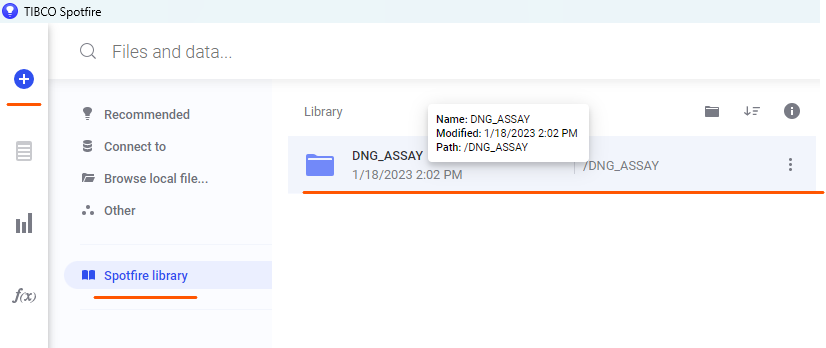
- Open the folder
Library/DNG_ASSAY/<customerAcronym>/Templates.

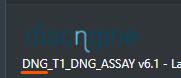
- The
<customerAcronym>can be found in the footer of the application (seeDNGin the image below).
- Choose a template corresponding to the step and data type you want to analyze:
Starting from a template provided with Assay ensures the data can be correctly retrieved.
| Run type | Step | Name | Comments |
|---|---|---|---|
| End Point | Well Validation | ValidationDefaultTemplate | Without reference data |
| Kinetic | Well Validation | ValidationKineticDefaultTemplate | Without reference data |
| HCS | Well Validation | ValidationHCSDefaultTemplate | Without reference data |
| All | Reference Analysis | RefAnalysisDefaultTemplate | val_is_ref = 'Y' |
| All | Sample Analysis | AnalysisDefaultTemplate | val_is_ref = 'N' |
| All | Cross Run | CrossRunDefaultTemplate | Comma-separated list of run_id values |
- Some windows will appear, asking for information:
val_run_id: The ID of the run containing the data
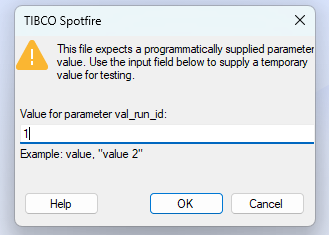
* `val_is_ref`: If necessary, you will be asked if you want to analyze the reference (`Y` or `N`).
Design and Save Your Template
- Add graphs to your template using the available data tables.
- Save your template in both Spotfire and Assay.
Save in Spotfire
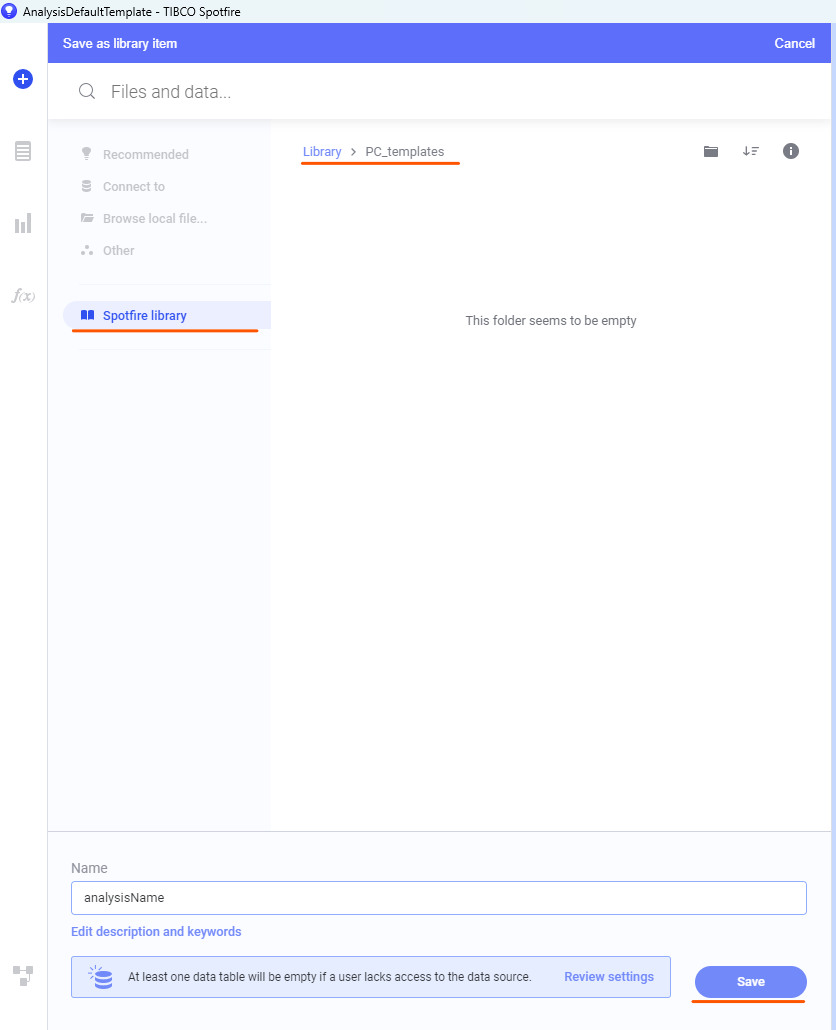
- Once the design is complete, save a copy of this template by clicking
File > Save as > Library Item.
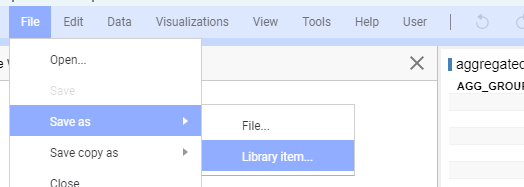
- Save your analysis in the folder
Library/<customerAcronym>_templates(e.g.,Library/PC_templates), and give it a name. - Once saved, copy the location of the template (
<customerAcronym>_templates/analysisName). You will need it for the next step.
Save in Assay
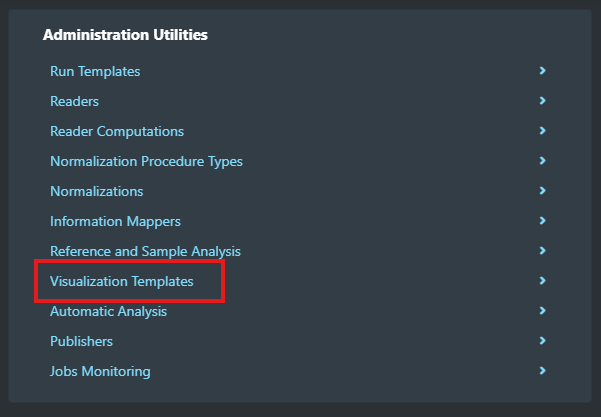
- Go to
Assay > Administration. - Under
Administration Utilities, open the list of visualization templates for your step by clickingVisualization Templates, then select the analysis step (Validation,Reference Analysis,Sample Analysis, orCross Run).
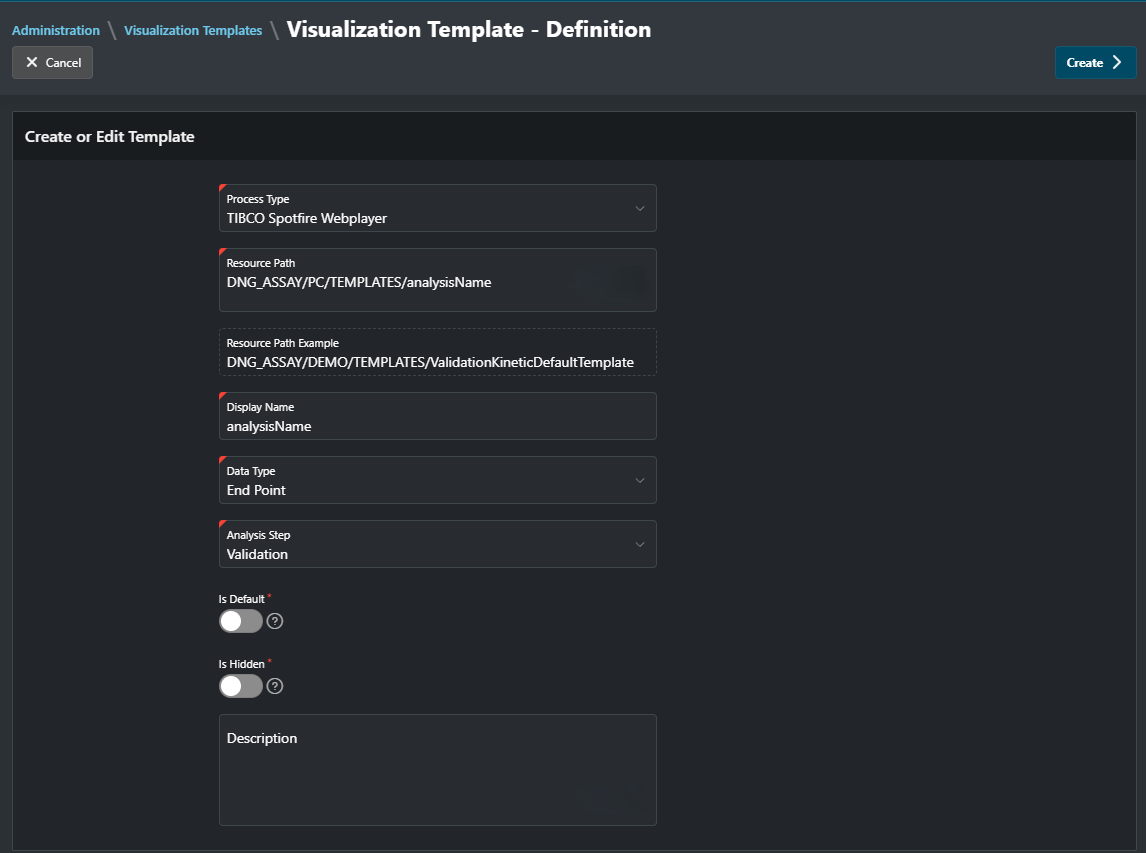
- In the new page, click
Create. - Select
TIBCO Spotfireas the process type. - Paste the location of the template in
Resource Path(<customerAcronym>_templates/analysisName). - Add a
Display Name(this name will be displayed in Assay). - Select your data type:
- EndPoint
- Kinetic
- Cross Run
- High Content Screening
- Select the other options, and click
Create.
Verify
You should be able to open your template in Assay.
- Check you can open your template by opening your run.
Update an Existing Template
If you want to update the content of your template:
- Go to Spotfire Analyst
- Open your template and update it
- Save it using
File > Save - All your changes will be automatically visible in Assay
Note
You can also make changes using Spotfire WebPlayer. Keep in mind that the WebPlayer does not have all the functionalities of Spotfire Analyst.
Update Using Spotfire WebPlayer
You can update the templates directly in Assay, from the visualization pages (Well Validation, Reference Analysis, Sample Analysis, Cross Run).
Update a Visualization Template in the Application
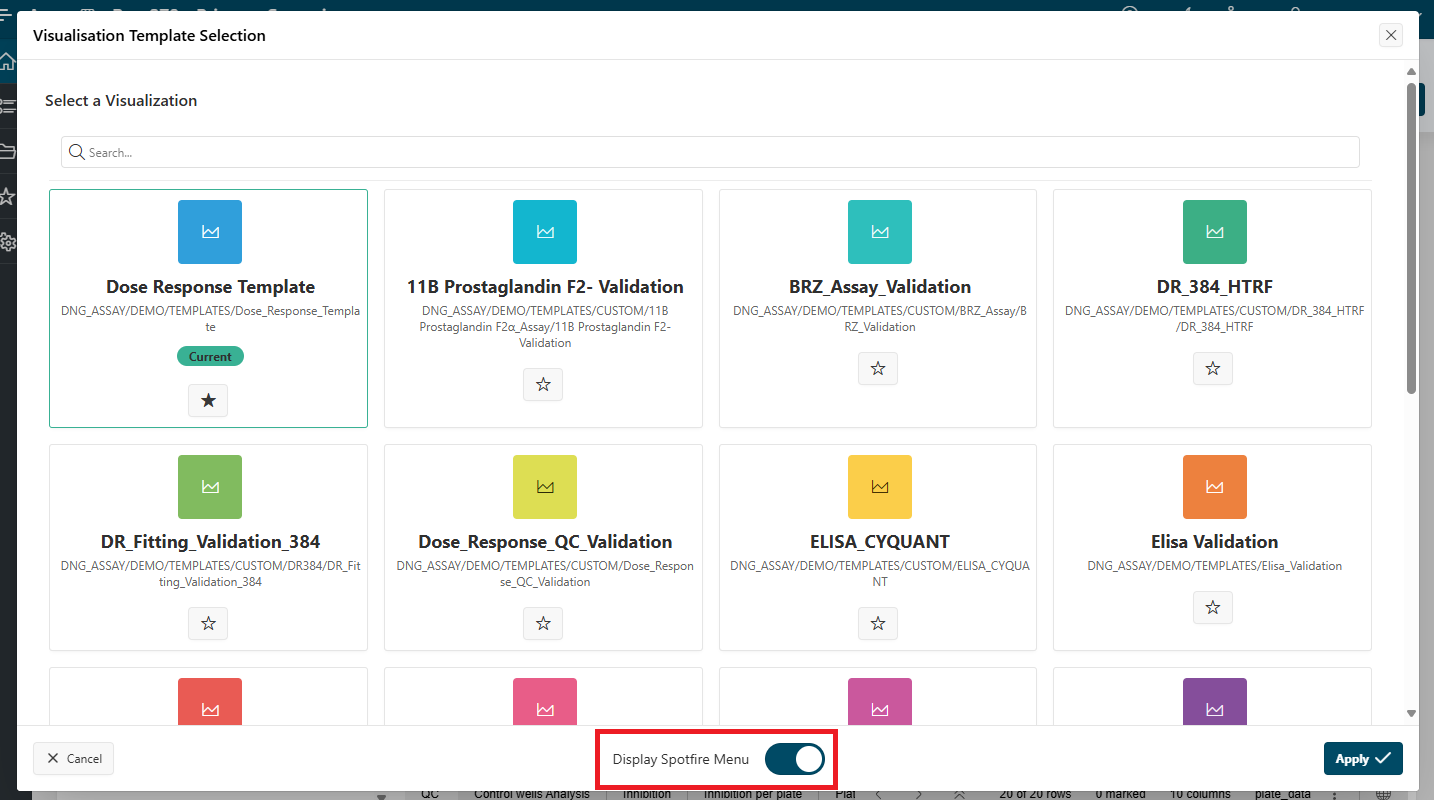
If you want to update a template using Spotfire WebPlayer, click the gears icon in the top right of the page.
- On this page, choose the template you want to update, enable
Display Spotfire Menu, and clickApply.- Spotfire will be refreshed and will display the menu bar.
- Switch from
ViewingtoEditingmode.
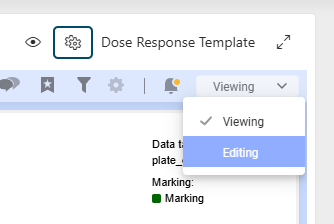
- Now, you can make changes to your templates.
- To save your changes, use the Spotfire Menu (
Three Dots > File > Save). - The changes will be saved in the Spotfire Library.
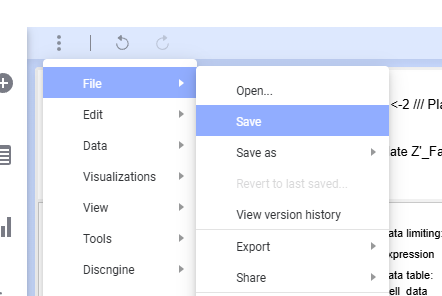
By refreshing the page or going back to the template options, you can deactivate the Spotfire menu.
Update the Template Path
Info
To be able to update the template path, no run must be associated in Assay (run locked using this template).
If you want to rename your template or update its location in Spotfire:
- Go to
Assay administration > Administration Utilities > <Step> Visualization Templates. - Click the
Editbutton next to your template. - Update the
Resource Path, and clickSave.
Update the Name Visible in Assay
- Go to
Assay administration > Administration Utilities > <Step> Visualization Templates. - Click the
Editbutton next to your template. - Update the
Display Nameand clickSave.