Protocols
A protocol is required to publish data in Warehouse. It defines the parameters you wish to publish as data inputs and the aggregation methods you wish to apply to consolidate your data in Warehouse after publication.
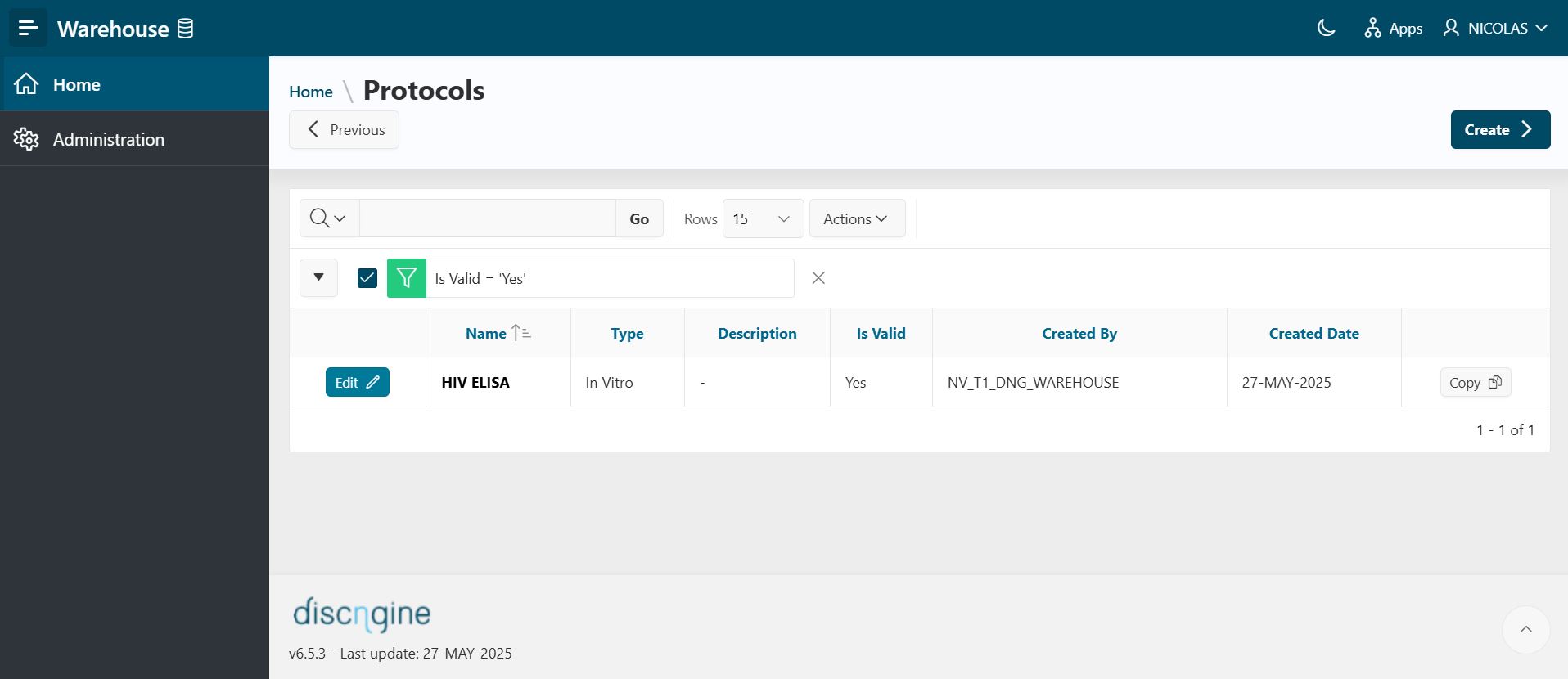
To see a report on protocols, open the Protocols page from the main page of Warehouse.
See and Edit an Existing Protocol
- In the Protocols report, click the
Editbutton. The Edit page opens.
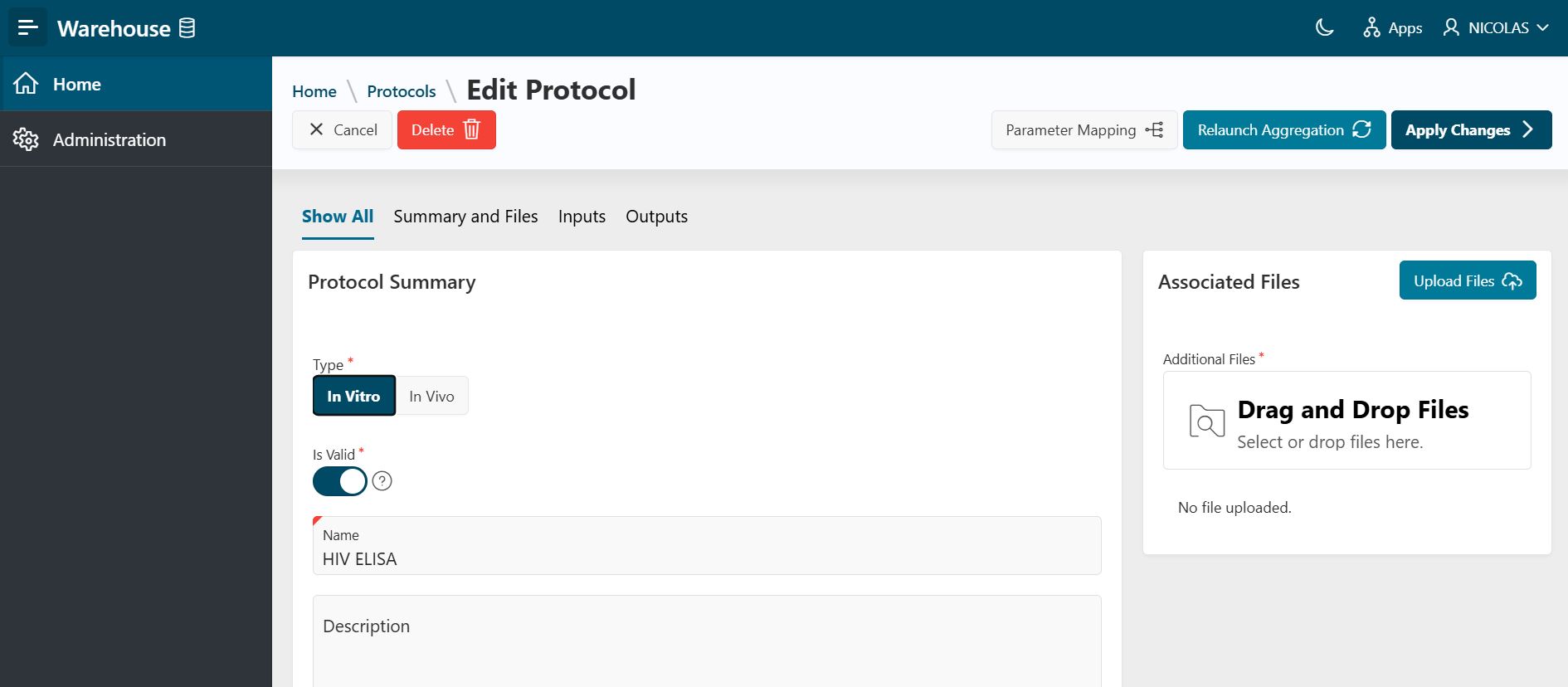
- On this page, you can view and edit any fields of the protocol (type, validity, name, description, inputs, outputs).
- Click
Apply Changesto save your changes. If the protocol has associated data, consolidations are recomputed.
Info
To relaunch protocol data aggregation, click Relaunch Aggregation.
Create a New Protocol
Info
To create, update, or delete a protocol, you need to have the Warehouse Protocol Manager role.
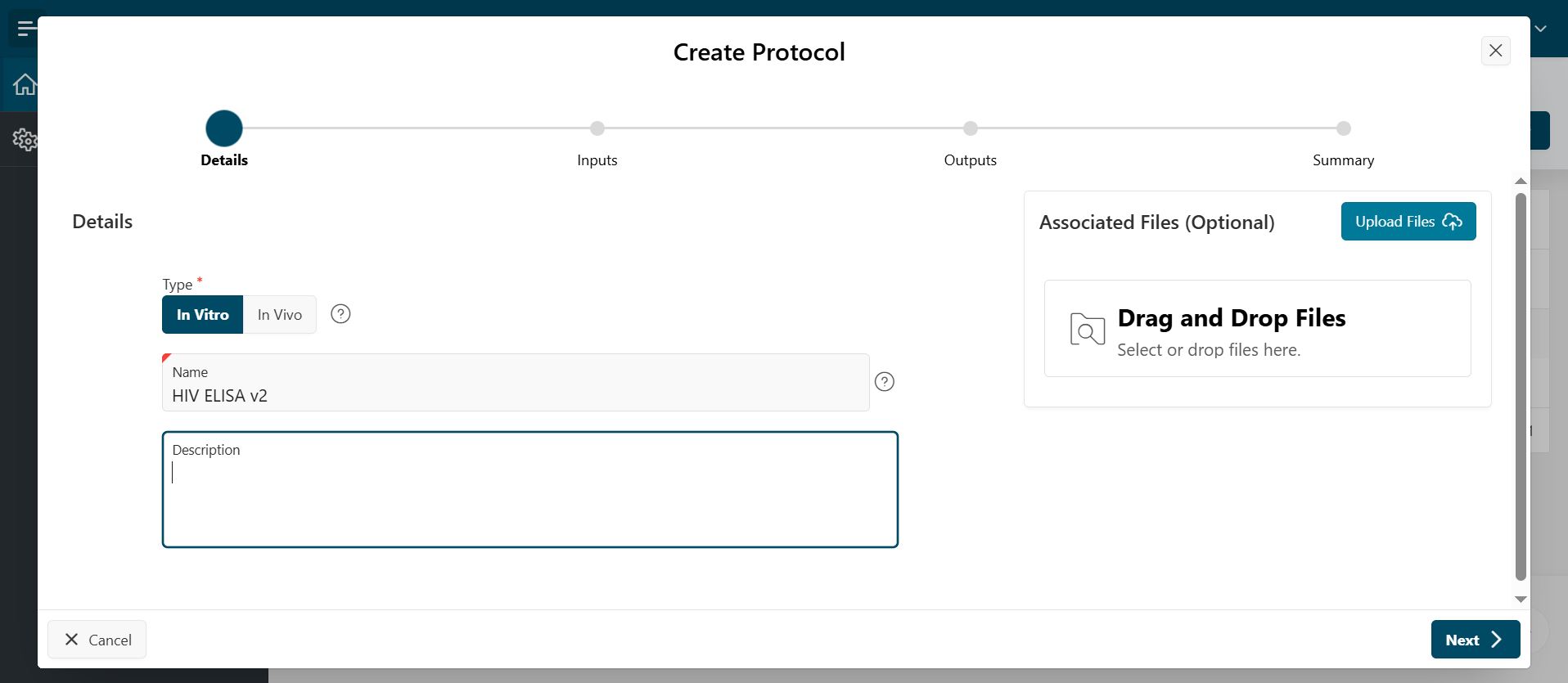
To create a new protocol, click the Create button. A wizard opens to guide you through the protocol creation process.
Details
- Fill in the Details section by providing the following information:
- Type: Select the type of protocol (see Protocol Types in the Administration section if you wish to add other types of protocols).
- Name: Assign a name to the protocol.
- Description: Provide a description of the protocol (optional).
- Additional Files: Add files as experimental details or other (optional).
- Click
Next.
Inputs
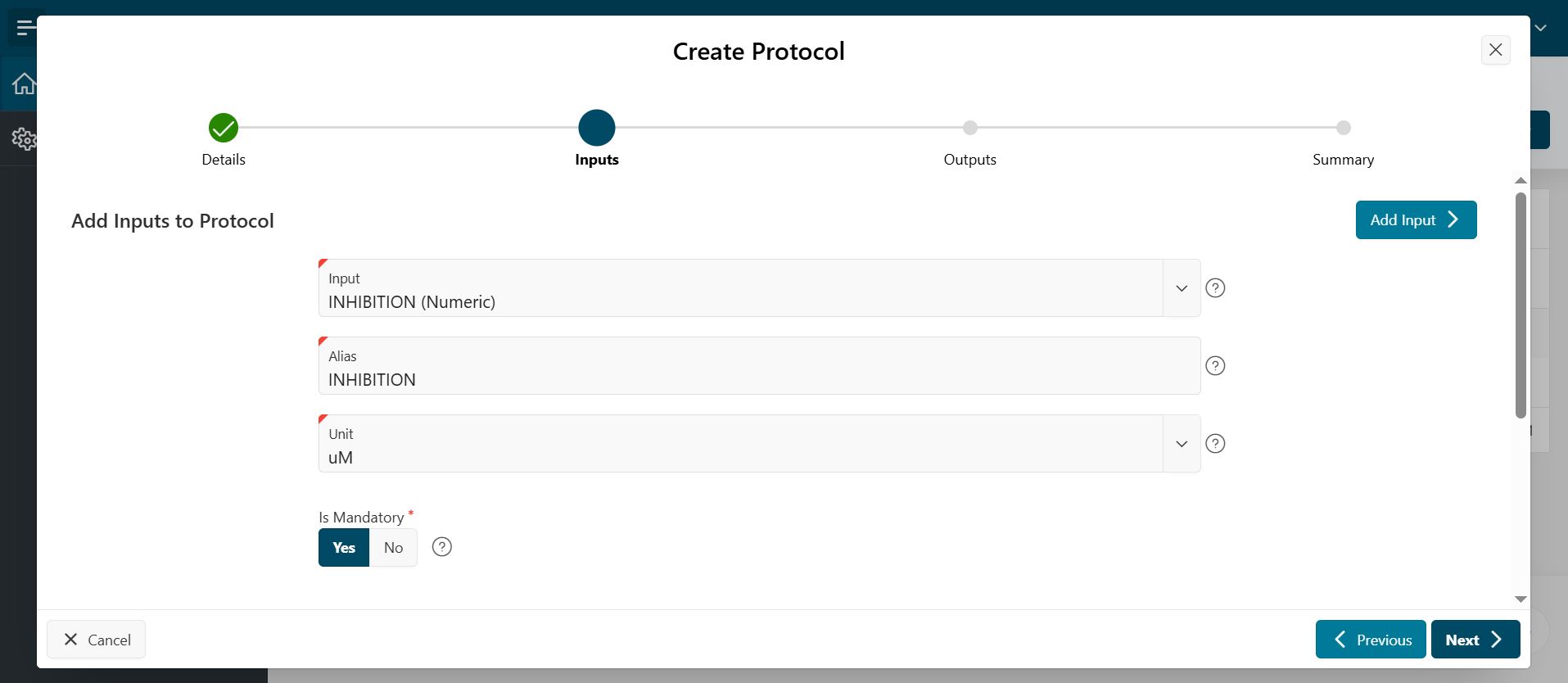
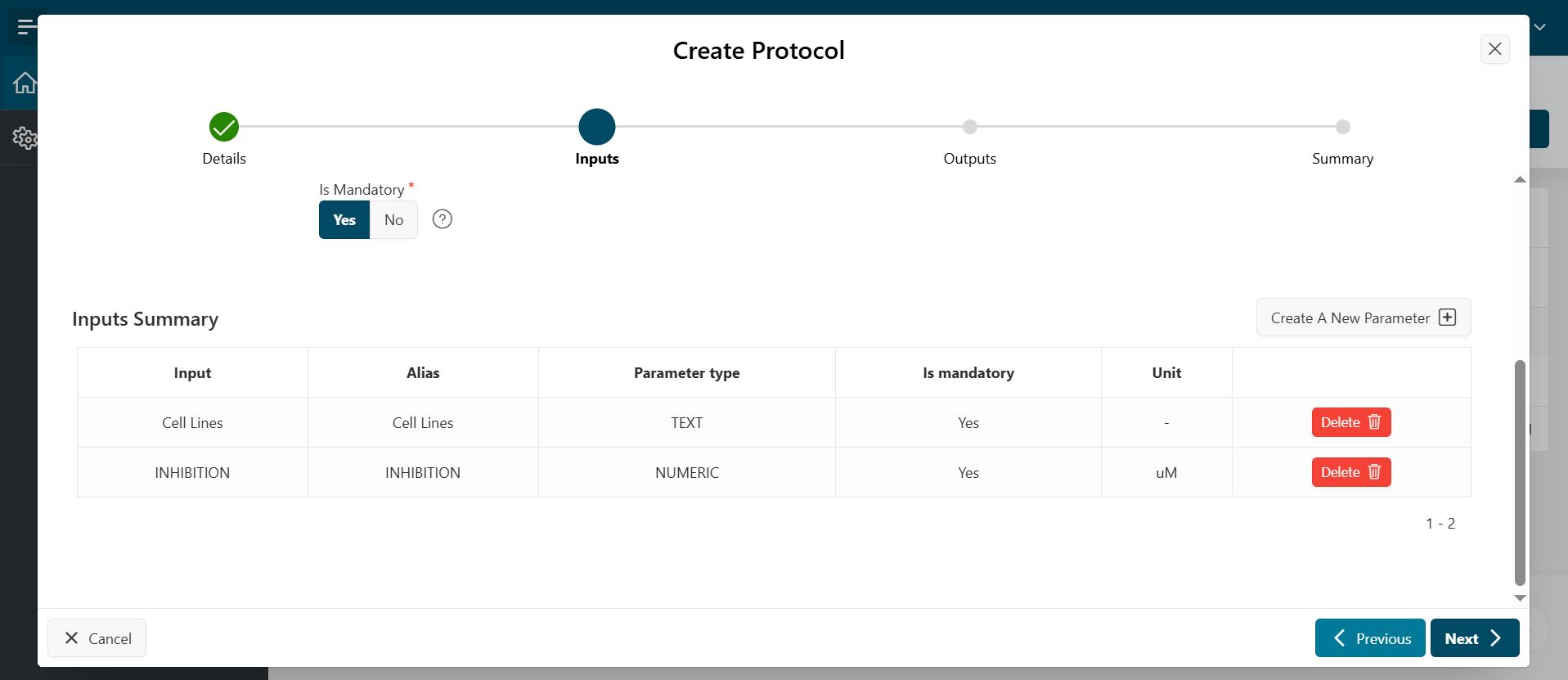
- Fill in the Inputs section by providing the following information:
- Input: Select a parameter as a data input. If the parameter is not available in the drop-down menu, click the
Create Parameterbutton to create a new parameter (see Parameters). - Alias: An alias is automatically generated for the input, but you can modify it if required.
- Is Mandatory: Indicate if this input is mandatory or optional during the publication process.
- Input: Select a parameter as a data input. If the parameter is not available in the drop-down menu, click the
- Click
Addto add the selected parameter to the Inputs Summary section.
- Click
Nextwhen you have entered all the required parameters.
Outputs
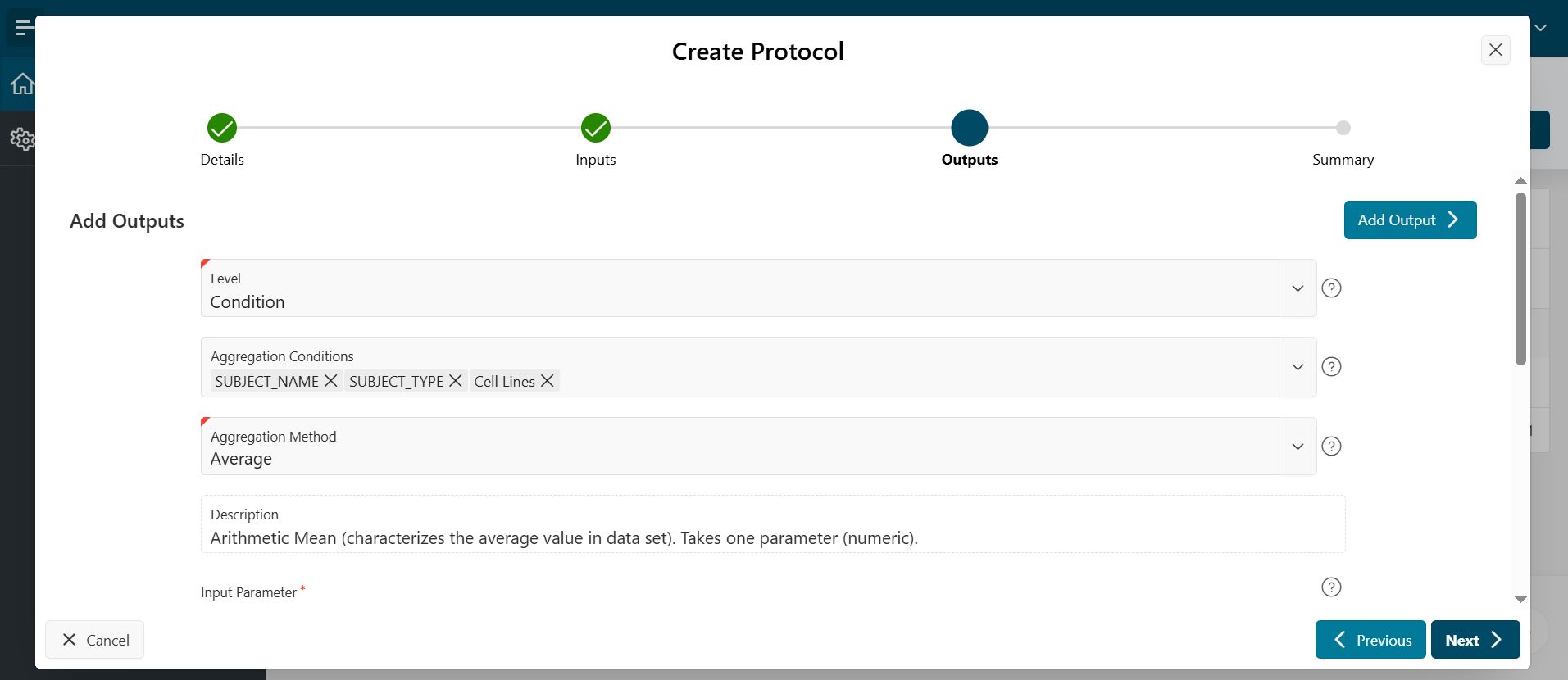
- Fill in the Outputs section by providing the following information:
- Aggregation Conditions: Choose parameter conditions used to aggregate data. By default, subject name and subject type are set and cannot be removed.
- Aggregation Method: Choose an aggregation method to apply to the input parameter.
- Input Parameter
- Alias: An alias is automatically generated for the output, but you can modify it if required.
- Click
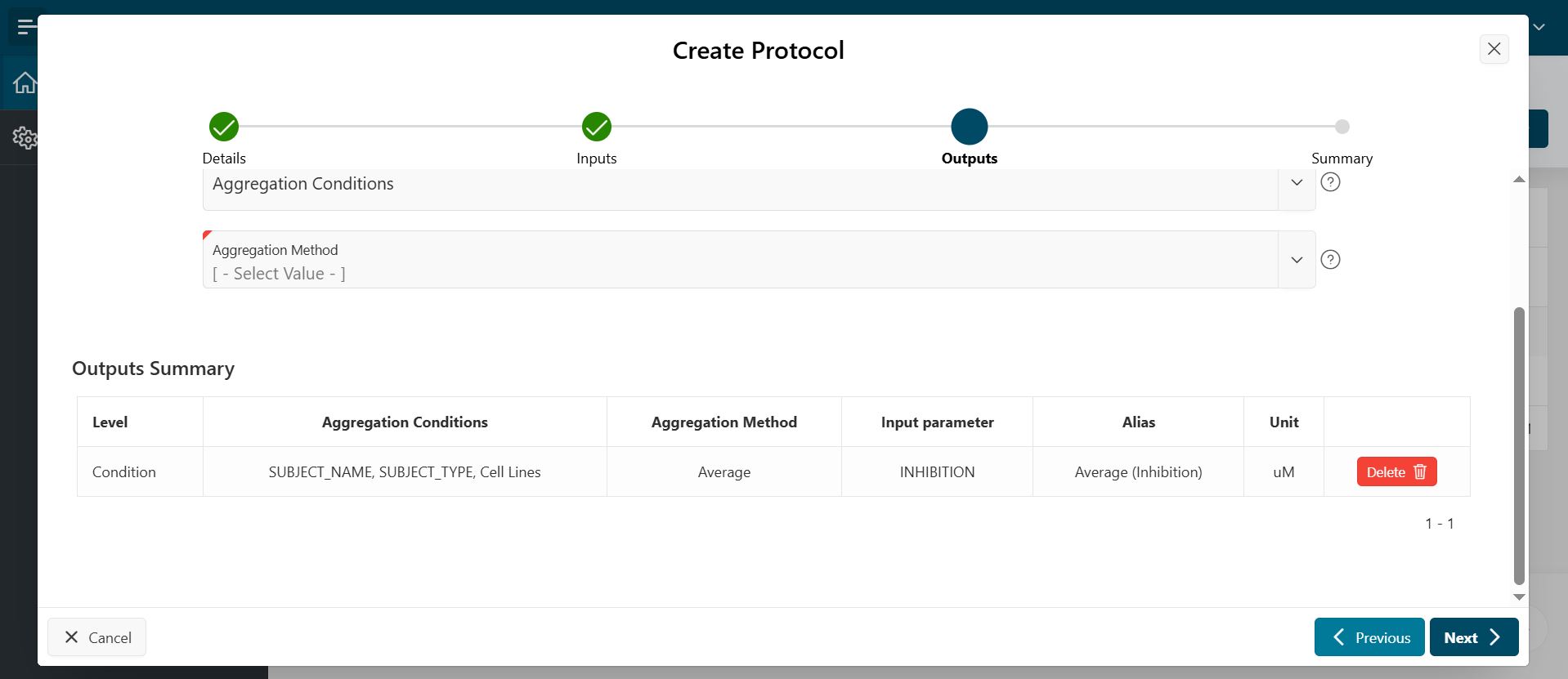
Addto add aggregations to the Outputs Summary. You can add several aggregation methods to the same parameter.
- Click
Nextwhen you have selected all required aggregations.
Protocol Summary
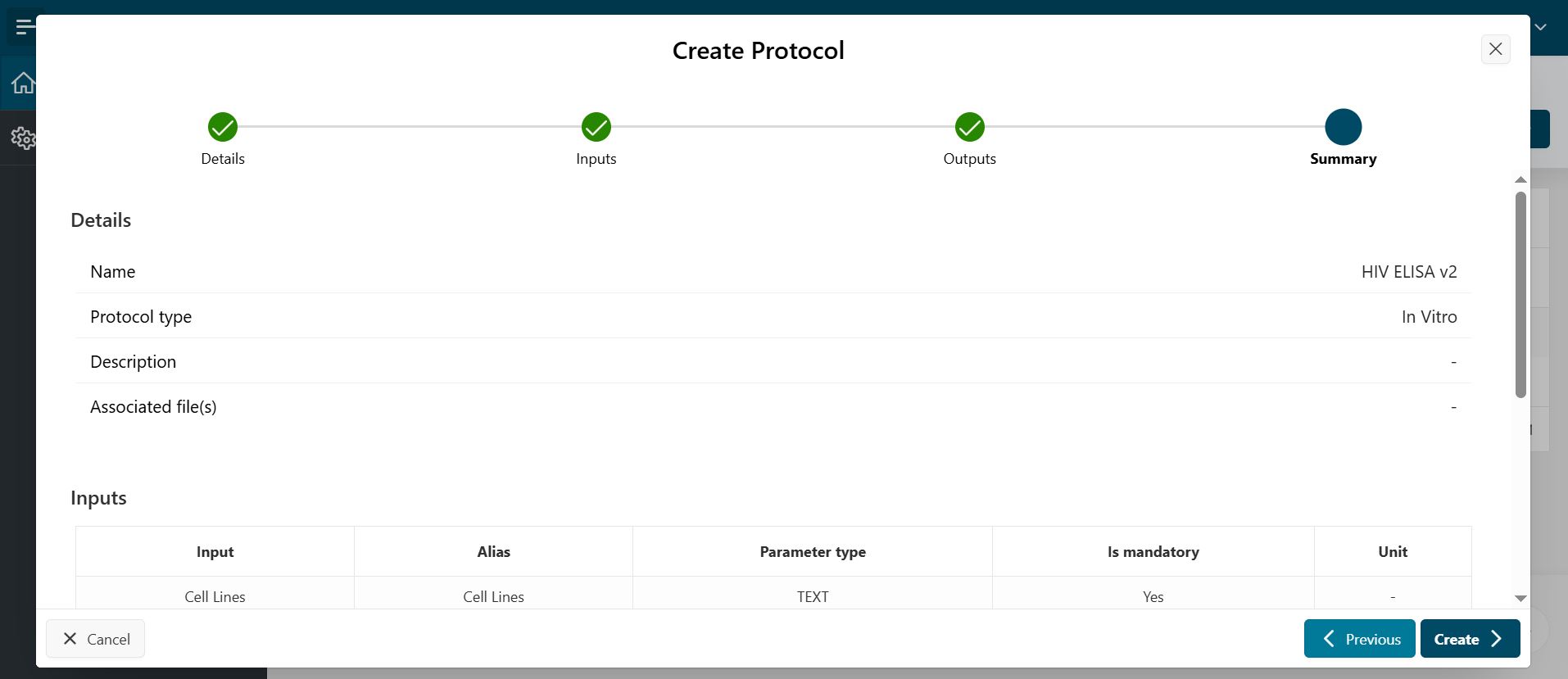
- On the Protocol Summary page, you can review your protocol inputs and outputs.
- Click
Createto create your protocol.
Delete a Protocol
From the edit page, you can delete a protocol by clicking Delete. If the protocol is already used to publish data, it cannot be deleted.