Well Types
Well types are used to design control layouts in the applications, used by both Sample and Assay.
The Is Control flag indicates if the well type is used as a control.
- In
Assay, this is important for the normalization step, where a control well type may be required as a parameter.
The Is Reference flag indicates if the well type is used as a reference.
- In
Assay, having a reference well type in a plate layout allows you to perform reference analysis. - Also, associated wells will be ignored in
Sample Analysisaggregation, and this information can be used for normalizations that rely on reference analysis results.
The Is Hidden flag determines whether a well type can be added to a control layout.
- If a well type is hidden and already used in a layout, the layout remains available, but the well type cannot be added to another layout.
Well Types List
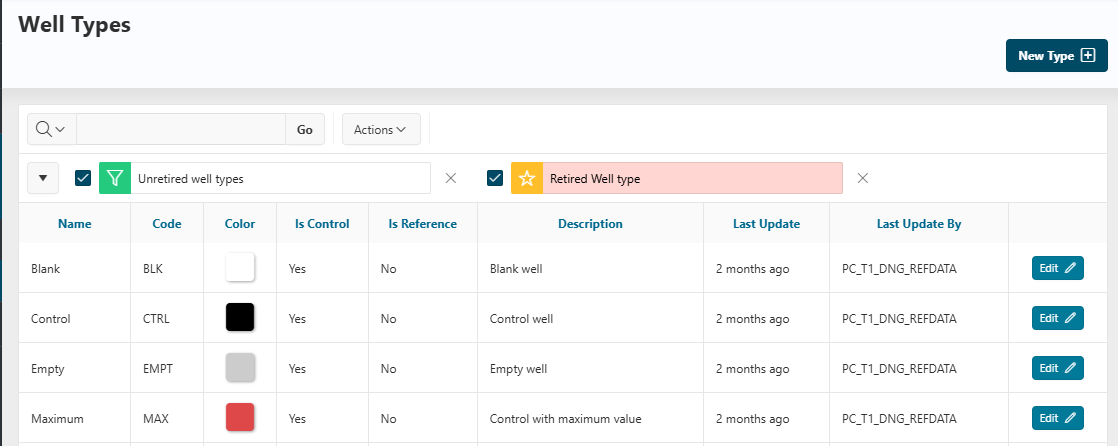
To view all well types, click on Labware items > Well Types in the left navigation panel.
All well types created in the application are displayed on this page.
Create a New Well Type
To create a new well type, click the New Type button in the well types list. A form will appear where you can enter the following information:
- Name: The display name for the well type.
- Code: A unique code for the well type.
- Color: The color used to display the wells in the plate viewer.
- Description: An optional description for the well type.
- Is Hidden: Whether the well type can be added to a plate layout.
- Is Control: Whether the well type is used as a control.
- Is Reference: Whether the well type is used as a reference.
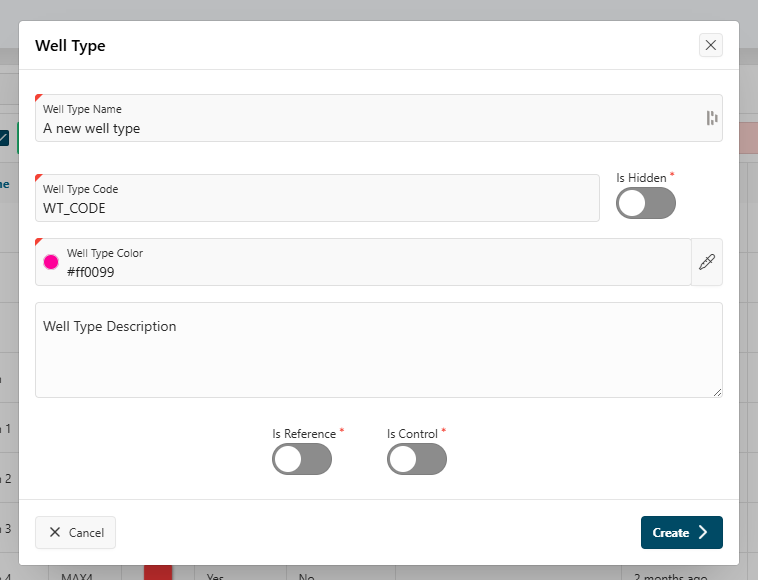
Click Create to add the new well type. It will appear in the list.
Edit an Existing Well Type
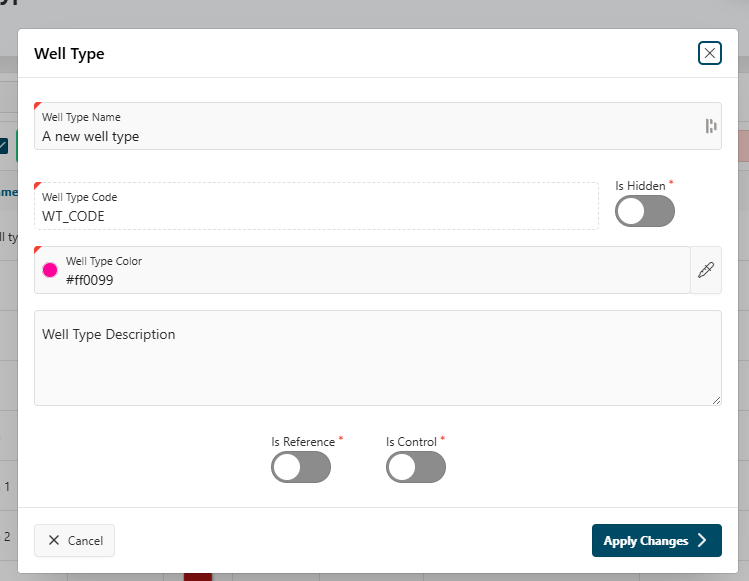
To edit a well type, click the Edit button next to the well type in the list. The details panel will open on the right.
You can update the following fields at any time:
- Name
- Color
- Description
- Is Hidden
- The Is Reference and Is Control flags can only be changed if the well type is not involved in a layout.
After making your changes, click Apply Changes to save.
Info
To display hidden well types in the list, untick the Unretired well types filter at the top of the report. This will show all well types, including those marked as hidden.