Tutorial - Combine Source
Introduction
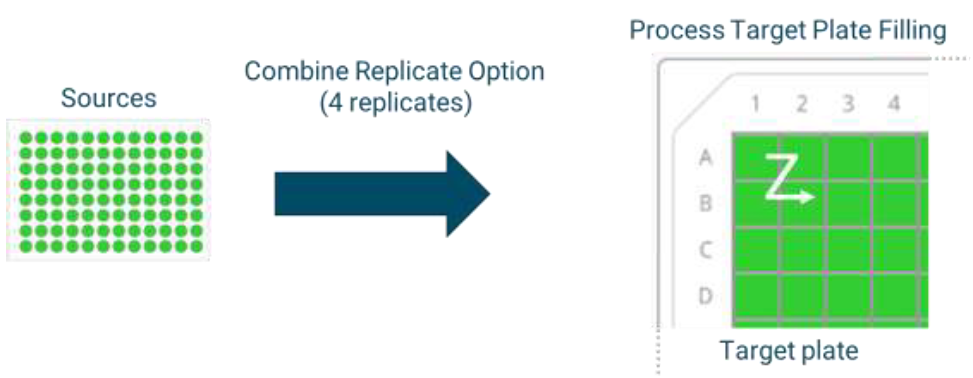
In this tutorial, you will combine the content of four 96-well plates into 384-well plates as illustrated below.
Prerequisites
Required permissions and setup
Sample Processing role is required to access this workflow.
Required system configuration:
- Container Types:
Greiner PP96V,Greiner PP384V, - Container Usage
Inventory,
These should exist by default in the Sample application.
Items
Containers and locations created from Discngine Sample’s automation will be used:
- 96-well plates “PTEST001” to “PTEST004”
- Location “Paris" Automation is running during installation if “example_dataset” is set to true in the configuration file.
Workflow
Job Initialization
Create a new job and select the Plate Reformatting workflow.
Requesting
- Select Plate as Source Type
- Select Generate New Barcode as Target Plate Barcode
- Choose Greiner PP384V as Target Plate Type
- Specify Request from Text
- Copy/paste the plate name in the text area: PTEST001:PTEST002:PTEST003:PTEST004
- Click
Add IDsto confirm. The plates are listed in the added requests. - Click
Next
Task Requesting
- Choose Reformatting Mode = Combine Source
- Target Quadrant = 1
- Target Usage = Inventory
- Select Number of Copy = 2
- Target Volume = 30 μl
- Dilution = Target
- Dilution Mode = Dilution Factor
- Dilution Factor = 10
- Buffer (Solvent) = DMSO
- Offset Volume = 0 %
- Offset Solvent = 0 %
- Click
Add Task.
Repeat these settings for quadrants 2, 3, and 4.
The “Combine Source” option will follow the sources plates in the order they were added. Here, the process will make a transfer from the first well of PTEST001 into the corresponding quadrant 1 of the new 384-well plate, then from the first well of PTEST002 into the quadrant 2, and so on (see figure in Introduction).
Info
Note the order you define plate requesting impacts the generated worklist.
Example - PTEST001 is requested before PTEST002, so PTEST001 and PTEST002 will be transferred in the quadrant 1 and quandrant 2 respectively.
Compared to the other option (see the Reformatting – Combine Replicate tutorial), this offers better control over the order of the samples in the target 384-well plate.
- Click the
Nextbutton.
Sourcing
Plates are successfully sourced if the requested tasks are compatible (e.g. sufficient volume). All Plates (PTEST001 to PTEST004) should be sourced.
- Click
Next
Processing
- Select the Standard (Container) (;) equipment and By Request for File Order
- Click
Generate worklist
A worklist file appears in the Worklist Generator area. It contains the requested tasks to execute. The Worklist Parser area expects a file containing the information about the tasks that were actually completed. By default, the generated file is set in the Worklist Parser. For this tutorial, we assume that every task was completed successfully, so we’ll keep this default file.
- Click
Copy Worklist - Click
Nextto propagate those changes in the system. The tasks are processed in the Sample application.
Storing
The Storing step allows you to assign a location to the items involved in the job. First, for the output plate (plate created during the job).
- Click
Assign Location to Selected - Select Paris > HTS Lab and click
Selectto confirm your choice. - Click
Nextto continue to the input plates. Here, we won’t change the input plates location. - Click
NextYou can increment the Thawing Cycle count of the input plates if necessary.
Pipe & Close
The Pipe & Close step provides a summary page where you can review the job and optionally pipe it to another workflow.
You can also pipe this job to another one, allowing you to immediately start a new job using the output or the input plates from this one.
For this tutorial, click the Close & Quit button to finish the job.