Annotations
Annotations in Reference Data are attributes that can be added, deleted, or modified for one or more objects across multiple applications. This documentation explains what annotations are and how to manage them in Reference Data.
Info
You can only add and edit annotations if you have the Reference Data Administrator role. Other users can only view the annotations (Reference Data User).
Definitions
- Annotations: An annotation is an attribute that can be attached to one or more objects in one or more applications. You can annotate many objects from various applications.
- Objects: An object is the target of an annotation. It can be a material (like a plate) or something immaterial (like an assay result). Objects are defined by sub-applications (e.g.,
Assay,Sample) in Reference Data by a developer. An object in an application can have several annotations. - Types of Annotations: Each annotation has a type:
- Text
- Number
- Or is based on a Vocabulary defined in Reference Data.
Accessing Annotations
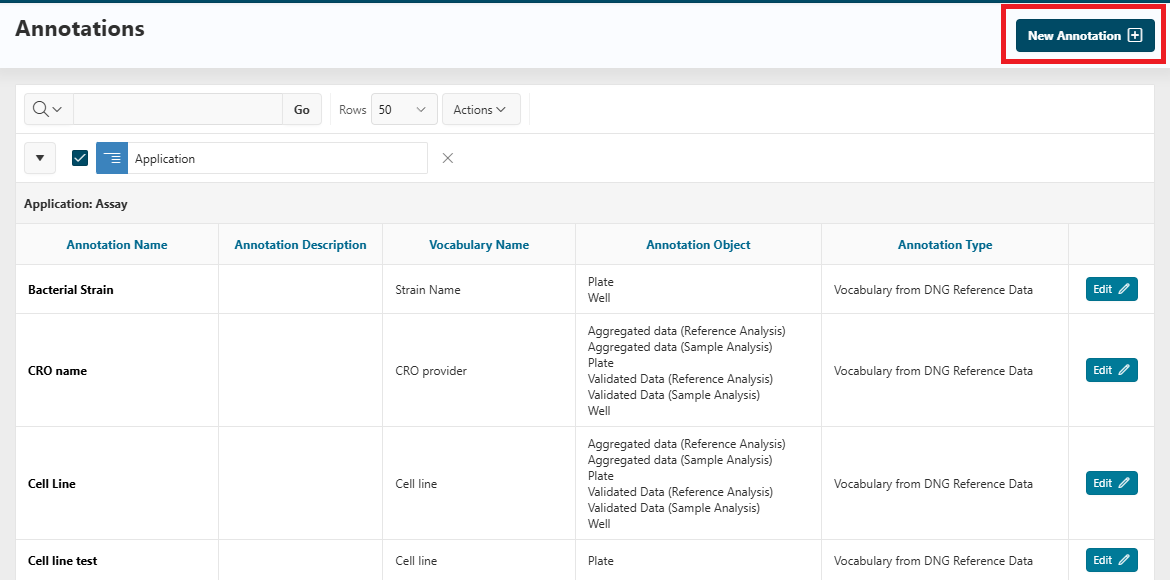
From the Reference Data homepage, select Annotations in the side panel.
- This page displays all annotations for all applications.
- You can use the search bar and actions to filter and organize them as needed.
Create a New Annotation
From this page, to define a new annotation, click the New Annotation button at the top right corner of the annotation page.
You will be redirected to a modal dialog where you can enter the following information:
- Name: The name of the annotation.
- Unique code: The code of the annotation. It must be unique across all applications.
- Type: The type of the annotation, which can be Text, Number, or Vocabulary.
- Source of values: If the type is Vocabulary, you must specify the source of values, usually
DNG Reference Data. - Controlled Vocabulary: If the type is Vocabulary, you must select the controlled vocabulary from which the values will be taken. See the Vocabularies guide for more details on how to create and manage vocabularies.
- Target objects: The objects that can be annotated with this annotation. You can select one or more objects from the list of available objects.
- For example, you can select
PlateandWellinAssayto allow annotating plates and wells using this annotation.
- For example, you can select
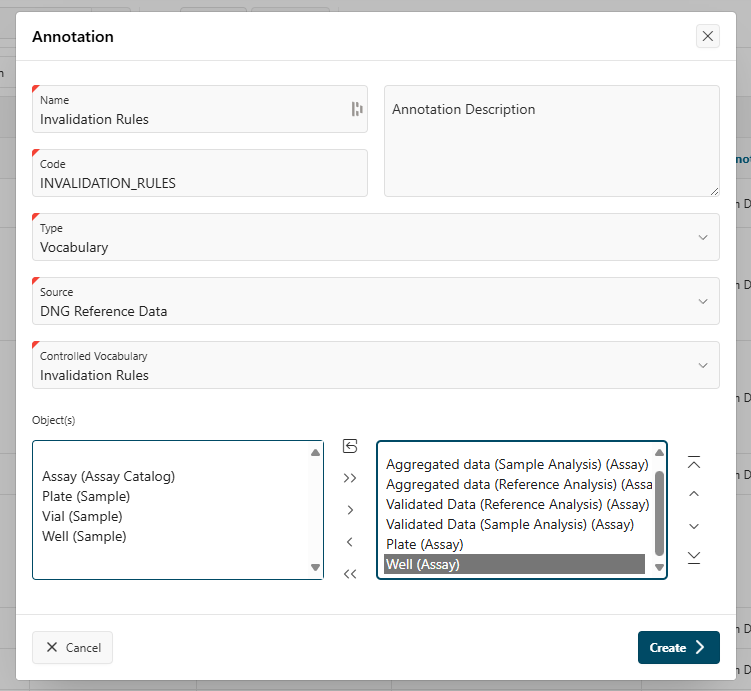
Finally, click the Create button to create the annotation.
Update an Annotation
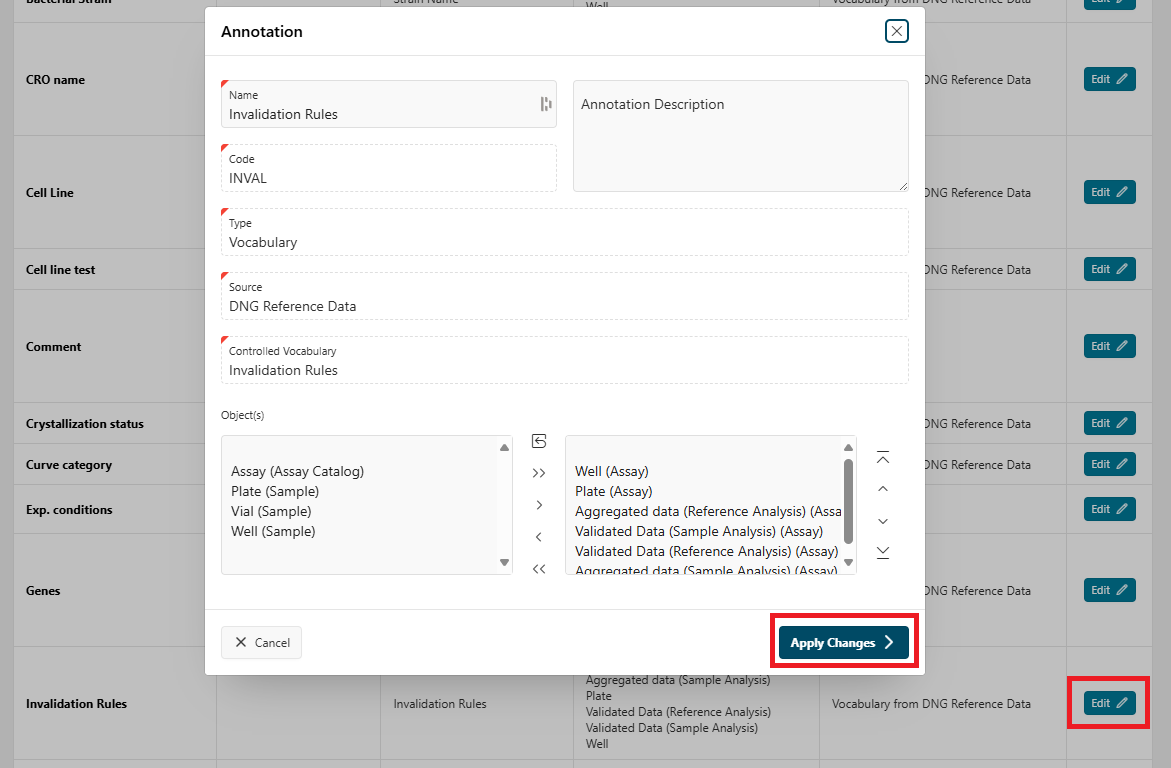
To modify the name or target objects of an annotation:
- Click the
Editbutton next to the annotation name in the list of annotations. - You will be redirected to a modal dialog where you can modify the name, description, and target objects.
- Click
Apply Changesto save the modifications.
Hide an Annotation
To delete an annotation, go to the edit panel. Then, remove all associated objects as described above, and click Apply Changes.
The annotation will be hidden in the system.
Example for Assay
In the example above, an annotation Invalidation Rules has been created and associated with all the Assay objects (Plate, Well, any data).
Thanks to this action, the Run Designer in Assay can now add the Invalidation Rules annotation to all objects involved in a run.
In the image below, Invalidation Rules is available for them to link to the run. Here, they can add it to the aggregated data.
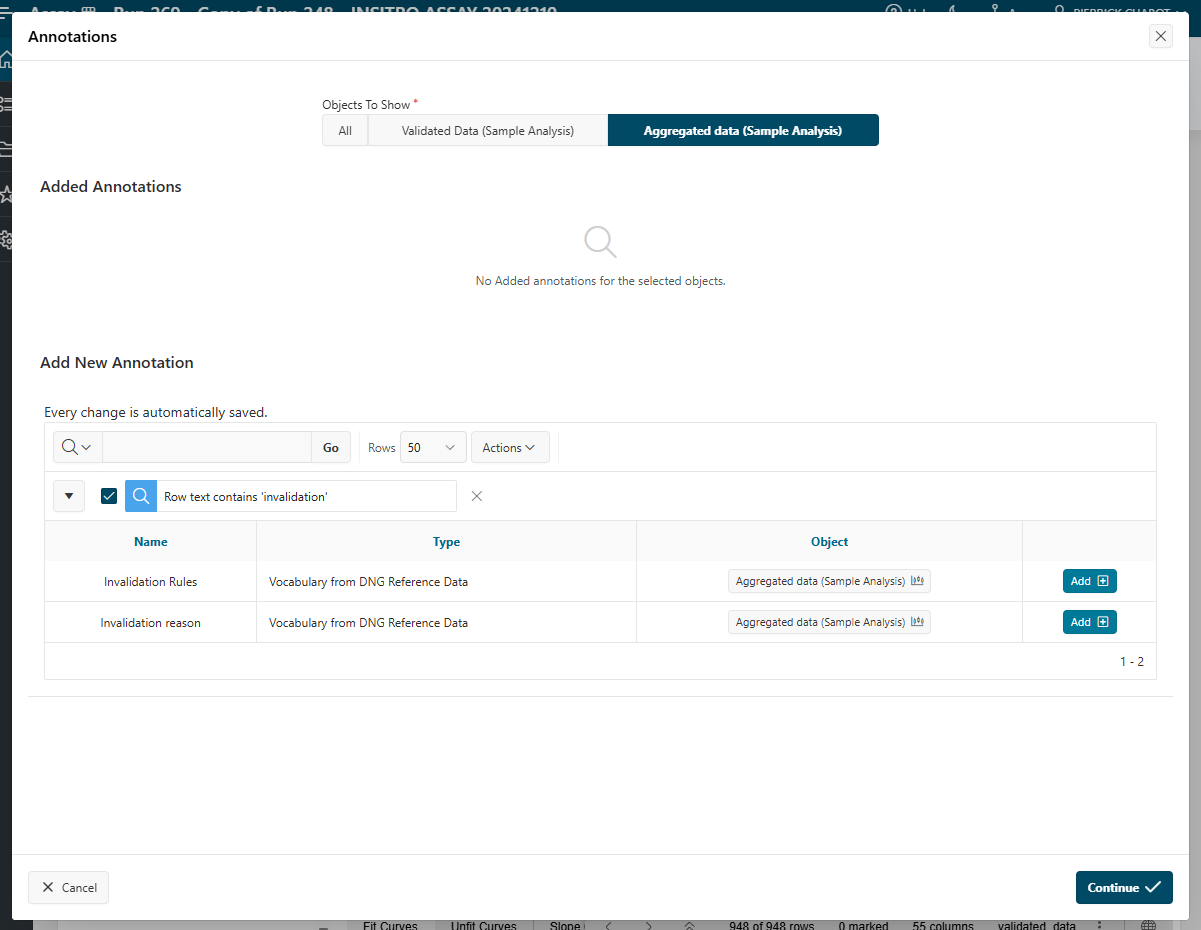
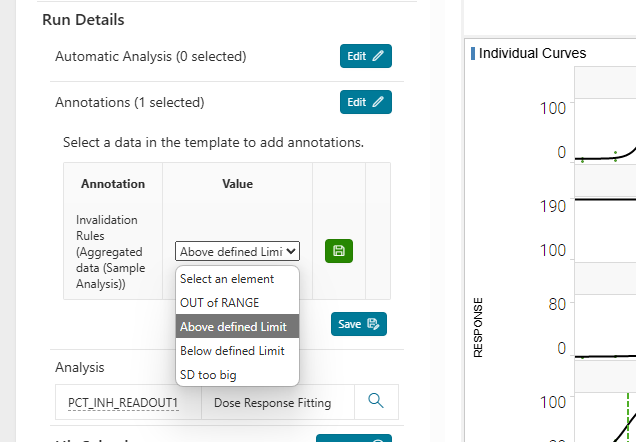
Then, any aggregated data can be annotated with the Invalidation Rules annotation, as shown below.
As it is a controlled vocabulary, the user can select one of the values defined in the controlled vocabulary and save it.
Annotations can be difficult to understand at first, but they are a powerful way to add custom metadata to any object in the applications.
Info
To learn more about how to use annotations in Assay, see the Assay documentation.