Add annotation values
Filling Annotation Values
To set a value on an object for a given run annotation, start by selecting object(s) in the Spotfire visualisation. After a moment, a panel appears in the side panel containing all the run annotations.
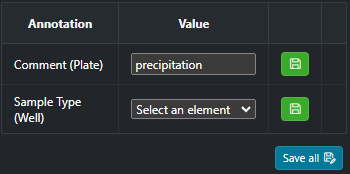
You can fill in the value you want for each annotation.
By clicking Save all, you will save, for all selected objects, the values filled for all annotations at once. By clicking the associated green Save button, you will save values for selected objects.
Modifying Annotation Values
To modify an annotation on an object, start by selecting the object(s) you want to modify in the Spotfire visualisation. After a moment, the panel in the side panel contains the current value for annotation objects.
You can fill in the new value and then click the green Save button.
Mistakes
Sometimes, some fields will be colored in orange and an exclamation point will appear. This means that you are modifying several objects with different values, including no value. If you have some fields with this color, we highly recommend not using the Save all button to avoid mistakes in annotations.

Delete Annotation Value
To delete an annotation value on one or more objects, start by selecting objects in the Spotfire visualisation. After a moment, the panel in the side panel is updated with the current value. To delete the value for selected objects, click the red Delete button associated with the annotation. A confirmation message will appear. After selecting OK, the value will be deleted.
Comments (Deprecated)
Deprecated
The comments feature is deprecated and will be merged with the annotation feature in the future.
To comment on one or more groups in the Reference Analysis or Sample Analysis steps, follow these steps:
- Select them in the visualization panel (marked in green).
- Click
Showin theCommentsregion in the left panel.
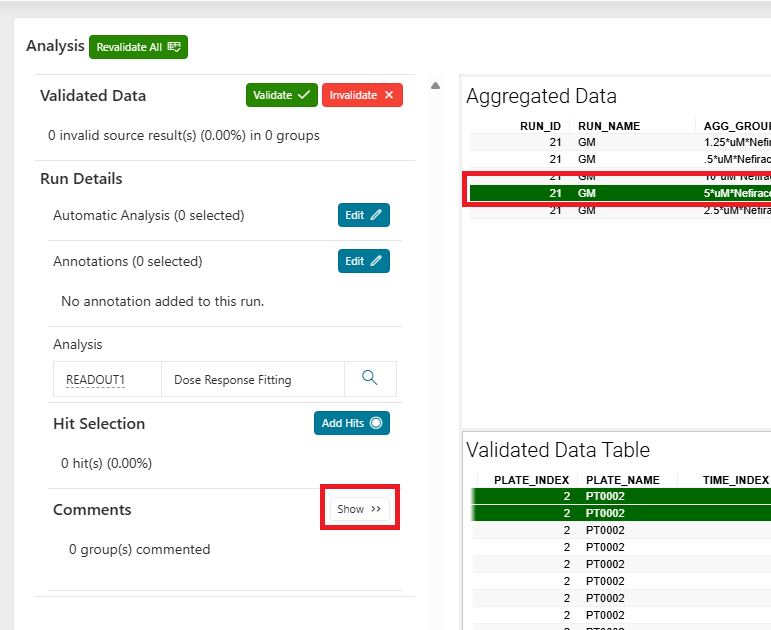
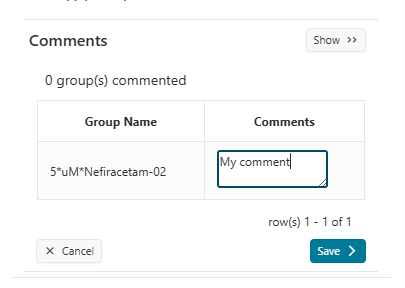
- Type your comment in the text area and click
Saveto save it. - You can also cancel your changes by clicking
Cancel.
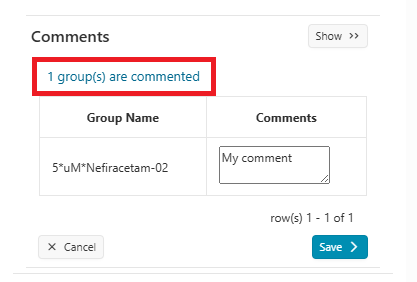
- To retrieve the comments, select the groups in the visualization panel, or click the message "X group(s) are commented" in the left panel.
- To delete a comment, remove the text and click
Save.