Publish, Close, Save as Template
Info
To publish or close a run, you must have the Assay Publisher role. To save a run as a template, you must have the Assay Designer role.
The last step of the run design is to decide whether to close or publish the run. Once done, you can save the run as a template to use in execution mode, where all the configuration will be automatically retrieved.
Options
Closing or publishing a run can be done in several ways. You can choose to:
- Directly close your run:
- The run is closed, and no data will be published.
- Runs using the template can only be closed.
- Select a publisher and publish your run:
- First, choose how the data is published.
- Then, publish the data (usually to Warehouse).
- Runs using the template can be closed or published using the parameters you defined.
- Select a publisher and close your run without publishing:
- First, choose how the data is published.
- Then, close your run.
- This is useful if you want runs using the template to be published, but do not want to publish the current run.
- Runs using the template can be closed or published using the parameters you defined.
Then, you can save your run as a template.
Info
When closed or published, the run can be reopened for further modifications only if there is no run execution created using the run template.
Close a Run
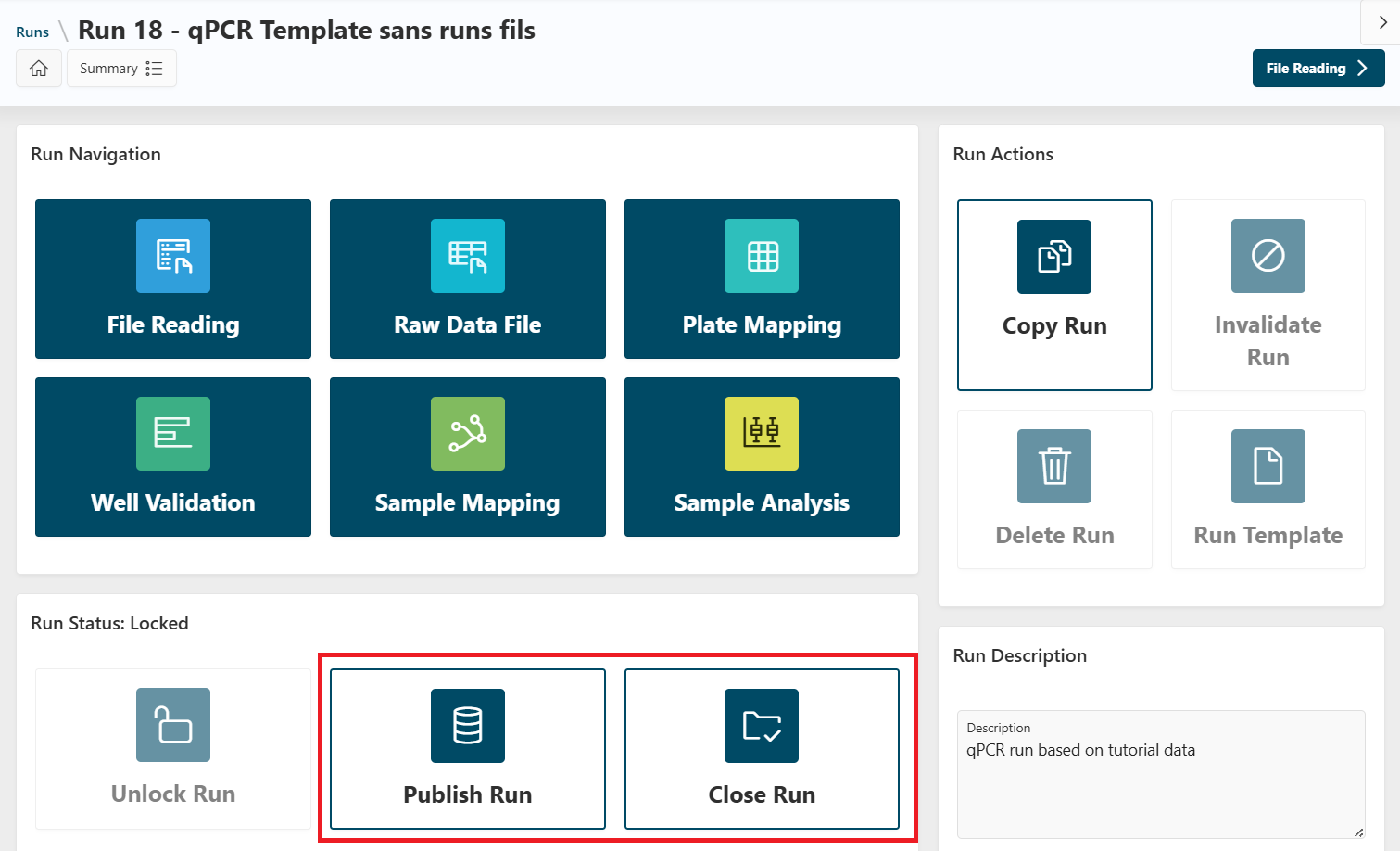
When the run is locked, it can be closed from the Sample Analysis page or from the Run Details page.
- From the Run Details page, click
Close Run. Your run will be closed.
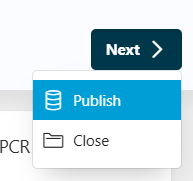
- From the Sample Analysis page, click
Next, and thenClose. Your run will be closed.
Publication
Info
APIs are available to retrieve data from Assay directly in your warehousing system. Please contact us if you are interested.
You can access the publication page in two ways, similar to closing a run:
- From the Sample Analysis page, click
Next, thenPublish. - From the Run Details page, click
Publish Run.
In both cases, you will be redirected to the publisher selection page.
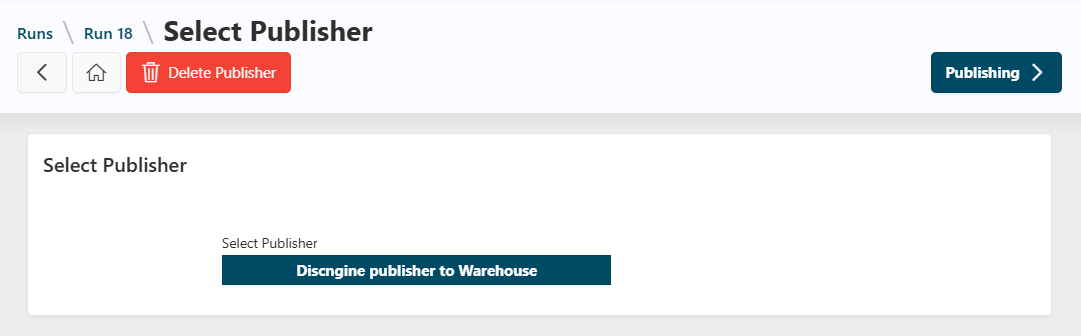
Select Publisher
Info
If only one publisher is available (e.g., Discngine publisher to Warehouse), you will be automatically redirected to the publication page.
On this page, select the publisher you want to use to publish your run. The publisher is the system where the data will be sent (e.g., Warehouse).
- Click
Publishingto select the publisher and go to the next step.
Publish Run
The next step is to publish the run using the selected publisher. The publisher page is different depending on the publisher you selected. On this page, you can select how the data will be published.
Using Warehouse
In the Warehouse publisher page, you can select a protocol created in Warehouse. A protocol is a set of parameters used to publish the data.
If there are parameters linked to the protocol, you can fill them in the Protocol Parameter(s) section. You will be able to link the expected parameters to those created in your run.
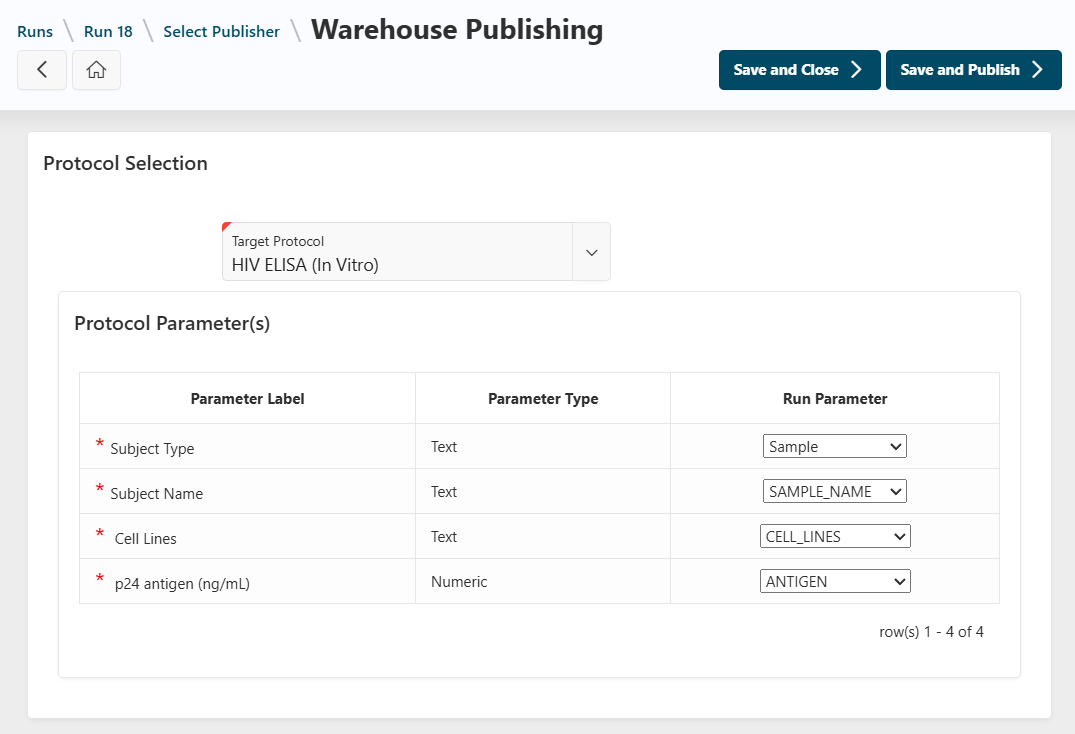
Then, you will have to choose between closing or publishing the run:
- Click
Save and Closeto save the publication parameters for future dependent runs and close the run. - Click
Save and Publishto save the parameters and publish this run.
Info
You can unpublish a run published in Warehouse. Go back to the Publishing page and click Unpublish. The run will be unpublished, and the data will be removed from Warehouse.
Save as Run Template
Once the run is closed or published, an assay designer can save it as a run template to be used in execution mode.
To do so, go to the Run Details page, and click on Run Template. A modal will open.
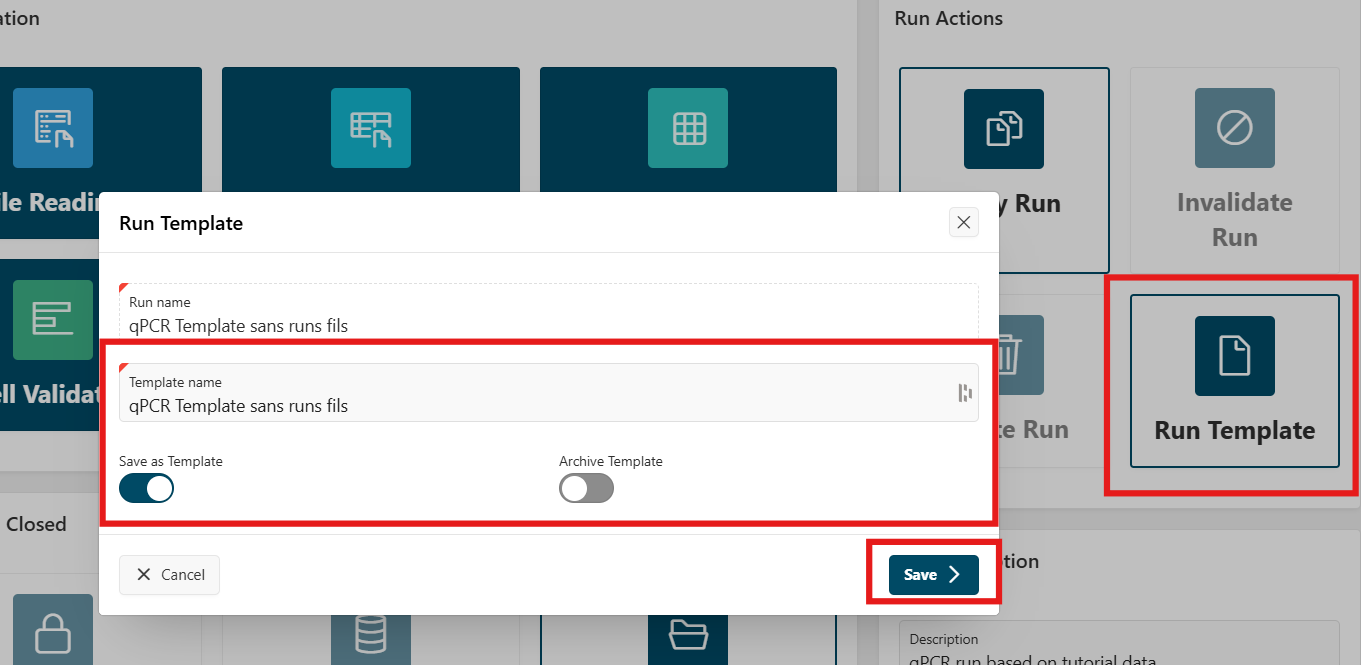
- In this modal, select
Save as Run Template. The name is automatically filled with the run name, but you can change it. - Then, click
Save. - Your run is now saved as a run template and can be used in execution mode.
Other actions
Reopen a run
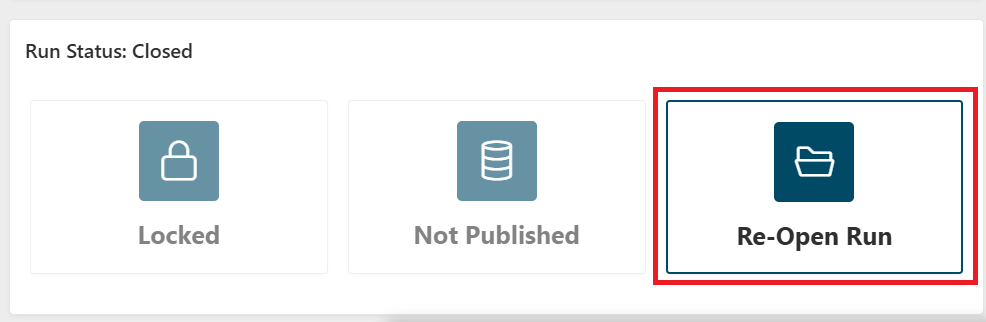
If the run has been closed or published, you can reopen it. For example, if the designer needs to change some parameters of the analysis.
To reopen your run, go to the Run Details page, and click on Reopen Run.
Delete the publisher
If the run is not closed, you can delete the publisher by clicking on the Delete Publisher button on the Select Publisher page.
If the page was automatically skipped because only one publisher is available, use the breadcrumb bar to go back to the Select Publisher page.
Execution Mode
Next
 The design of your run is now finished. You can now go to the Execution Mode to execute your run.