Units
The Units system manages measurement units and their relationships throughout the application. Administrators can customize units through the Units management interface to ensure accurate calculations and consistent display.
Overview
The Units system has two main components:
- Unit Types: Categories that group related measurement units (e.g., Weight, Volume, Temperature)
- Units: Individual measurement units within each type with conversion factors for standardization
All units use conversion factors to standardize measurements against International System (SI) units, ensuring accurate calculations across the application.
Unit Types Management
Unit types serve as categories for organizing related units and define the base reference unit for conversions.
Viewing Unit Types
-
Navigate to
Unit Typesfrom the left panel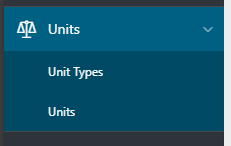
-
The table displays all valid unit types by default
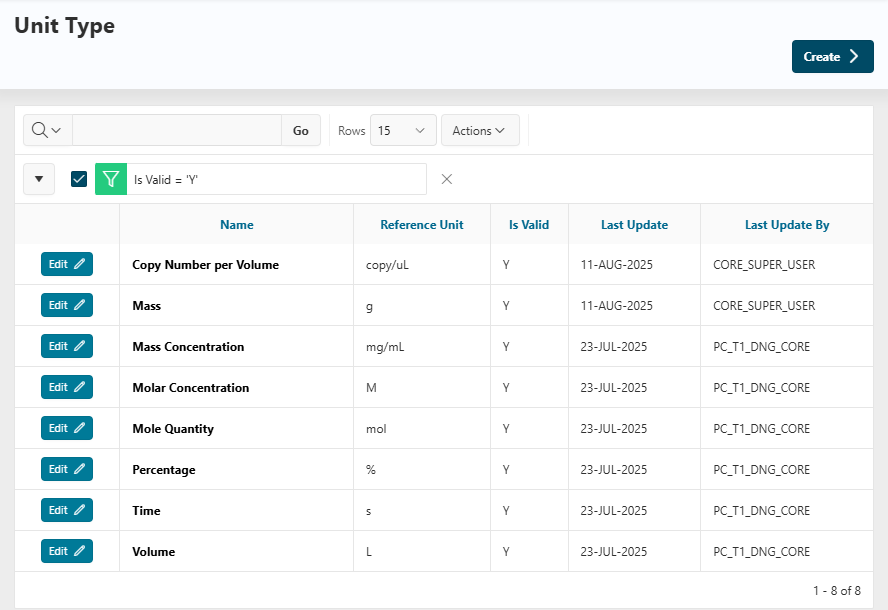
Viewing All Unit Types
To view hidden or invalid unit types, remove the is valid = Y filter. This will display all unit types regardless of their validity status.
Creating Unit Types
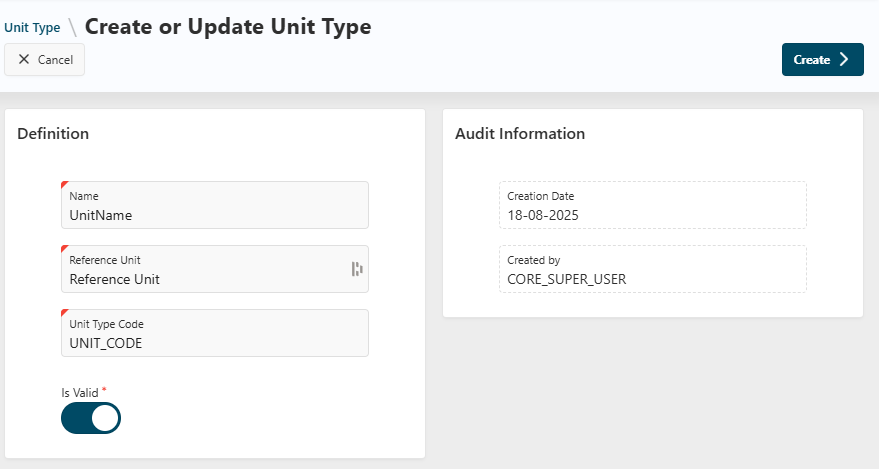
- Click
Createin the top right corner - Complete the required fields:
- Name: Unique name for the unit type
- Code: Short identifier code
- Reference Unit: Base unit for this category (used for conversions)
- Validity: Set to active or inactive
Important
The Reference Unit and Code cannot be modified after creation. Choose carefully during setup.
Editing Unit Types
- Click
Editnext to the unit type in the table - Editable fields:
- Name: Update the display name
- Validity: Toggle active/inactive status
- Read-only fields:
- Reference Unit and Code cannot be modified
Note
Invalid unit types will not appear in application dropdowns or selection lists.
Units Management
Viewing Units
- Navigate to
Unitsunder the Units section - The table shows all available units with their properties
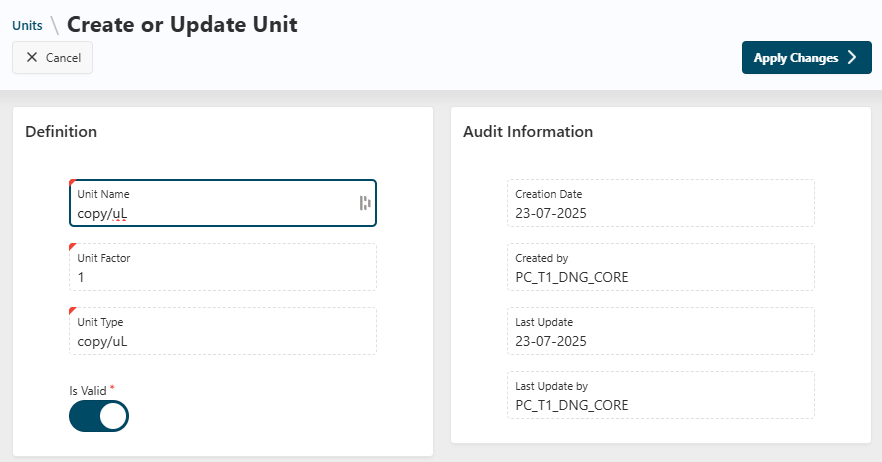
Creating Units
- Click
Createin the top right corner - Configure the unit properties:
- Name: Descriptive name for the unit
- Unit Type: Select from existing unit types
- Unit Factor: Conversion multiplier to SI units
- Is Valid: Set availability status
Unit Factor Guidelines
- SI units use a factor of 1
- Other units use factors that convert to the SI equivalent
- Example: If grams are SI, then kilograms would have a factor of 1000
Editing Units
- Click
Editnext to the unit in the table - Editable fields:
- Name: Update the unit name
- Is Valid: Change availability status
- Read-only fields:
- Unit Factor and Unit Type cannot be modified