Sites
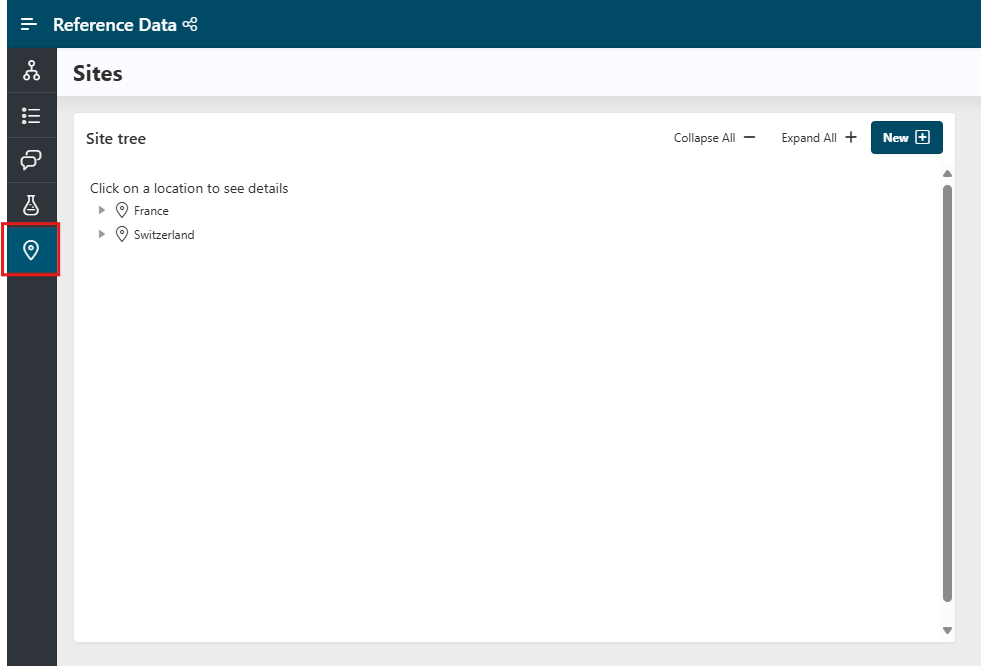
Access the Sites management page from the left menu by selecting Sites.
From this page, you can create new sites, organize the site hierarchy, or edit their attributes.
Info
You can only perform actions on a site if you have the Reference Data Administrator role. Other users can only view the vocabularies and their items (Reference Data User).
Info
Sites can also be automatically created and imported using our API. Please ask the support team for more details.
Sites Hierarchy
The left panel displays the hierarchy of all sites.
- Use the
Collapse AllandExpand Allbuttons at the top of the region to collapse or expand the entire hierarchy. - Click the small arrow to the left of a site to expand or collapse a specific node.
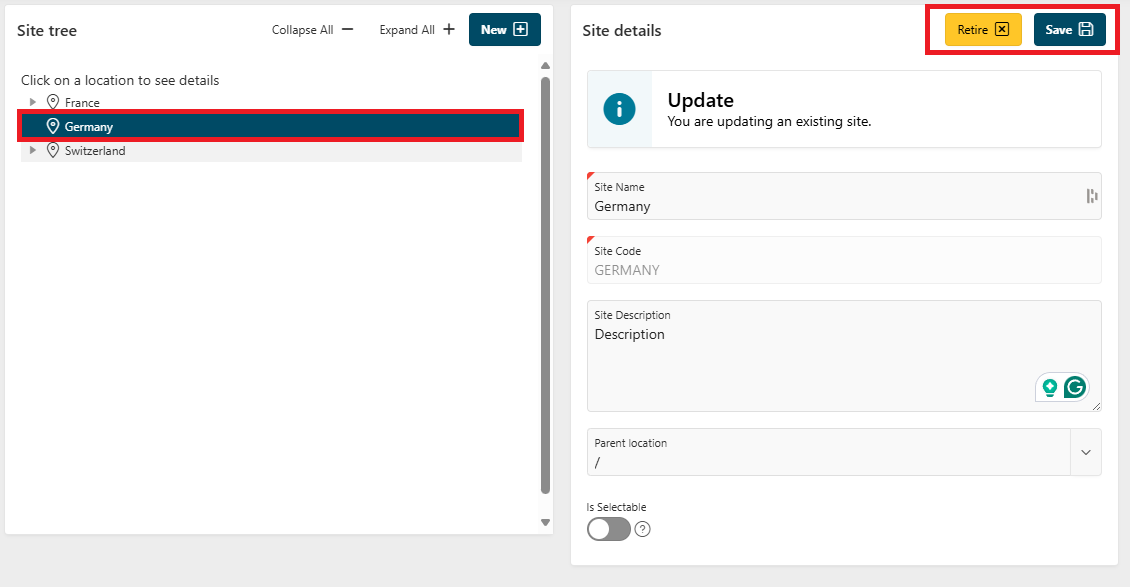
- Click a site name to view its details in the right panel and update it.
Create a New Site
To create a new site, click the New button in the left panel. The right panel will display a form where you can enter the following information:
- Site Name
- Site Code (automatically generated, not editable after creation)
- Site Description (optional)
- Parent Location (the parent site in the hierarchy)
- Is Selectable (whether the site is selectable in the hierarchy (see below))
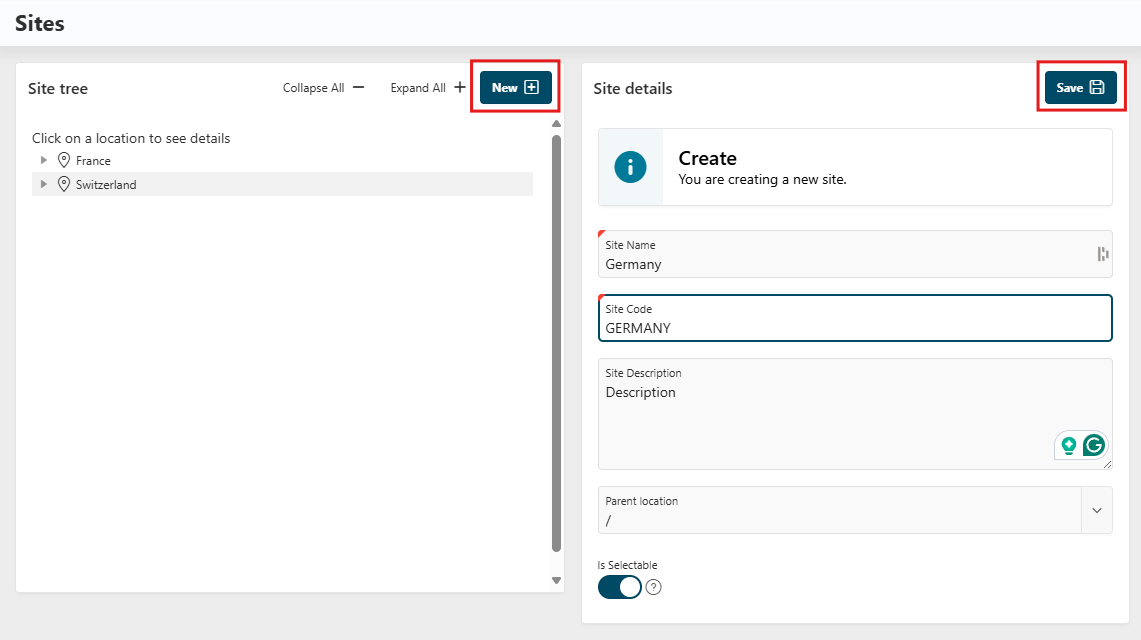
Click the Save button to create the site. It will appear in the hierarchy on the left, under the selected parent.
Edit an Existing Site
Click an existing site to display its details in the right panel. You can update the allowed fields and click Save to apply your changes.
The Site Code field cannot be modified after creation.
Is Selectable?
When creating or editing a site, you can choose whether it is selectable. If a site is not selectable, a "forbidden" icon will appear next to its name.
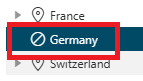
Retire or Unretire a Site
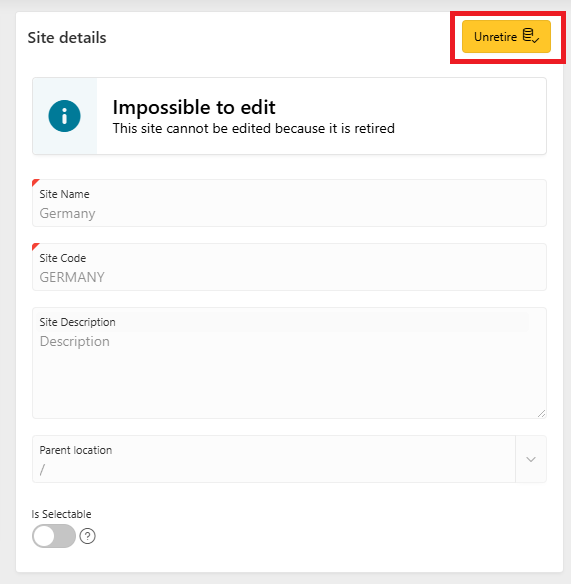
In the right panel (site details), a Retire button at the top right allows you to retire the site. A retired site cannot be used anywhere in the application.
After retiring a site, the button changes to Unretire, allowing you to reactivate the site if needed.