Tutorial - Container Bulk Update Annotations Values
Introduction
In this tutorial, you will apply annotation values for plates and vials in bulk.
Prerequisite
This tutorial assumes you have a basic knowledge of the Sample application and its functionality. For additional information about Sample workflows in general, see the Discngine Sample User Guide, or use the page and item help in the application.
The annotations must be pre-configured by a Sample Administrator.
Workflow
Job Creation
Create a new job and select the Container - Bulk Update Annotation Values workflow.
Requesting
- Choose source type: Plate or Vial
- Choose Request From: File/Job/List/Text
- Enter the container IDs based on your previous choice
- Click
Add IDs
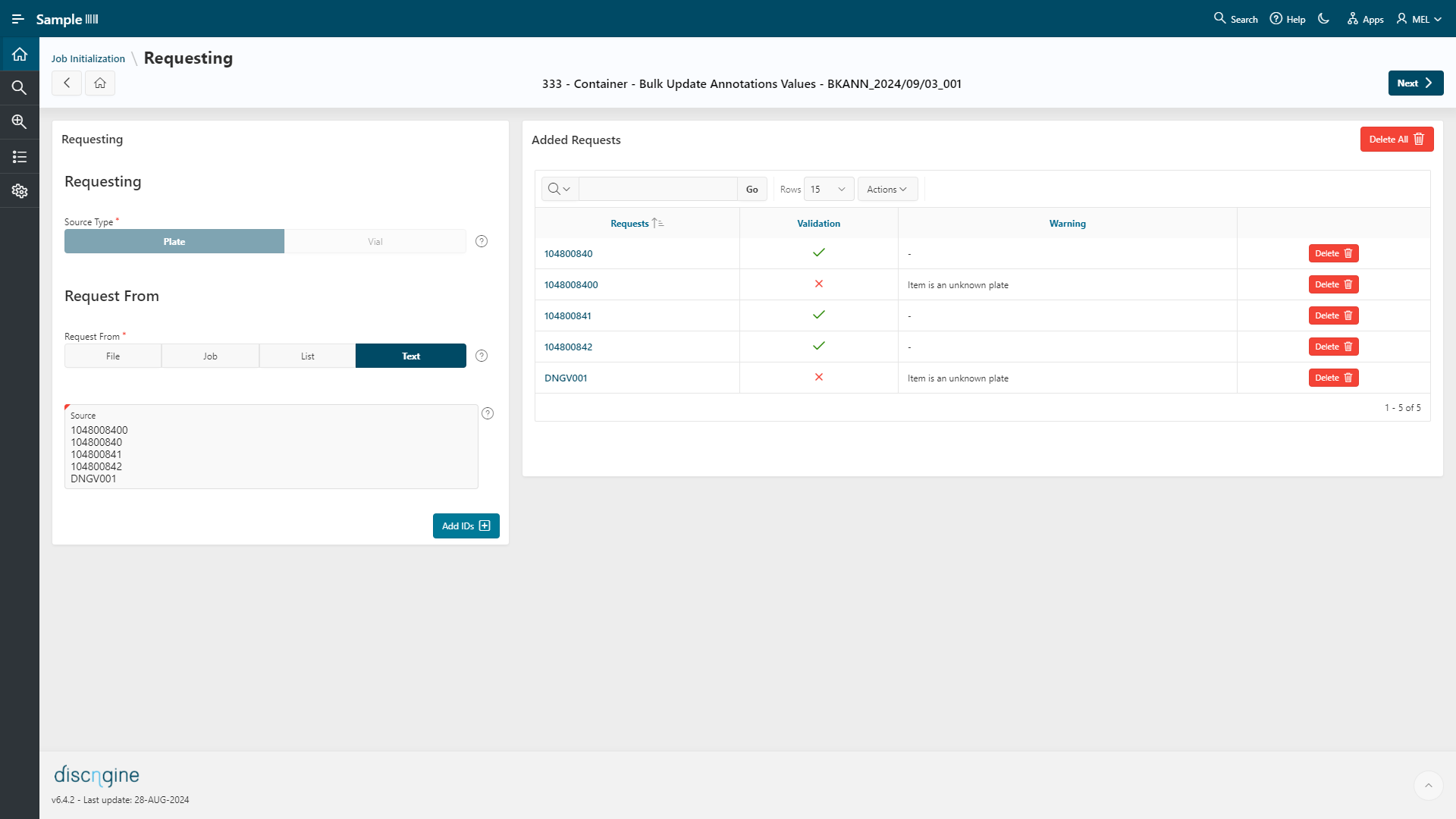
If there are any errors (e.g., loading plate IDs while you choose Vial as a type, or unknown barcode), they will be displayed as invalid on the right side. The invalid items will be ignored for the rest of the process. You can continue by clicking the Next button in the top right corner.
Task Requesting
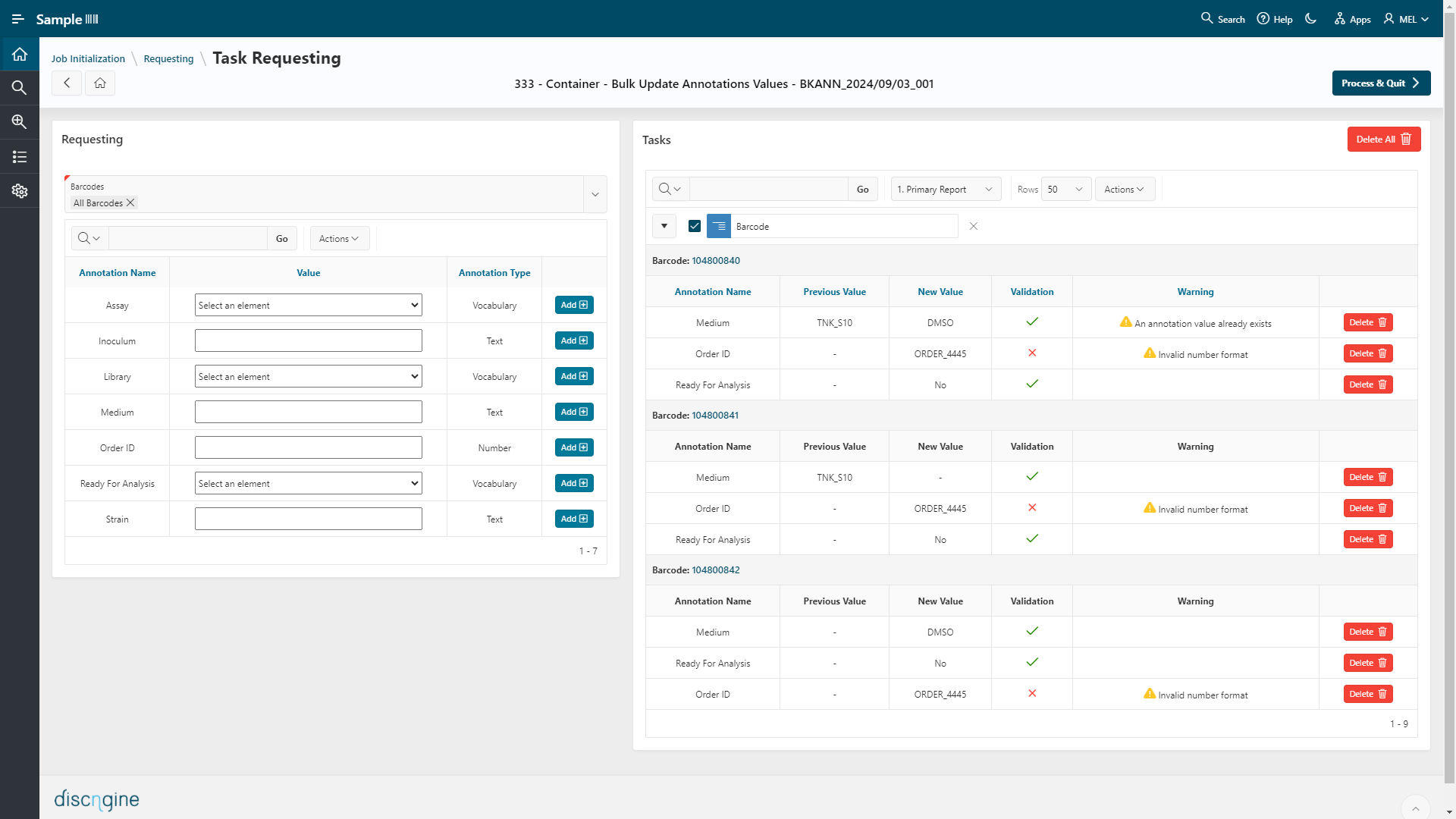
Here you enter the values for the annotations.
- Select the barcodes on which the annotations must be defined (choose "All Barcodes" to apply to all of them)
- Enter the value or choose the controlled vocabulary
- Click
Add Taskfor each annotation - The previous values (if any) are displayed next to the new values
Warnings and Errors
Warnings are only for information and do not block the update process.
- Warning "An annotation value already exists": the previous annotation value will be erased.
Errors will block the update of the annotation value.
- Error "Invalid number format": when the annotation is defined as a Number and the value is not numeric. The annotation update will be ignored.
Process & Quit
To apply the annotation values to your containers, click Process & Quit in the top right.
Validation
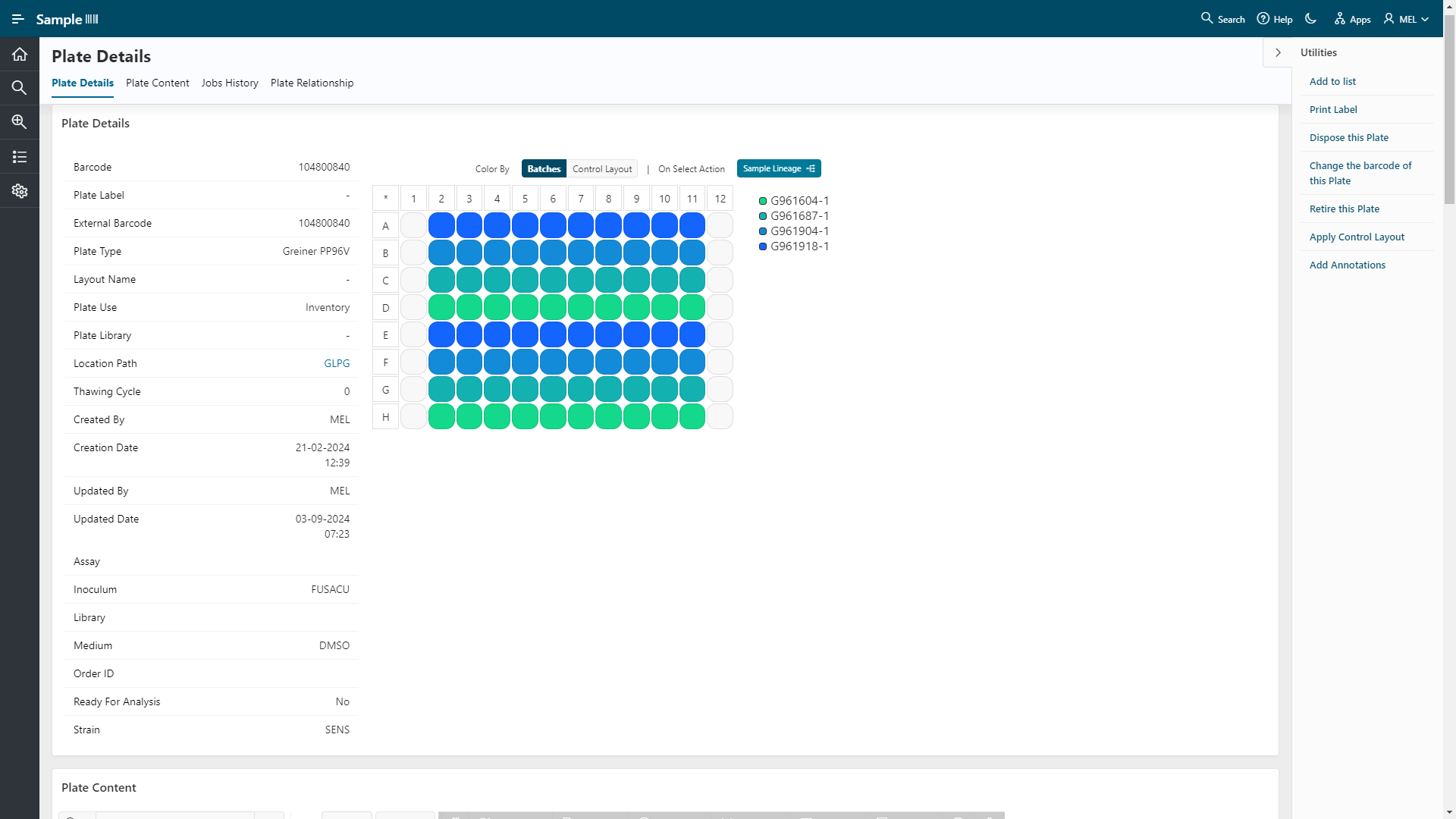
Search for the plates or vials you added annotations to in the Search page. Click on the container to view the details. The annotation values should be displayed at the bottom of the Details page: