Runs
Home Page
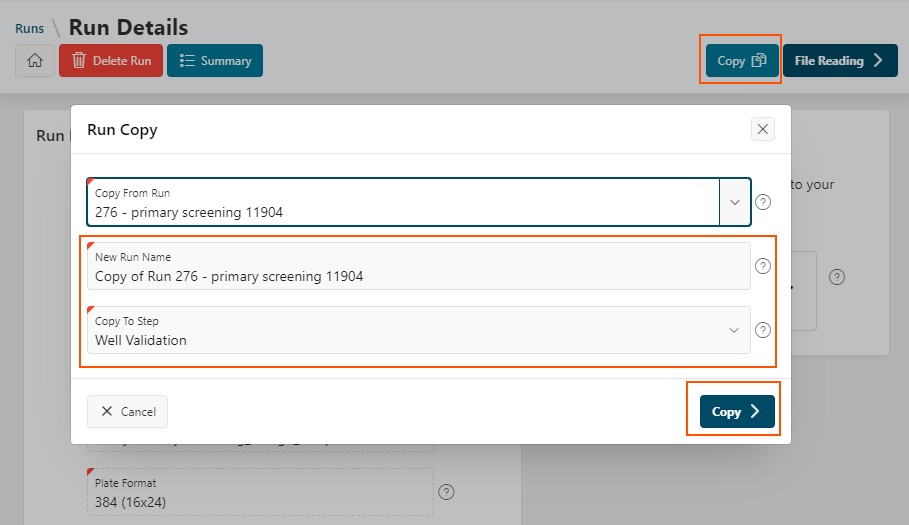
From the Home Page, you can perform several actions:
- Create a new run using the
New Runbutton at the top right. - Open an existing run by clicking its name to view its details (starting at the first step).
- Filter runs in various ways. For example, to view your unpublished runs, click
My Ongoing Work. - Refresh the report content. If you are waiting for a job to process, the run status will update accordingly.
Navigation in a Run
Run Details
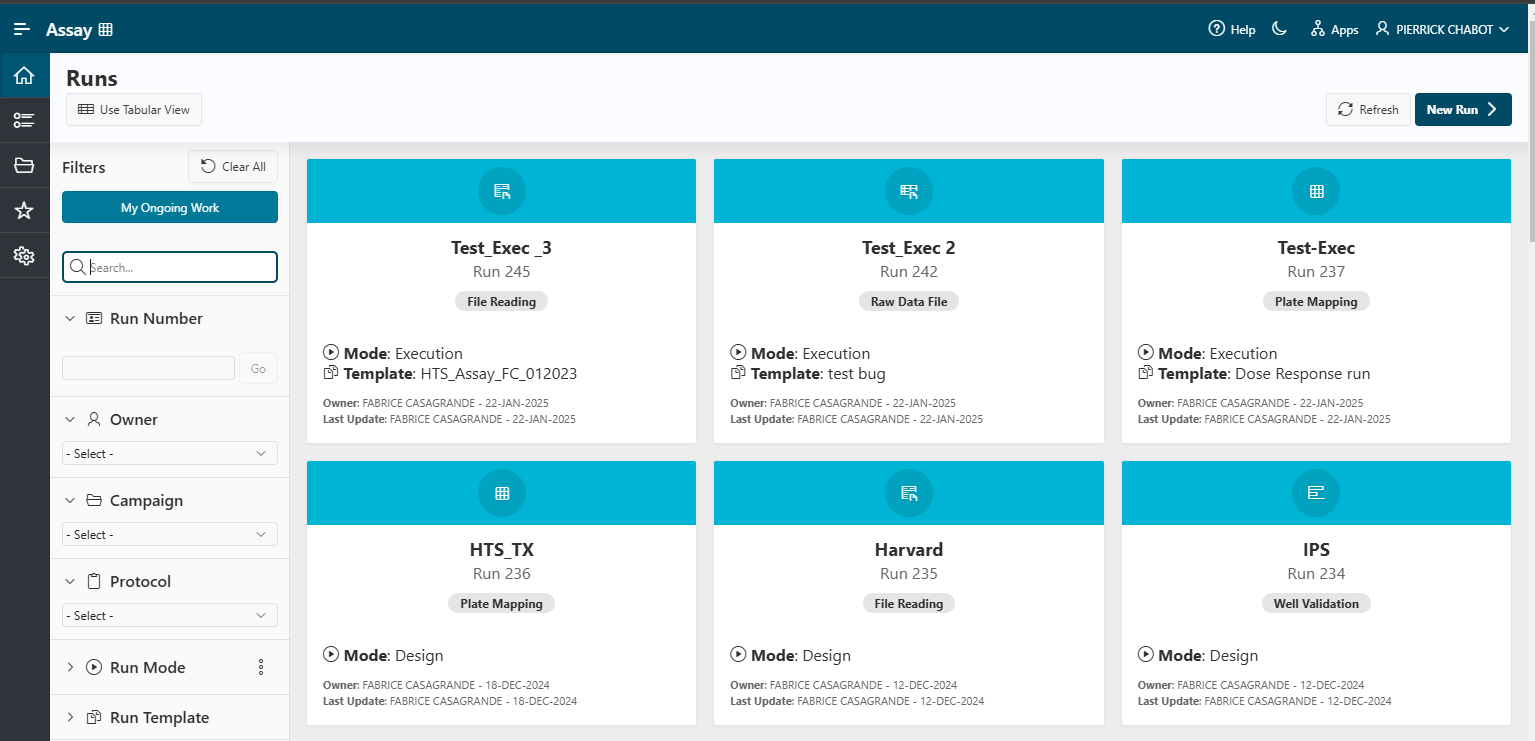
When you open a run, you are redirected to the Run Details page.
- Access every step of your run easily.
- Perform actions such as
Copy,Invalidate,Lock,Publish,Close,Save as Template, orDelete. - Add additional files.
- Update run information, including the description.
Breadcrumb Navigation
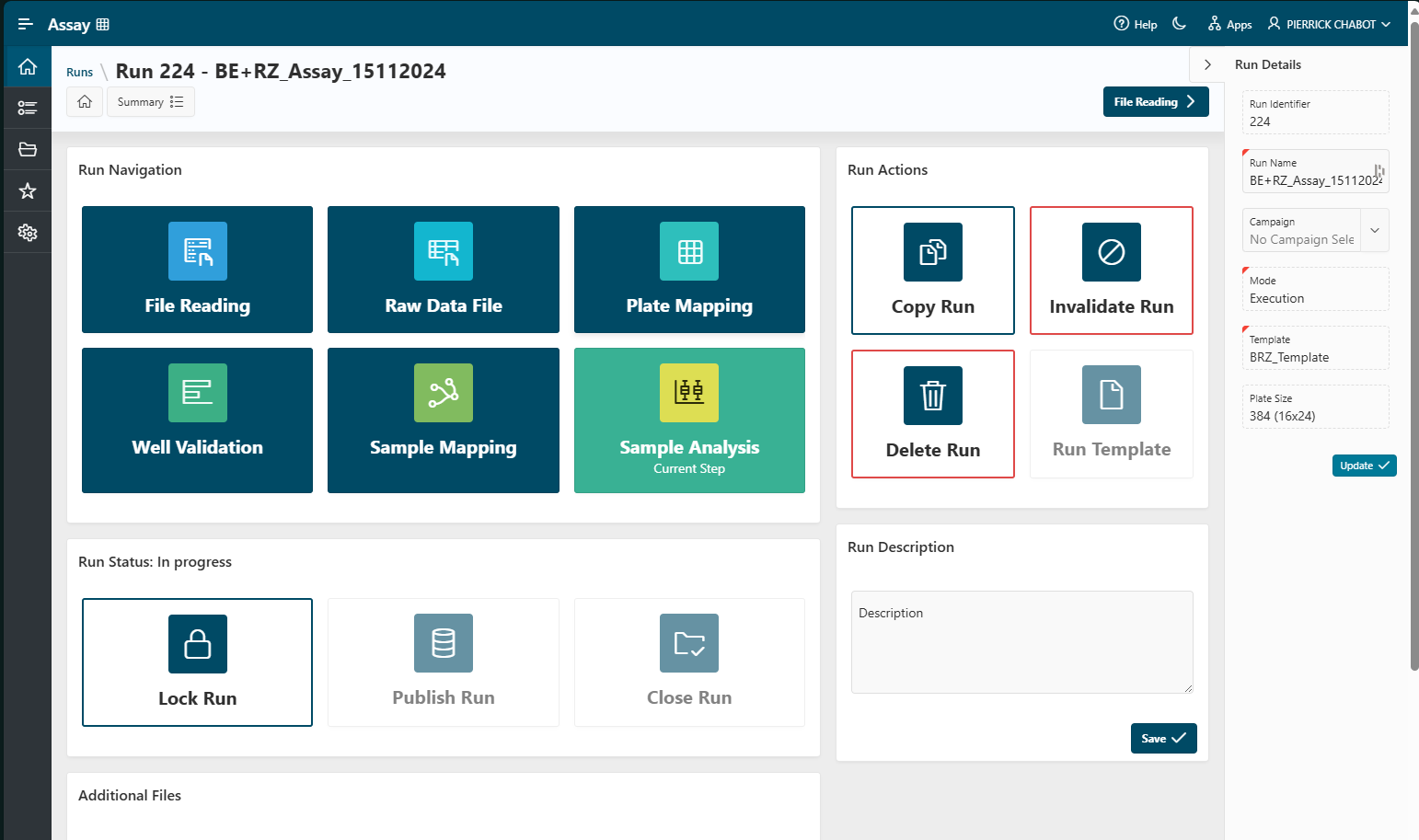
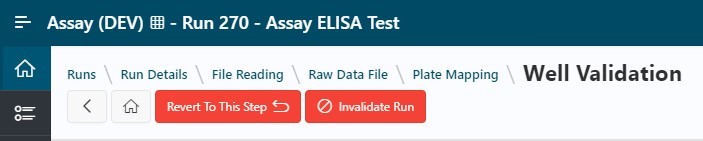
While analyzing a run, a breadcrumb is displayed at the top of the page. This region allows you to:
- Validate or proceed to the next step using the blue button at the top right (e.g.,
Lock Run). - Return to the previous step using the
<button on the left.
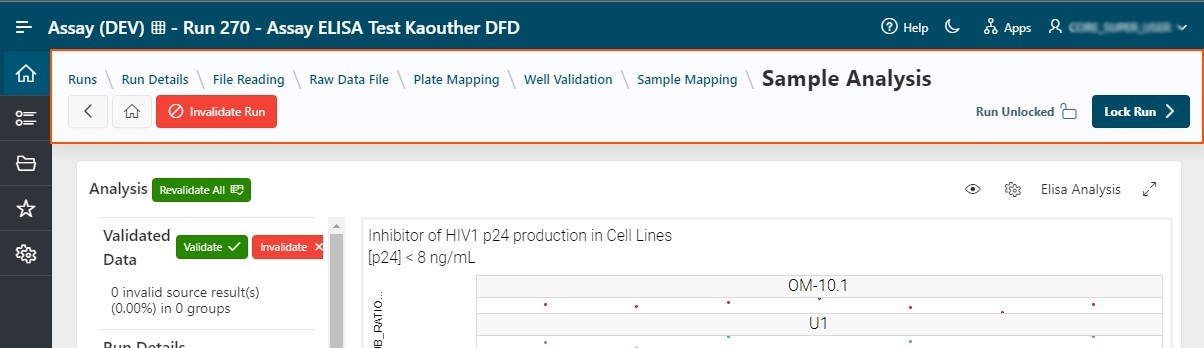
The breadcrumb navigation serves two purposes:
- Indicate your current location within the run.
- Provide quick access to the
Run Detailspage. - Improve navigation by allowing you to jump several steps backward by clicking the step name (in blue).
Run Actions
Several actions are available for runs, as detailed below.
Invalidate
If issues arise during your experiment and the data cannot be properly analyzed, you can invalidate a run. For example:
- Reference analysis did not meet quality standards.
- Insufficient cell growth to assess product efficacy.
- Detection limits are too high to detect relevant data.
To invalidate a run, click the Invalidate Run button, available at each visualization step (Well Validation, Reference Analysis, Sample Analysis).
The invalidated run remains visible on the home page but is no longer updatable and cannot be published.
Info
You can also invalidate multiple runs using the cross runs view.
Revert to Step
If a run is not locked, you can revert it to a specific step.
Danger
This action will erase all data generated in subsequent steps. In Design Mode, any settings defined after the selected step will also be deleted.
- Navigate to the step you want to revert to.
- Click
Revert to This Step. - Confirm the action when prompted.
Copy
To create multiple versions of the same run, you can copy an existing run:
- Go to the
Run Detailspage by clicking the run name on the home page. - Click the
Copybutton on the right side of the page. A modal will appear. - Enter the name for the new run and select the step up to which data should be copied.
- Click
Copyto create the new run.