Vocabularies and Property Types
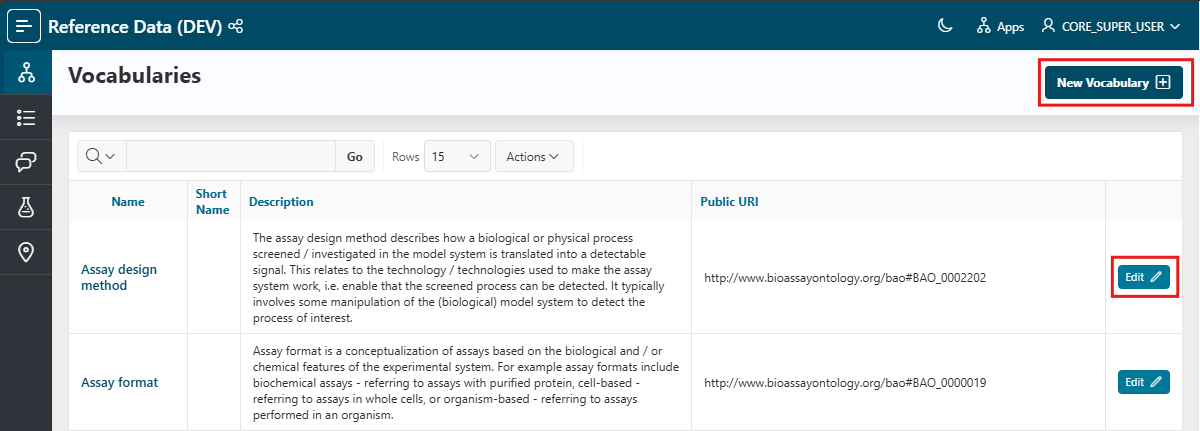
In this page, you can browse through the existing vocabularies or create a new one. You can easily locate a vocabulary of interest by performing a keyword search against any of its attributes (name, description, etc.).
Info
You can only add and edit a vocabulary if you have the Reference Data Administrator role. Other users can only view the vocabularies and their items (Reference Data User).
Info
Vocabularies can also be automatically created and imported using our API. Please ask the support team for more details.
Add a vocabulary
To add a vocabulary, click the New Vocabulary button at the top left.
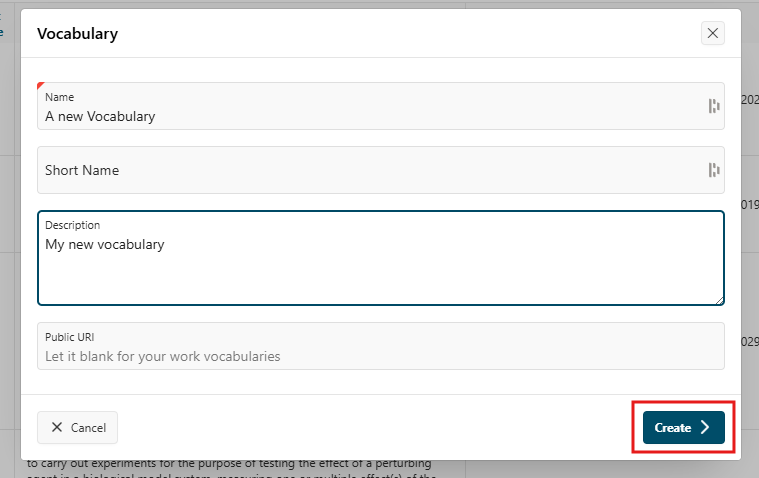
You will be redirected to a modal dialog where you can enter:
- Name
- Short name (optional, for display purposes)
- Description (optional - highly recommended)
- Public URI:
- If you create your own proprietary vocabulary, leave this empty. It will be auto-generated by the system.
- If you are importing a public ontology, enter its URI.
Click the Create button to create the vocabulary.
Edit or delete a vocabulary
Similarly, you can edit an existing vocabulary by clicking the Edit button on the left side of the vocabulary list.
- The name, short name, and description can be updated.
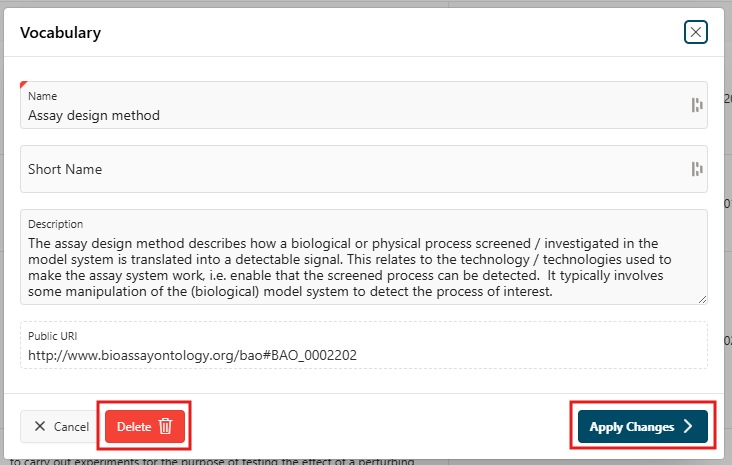
From this page, you can also delete the vocabulary by clicking the Delete button. This will remove the vocabulary and all its items from the system.
Danger
Be careful, the delete action cannot be undone.
Vocabulary items
In each vocabulary, you can create items that represent the terms within the vocabulary. These items can be arranged in a hierarchy, allowing for a structured representation.
To access the items, click the vocabulary name in the list. You will be redirected to a page where you can view the items and their hierarchy.
For instructions on how to use this page, see the Vocabulary Items guide.