Application Navigation
Left Navigation Panel
To make navigation in Sample easier, features are organized by theme (management, tracking, processing, etc.).
The navigation side menu appears on every page of the application and allows you to quickly access different parts of Sample.
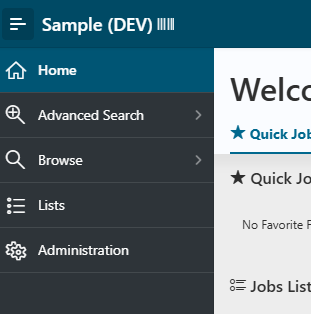
Home
The Home tab redirects to the Home page of Sample.
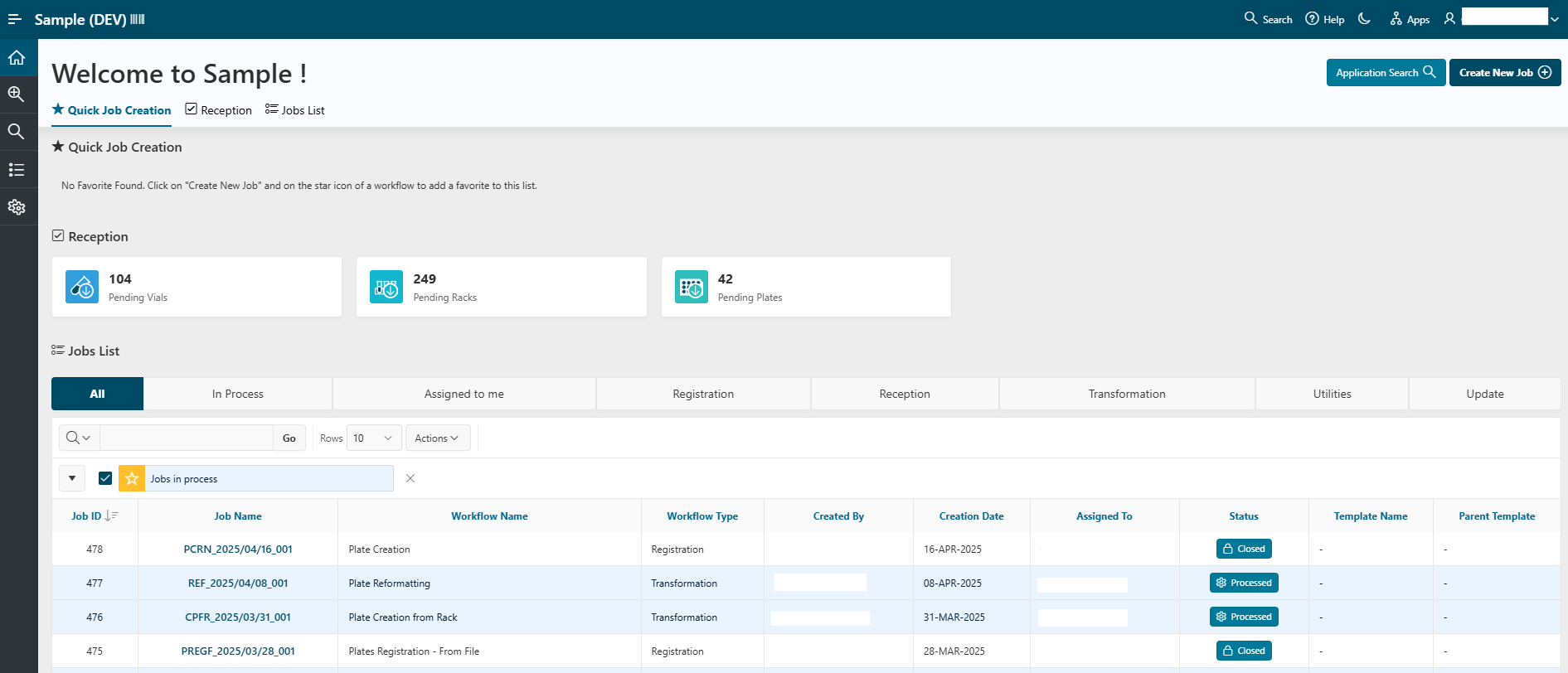
The Home page is organized into several sections:
- Quick Job Creation: Provides shortcuts to workflows you have marked as favorites, allowing you to start a new job quickly.
- Reception: Displays the number of pending containers (racks, plates, or vials). By clicking on it, you can select valid containers and launch a reception job.
- Job List: Shows all jobs that have been started and their status. You can quickly apply filters by clicking on the bar above the list. Clicking on a job's status takes you directly to the workflow page at the current step. Alternatively, clicking on the job name allows you to browse the entire job from the beginning.
- Top Right Actions: In the top right corner, you can start a new job or perform a search.
Advanced Search
The Advanced Search tab allows you to apply search functionalities to batches and plates/vials. You can find more details in the Search & Browse documentation.
Browse
The Browse tab offers quick access to browse batches, vials, plates, racks, and locations in your system. From the Sample browse pages, you can filter and select multiple items to send them to a new job or add them to lists.
Lists
Use the Lists tab to manage or create lists of batches, vials, plates, platesets, or racks to use as input sources for your workflows.
You can find more details in the Lists documentation.
Administration Tab
The Administration tab redirects to the administration pages. Here, you can manage more specific concepts of Sample, such as designing new plate types and formats, creating layouts, or registering printers and other lab equipment. For more information about Administration, see the Administration documentation.
Top Bar
The behavior of the top bar, where the application name is displayed, is the same in every application. See Homepage and navigation documentation for more details.