Platform principles and help
On this page, you will find information on the principles of the Assay platform, how to use it, and how to get help.
Page Help
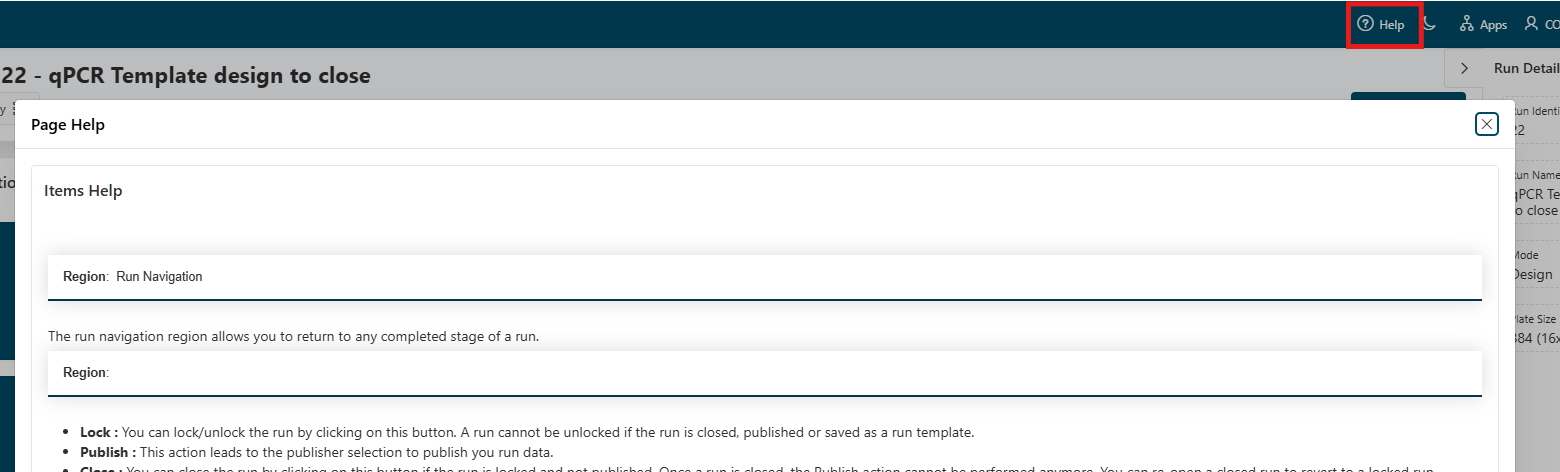
Page-based help is available at the top right of the page, by clicking on the Help button.
- At the moment, the help is mainly written on the page.
- Soon, it will mostly redirect to the online help.
Help for Specific Items
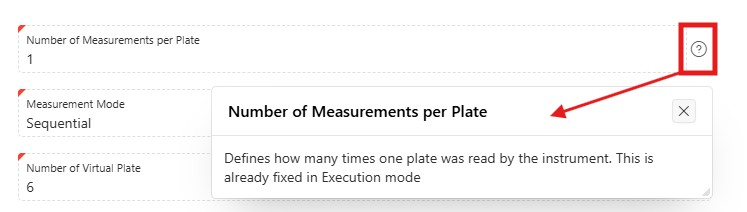
More granular help is available for items on a page by clicking the help button next to the item, as illustrated below.
Forms
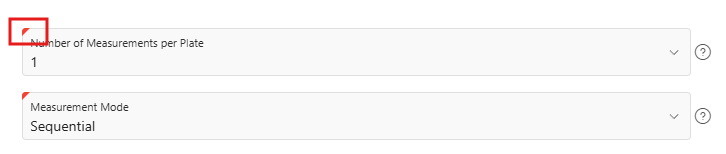
Required Form Settings
Some settings are required in the forms. They are indicated by a red asterisk (*), or by a red left corner.
Reports
On some pages, reports display all the entries of a concept (Run, Campaign, Plate Layout) and its associated information. Two types of reports exist: Interactive reports and interactive grids.
Interactive Reports
"Interactive reports" are the most common type of report in the Assay platform. They allow you to view and interact with data in a tabular format.
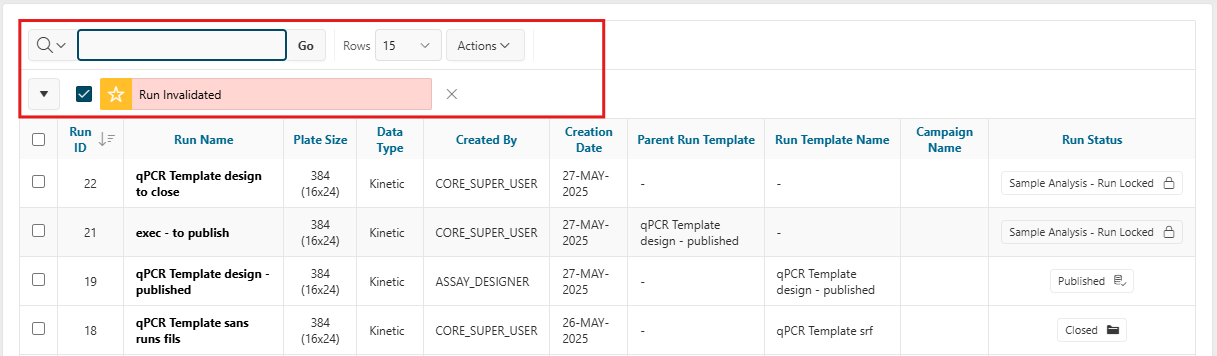
Using the interactive reports, you can:
- Use the search bar to filter the report
- Sort the report by clicking on the column headings
- Change pagination settings
- Use the
Actionsmenu to access advanced features- Select the columns to display
- Apply advanced filters
- Format the data (highlight, group data, etc.)
- Save the report layout
- Obtain or download the report data
Info
For the full documentation on interactive reports, see Oracle's help on Interactive Reports.
Interactive Grids
"Interactive Grids" are also used in the platform, mostly when the data needs to be updated (e.g. in the administration). Interactive grids feature many ways to change how the data is displayed, including the Actions menu and the Column Heading menus. You can also rearrange the grid interactively using the mouse.
Info
For the full documentation on interactive grids, see Oracle's help on Interactive Grids.
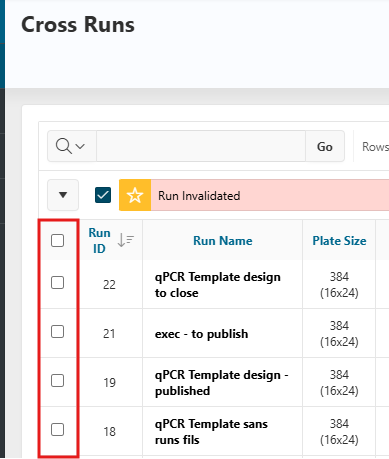
Row Selection
Some reports allow you to select rows using checkboxes in the first column on the left. If the first box in the header is checked, then all lines in the report are selected.