Tutorial - Vial Solid Splitting
Introduction
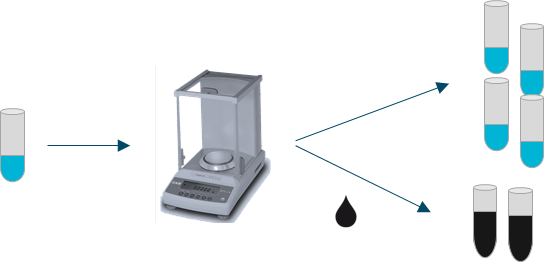
In this tutorial, you will get an overview of the Vial Solid Splitting workflow to create both solid and liquid vials by running two different jobs covering different aspects of the workflow.
This workflow is usually performed manually, so no robotic worklist will be produced.
Prerequisites
Required permissions and setup
Sample Processing role is required to access this workflow.
Required system configuration:
- Vial Type:
1 Dram Vial - Container Usage:
Inventory - Solvent:
DMSO - Worklist Generator and Parser:
Standard (Container) (;)
These should exist by default in the Sample application.
Items
Containers and locations created from Discngine Sample’s automation will be used:
- Five vials in solid state (100 mg, batch with molecular weight)
- One vial in solid state (10 mg, batch without molecular weight)
- One vial in liquid state (100 μL, 10 mM)
- Location:
ParisAutomation runs during installation ifexample_datasetis set to true in the configuration file.
Workflow
Job Initialization
Create a new job and select the Vial Solid Splitting workflow..
Requesting
- Select Vial as Source Type
- Specify Request from Text
- Copy and paste the vial names in the text area: VTEST001:VTEST002:VTEST003:VTEST004:VTEST011 Vial names can be separated by colons or line breaks.
Info
Test vials 1 to 10 are solid, 11 to 20 are liquid. Two of the requested vials are in a liquid state and cannot be processed by this workflow.
- Click the
Add IDsbutton to confirm. The vials are listed in the added requests. - Click the
Nextbutton. A warning message indicates that the incompatible vial will be ignored during processing. ClickOKto continue.
Task Requesting
You will create two solid vials and two liquid vials.
- Choose From Selection for the Source Vial option and select the first two vials (VTEST001 and VEST002). Define a task to create solid vials from them:
- Target Type: 1 Dram Vial
- Target Usage: Inventory
- Number of Copy: 1
- Target State: Dry
- Target Amount: 1 mg
-
Click
Add this task. One task is added. -
Now, select the two other vials (VTEST003 and VEST004) and make a liquid copy using a mass concentration:
- Target Type: 1 Dram Vial
- Target Usage: Inventory
- Number of Copy: 1
- Target State: Solution
- Target Volume: 1 mL
- Target Concentration: 1 mg/mL
- Solvent: DMSO
Click
Add this task. We now have 2 tasks defined.
-
Click the
Nextbutton.
Sourcing
The Sourcing page will confirm that the requested operations are compatible with the source vials (see the Sourced column).
Info
sSolubilizing a solid using a molar concentration is not possible if we don’t have its molecular weight.
- Click the
Nextbutton.
Processing
This workflow usually involves manual operation to weigh the solid batch to transfer. The amount of batch weighed can be slightly different from the theoretical task. On this page, fill in for each task the quantity that was actually picked from the source.
Scan the source container and the destination container (or enter their barcode after clicking the Add Quantities button). Fill in the requested quantity and press Enter again to validate.
Info
This step can be automated if a laboratory balance is connected to the system.
- Click the
Nextbutton when all rows are processed.
Storing
The Storing step allows you to assign a location to the items involved in the job.
- Click the
Assign Location to Selectedbutton. - Select Paris and click the
Selectbutton to confirm your choice. - Click the
Nextbutton to continue to the input vials. (Here, we won’t change the input vials' location.) - Click the
Nextbutton. (You can increment the Thawing Cycle count of the input vials if necessary.)
Pipe & Close
The Pipe & Close step provides a summary page where you can review the job and optionally pipe it to another workflow. You can also pipe this job to another one, allowing you to immediately start a new job using the output or the input vials from this one.
For this tutorial, click the Close & Quit button to finish the job.