Administration
Info
Administration is only available to users with the Warehouse Administrator, Warehouse Protocol Manager, or Core Administrator roles.
To access the administration section, click the Administration link in the left navigation panel. You will see the administration page with the following sections:
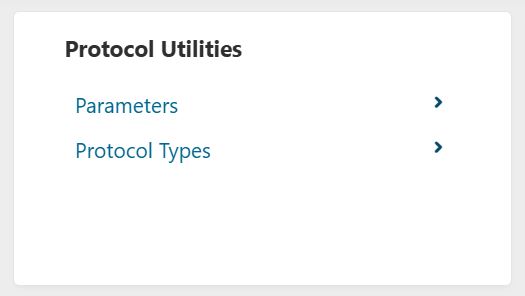
- Protocol Utilities – For managing protocol types and parameters
- Security – For managing users, roles, and permissions
- Administration Utilities – For managing aggregation methods, aggregation method types, subject types, and job schedules
Protocol Utilities
The Protocol Utilities feature is used to manage parameters as well as protocol types.
Info
This part of the administration is only available to users with the Warehouse Protocol Manager role.
Parameters
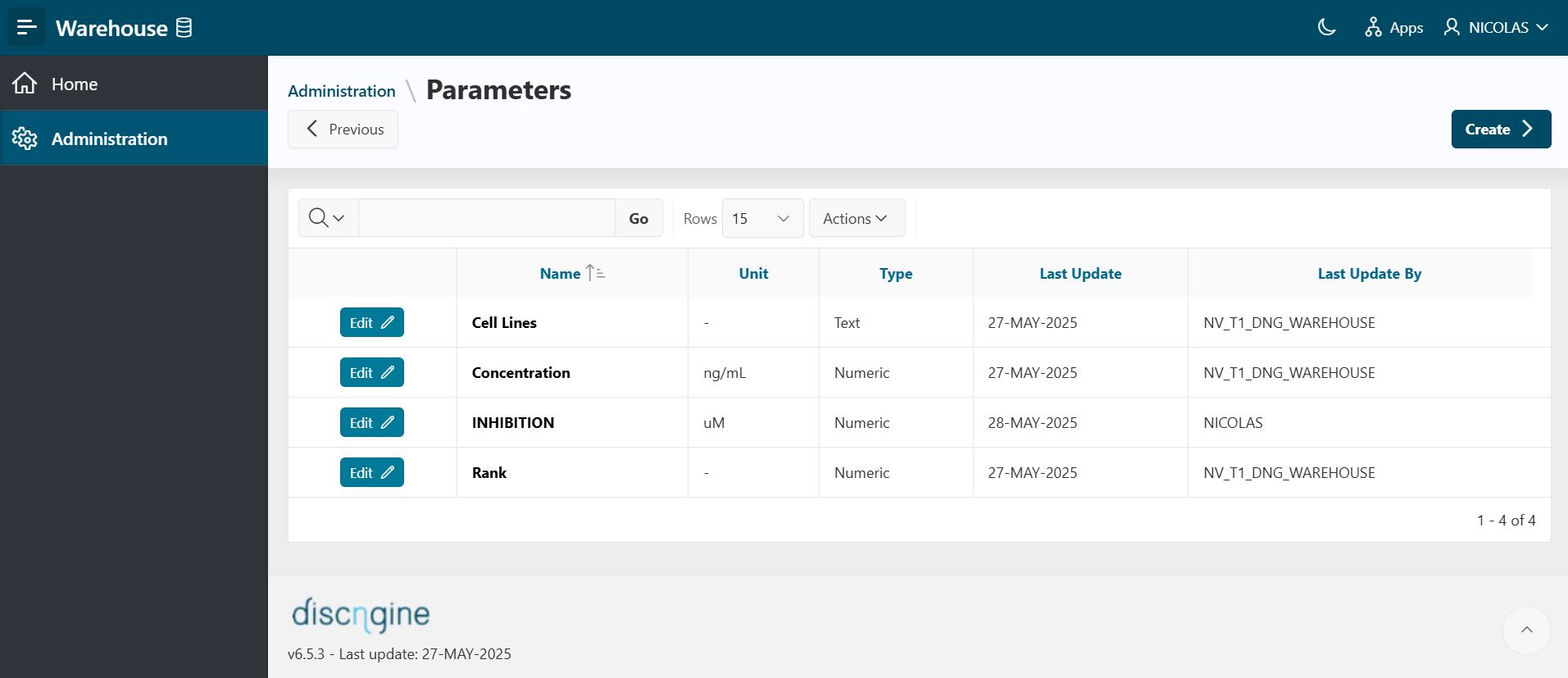
Parameters define protocol inputs for data publication. To see a report on parameters, open the Parameters page.
Create New Parameter
- To create a new parameter, click the
Createbutton. - Fill in the form by providing the following information:
- Type – Select the type of parameter.
- Name – Enter a name for your parameter.
- Unit – Select a unit (optional).
- Description – Provide a description of the parameter (optional).
- Click the
Createbutton.
Edit Existing Parameter
- In the report listing parameters, click the
Editbutton in front of the row containing the parameter to edit. The Edit page opens. - If the parameter is not already used in a protocol, you will be able to edit the information.
- Click
Apply Changesto save your changes.
You can also delete a parameter by clicking the Delete button.
Info
If the parameter is already in use in a protocol, it cannot be modified or deleted. The item will be displayed as read-only.
Protocol Types
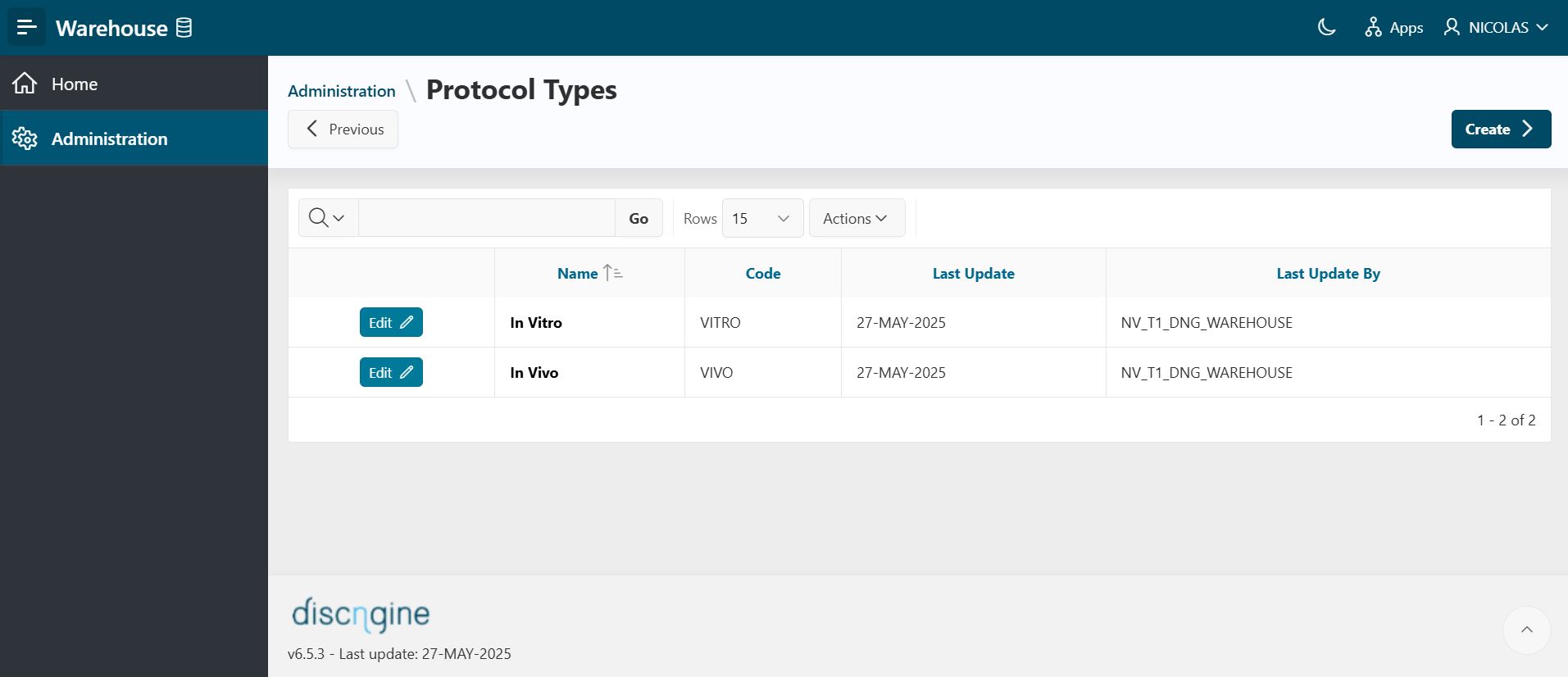
Protocol types are used to describe the type of protocol when creating a new protocol.
To see the report on all available protocol types, open the Protocol Types page.
- By default, In vitro and In vivo are available as protocol types.
Create a New Protocol Type
To create a new protocol type:
- Click the
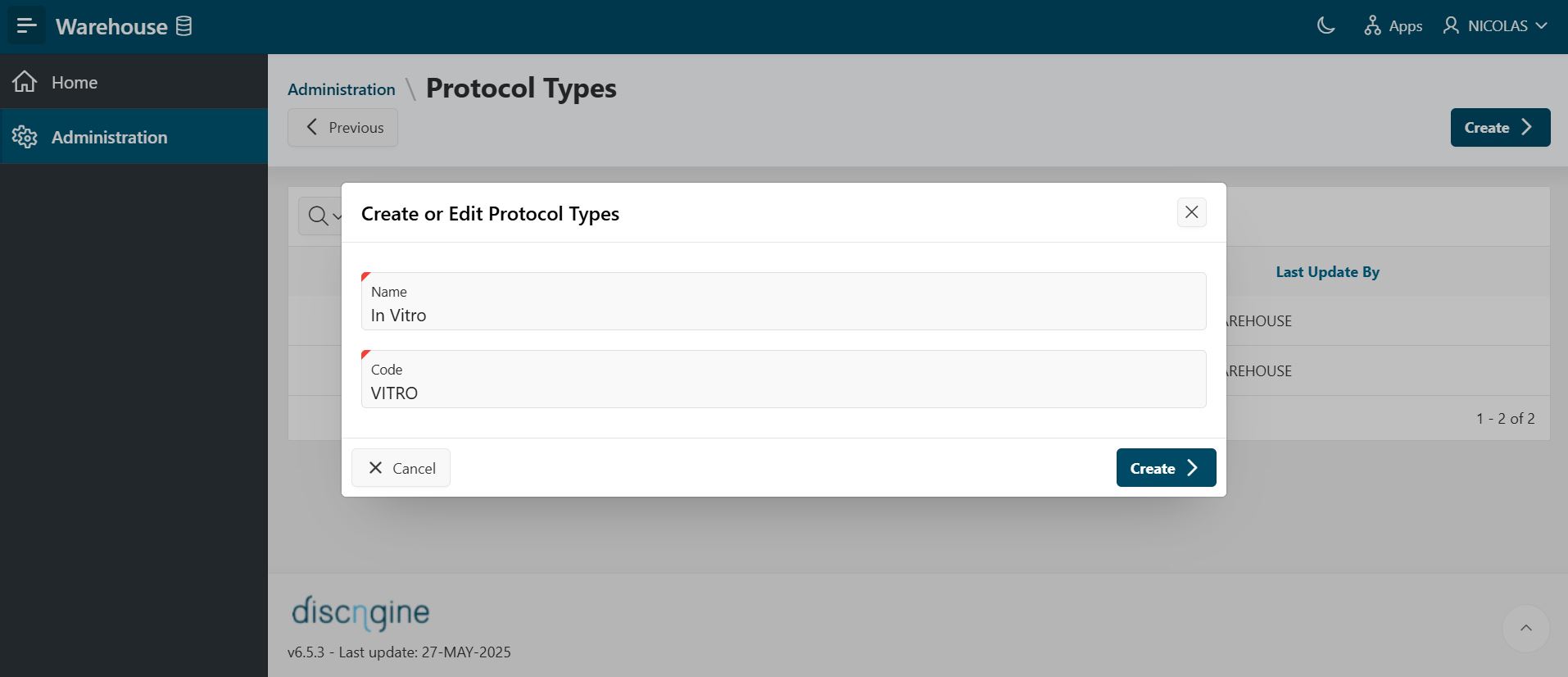
Createbutton. The Create page will open. - You will be asked to fill in the following information:
- Name: Assign a unique name for the protocol type.
- Code: Assign a unique code.
Edit or Delete an Existing Protocol Type
- In the report of all protocol types, click the
Editbutton in front of the row containing the protocol type to edit. The Edit page opens.
To delete a protocol type, click the Delete button.
Security and Administration Utilities
The Security and Administration Utilities features will not be described as they are not part of this guide.