Containers
This category allows you to manage various container-related settings, including container types, formats, and usage. You can also manage plate libraries, annotations, barcode administration, and plate layouts.
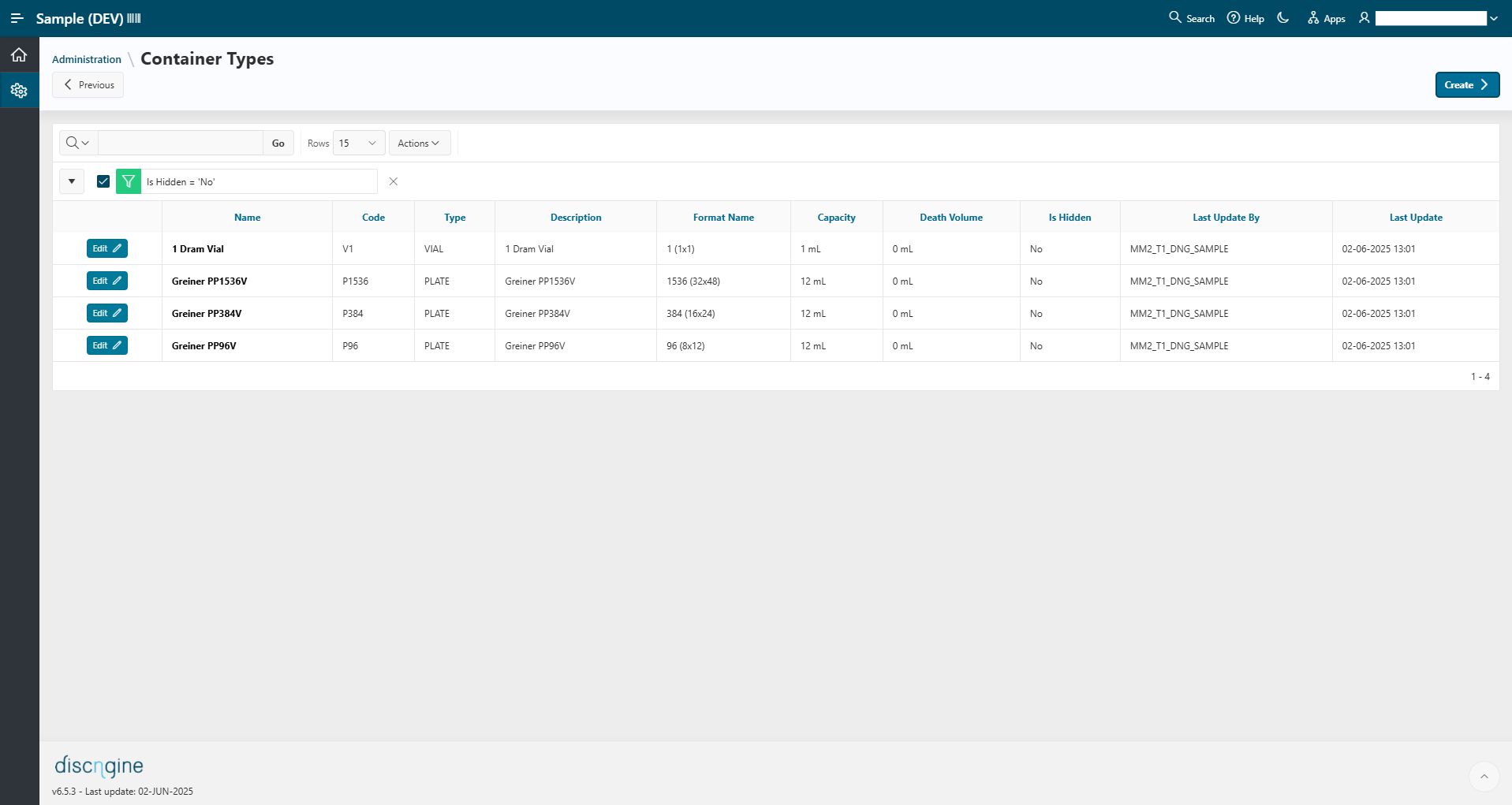
Container Types
This section allows you to create and manage container types, such as specific plate or vial models (e.g., Greiner PP96V, Eppendorf 1.5 mL).
To create a container type, click the Create button and fill out the form with the following information:
- Name
- Type (Plate or Vial)
- Container Format (see section below)
- Capacity
- Dead Volume
You can edit existing container types by clicking the Edit button.
Container types can only be deleted if they are not used anywhere in the application. Otherwise, the only option is to hide them.
Hide a container type to prevent it from appearing as an option for users when creating new containers in the application.
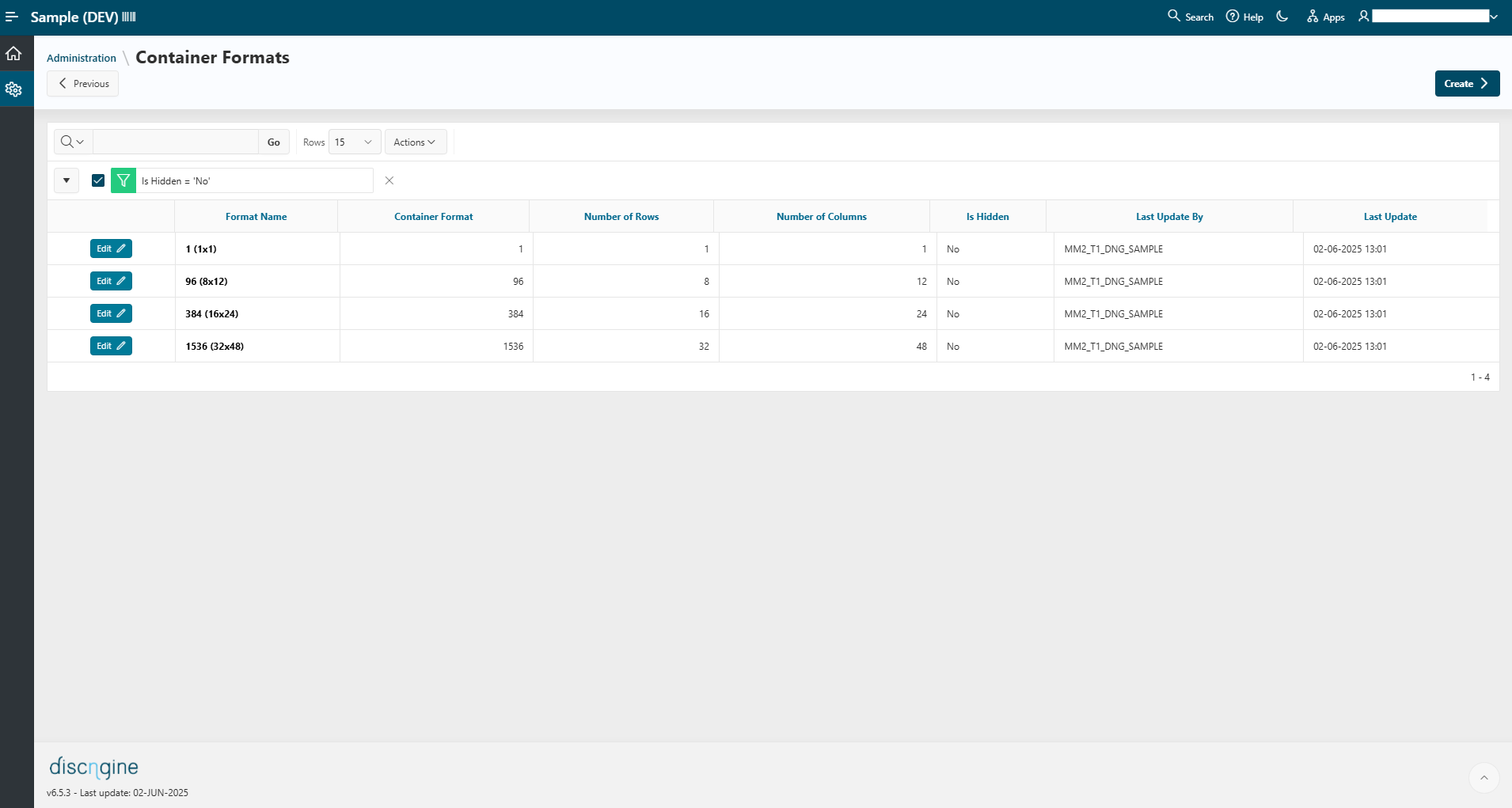
Container Formats
From here, you can manage all container formats available in the system, such as standard layouts like 96-well (8×12).
To create a container format, click the Create button and fill out the form with the following information:
- Number of Rows
- Number of Columns
You can edit existing formats using the Edit button.
Container formats can only be deleted if they are not used anywhere in the application. Otherwise, the only option is to hide them.
Hide a container format to prevent it from appearing as an option for users when creating new containers in the application.
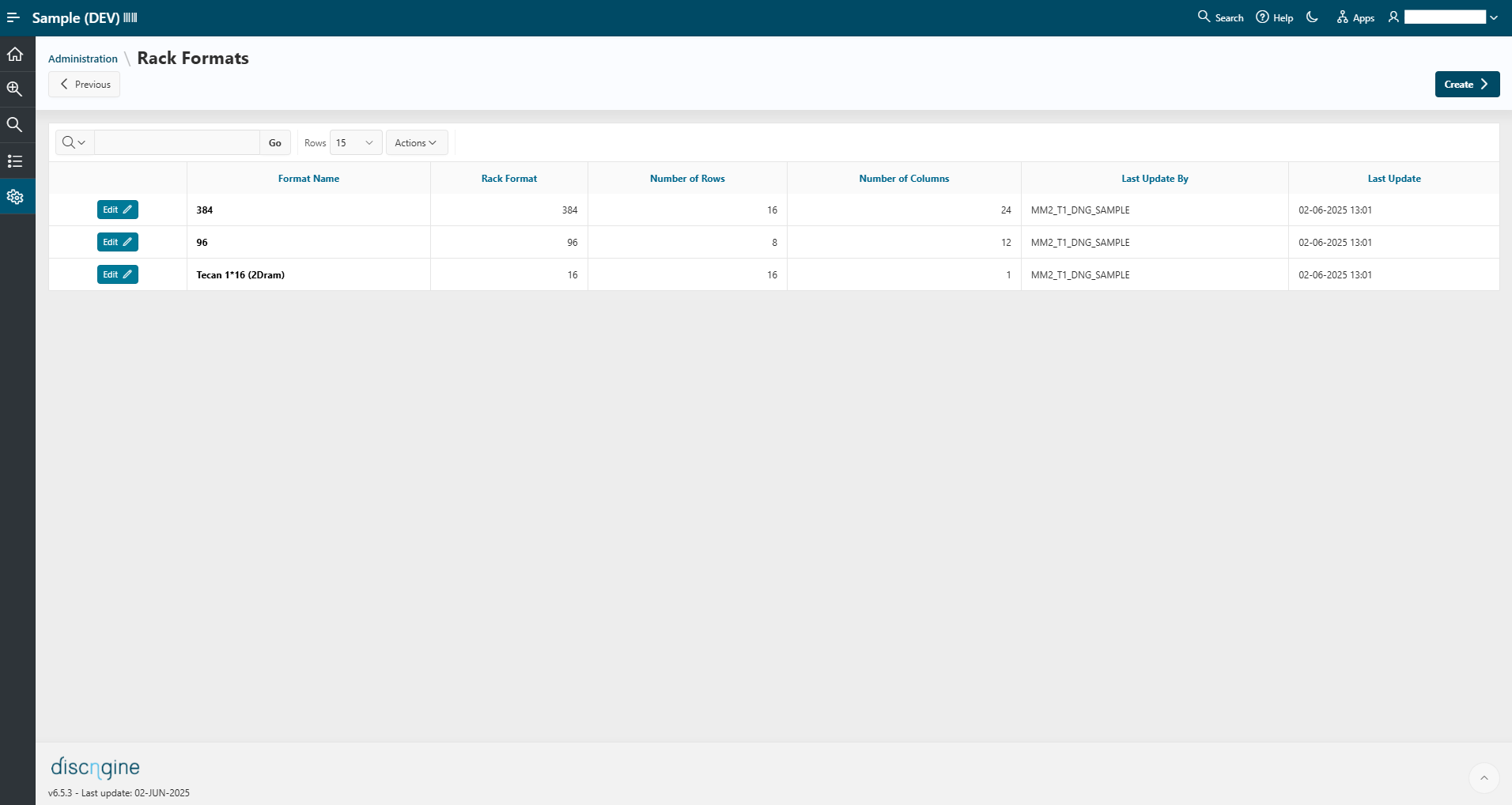
Rack Formats
This section allows you to create and manage rack formats used in the application (e.g., 12 [2×6]).
To create a rack format, click the Create button and fill out the form with the following information:
- Name
- Number of Rows
- Number of Columns
- Filling Type (
Column,Row)
You can edit existing rack formats using the Edit button.
Rack formats can only be deleted if they are not used in the application. Otherwise, they can only be hidden.
Container Usages
This section allows you to create and manage container usage types (e.g., Inventory, Assay).
To create a new usage type, click the Create button and fill out the form with the required information:
- Container Use Name
- Container Use Code
You can edit existing usage types using the Edit button.
Usage types can only be deleted if they are not used in the application. Otherwise, they can only be hidden.
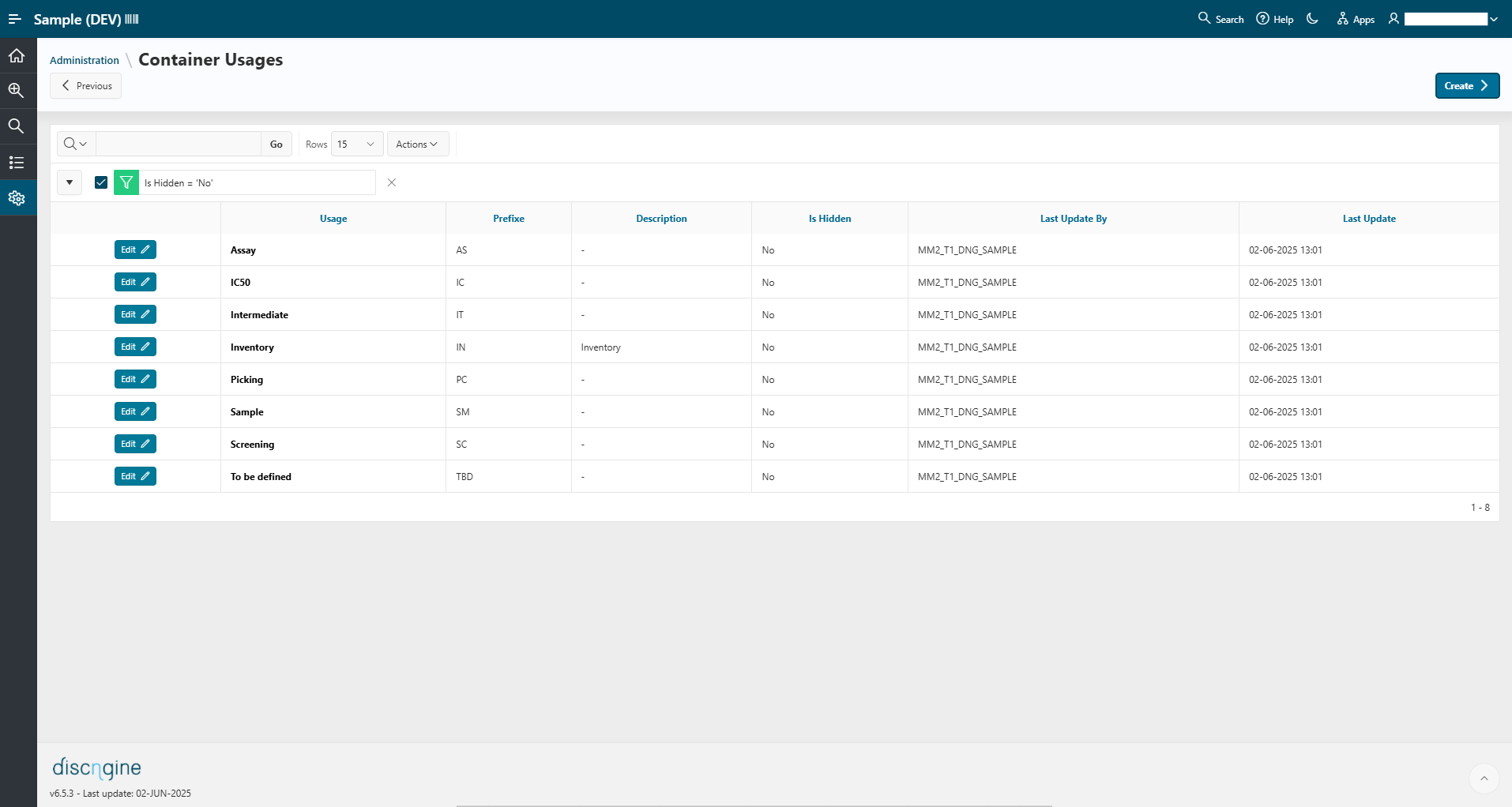
Plate Libraries
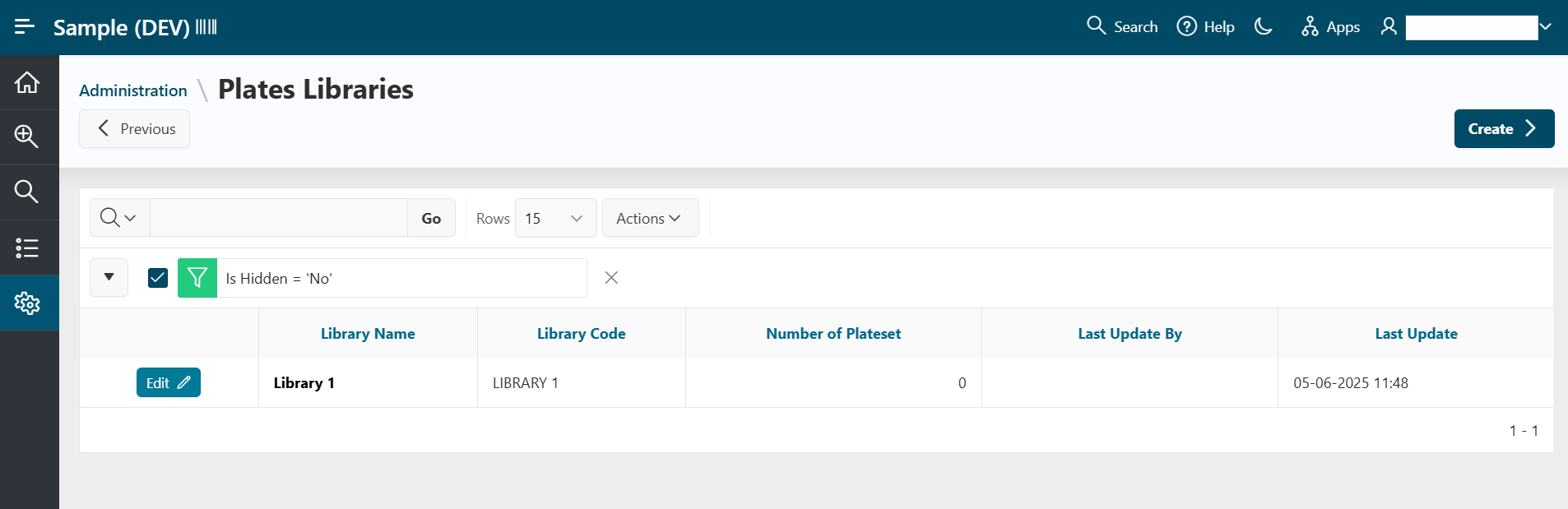
This section allows you to create and manage plate libraries used in the application.
To create a new plate library, click the Create button and fill out the form with the required information:
- Name
- Code
You can edit existing plate libraries using the Edit button.
Plate libraries can only be deleted if they are not used in the application. Otherwise, they can only be hidden.
Annotations
This section allows you to view and manage the annotations used in Sample. When you click on it, you are redirected to the Reference Data application, where annotation management takes place. Dedicated pages let you define container annotations, using either free-text, free-number, or controlled vocabularies configured in DNG_REFDATA. For more details about how annotations work and what actions are available, see the Reference Data annotations documentation.
Barcode Administration
This section allows you to manage plate barcodes. You can either rename a plate's barcode by clicking the Edit button, or retire a plate by clicking the Retire button.
- Changing the barcode means the plate will be renamed across the application. The old barcode will no longer appear in jobs, worklists, or searches—it is completely replaced. Once renamed, the old barcode becomes available again and can be reused to register a new plate.
- Retiring a plate triggers three actions:
- Renaming the barcode and external barcode of the plate (as described above).
- Disposing of the plate by assigning it to a garbage location.
- Running validation of pending plates: if there is a pending plate using the old barcode, it will now be considered valid and can be used in jobs.
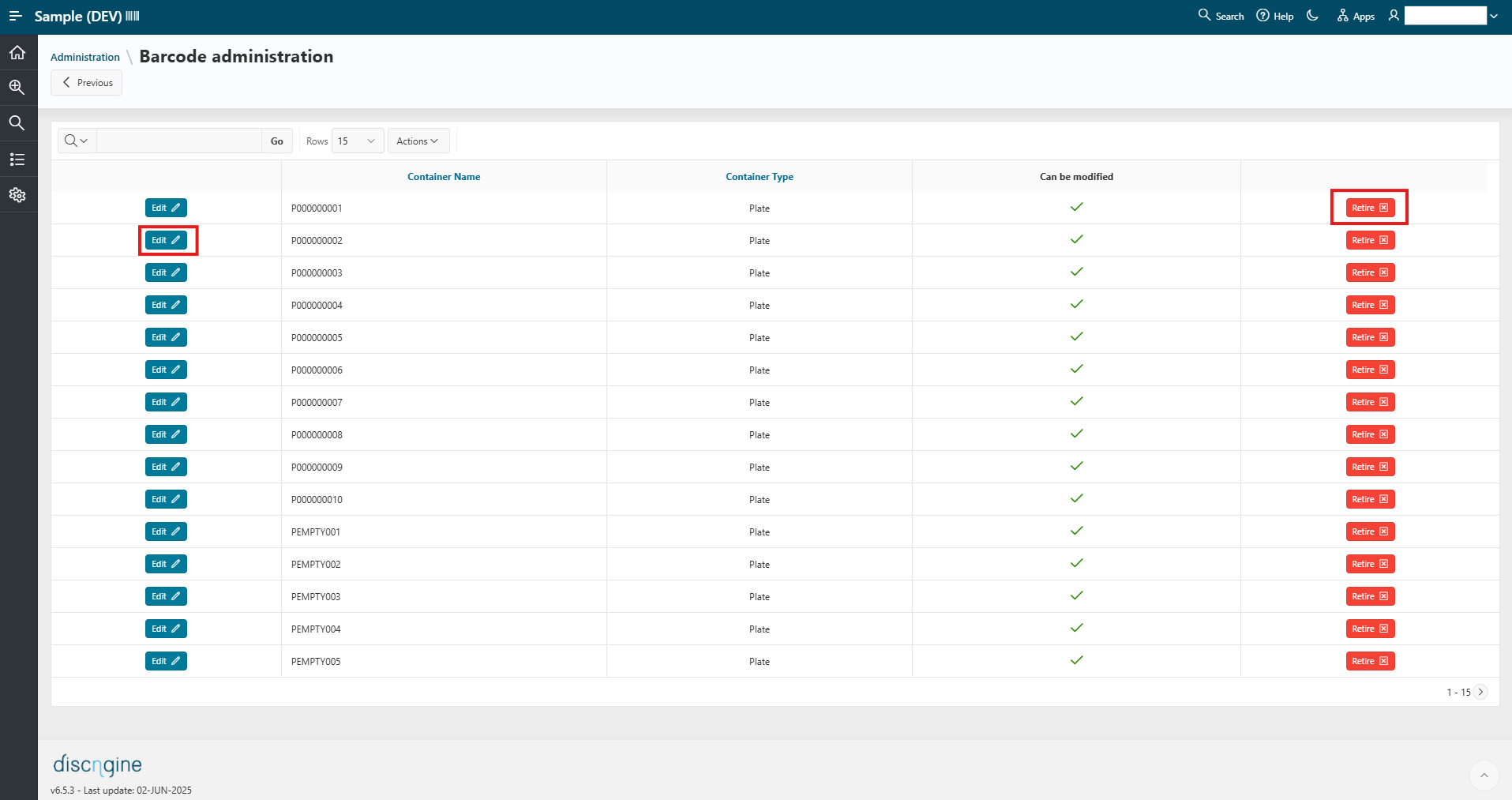
Plate Layout Management
This section redirects you to the Reference Data application, where all plate layouts are managed. From there, you can view existing layouts and create new ones as needed. For more details on how plate layouts work and what actions are available, see the Reference Data plate layout documentation.