Primary Screening
Scientific Background
Compound cytotoxicity is an important parameter to measure when developing potential human therapeutics.
Jurkat clone E6.1 was screened against a diverse collection of 3,520 compounds. All compounds were tested once at a 1 μM final concentration.
A luciferase-based cell proliferation/viability assay endpoint kit was used as the readout for this assay. The kit measures the amount of ATP present in the microtiter plate well. If ATP is not present, the catalytic conversion of luciferin into oxyluciferin is not possible, and no luminescence results. Since metabolically active cells produce ATP, the absence of ATP correlates with the presence of non-viable cells.
This campaign was run with doxorubicin, an antibiotic used as an anti-cancer drug, as the positive control. The assay was conducted in 384-well format.
To select a practical number of compounds that exhibited high activity in the primary screen for follow-up assays, a cutoff value of the primary %Inhibition was applied. The cutoff value was calculated as the sum of the average percent inhibition of all compounds tested and three times their standard deviation (= HITS).
Third-Party Software
This tutorial was developed using BIOVIA Pipeline Pilot 2021 R2 and TIBCO Spotfire 11.4. Visualization templates may need adjustments if using older versions of this software.
Dataset
Prerequisite: Control Layout Primary Screening must exist.
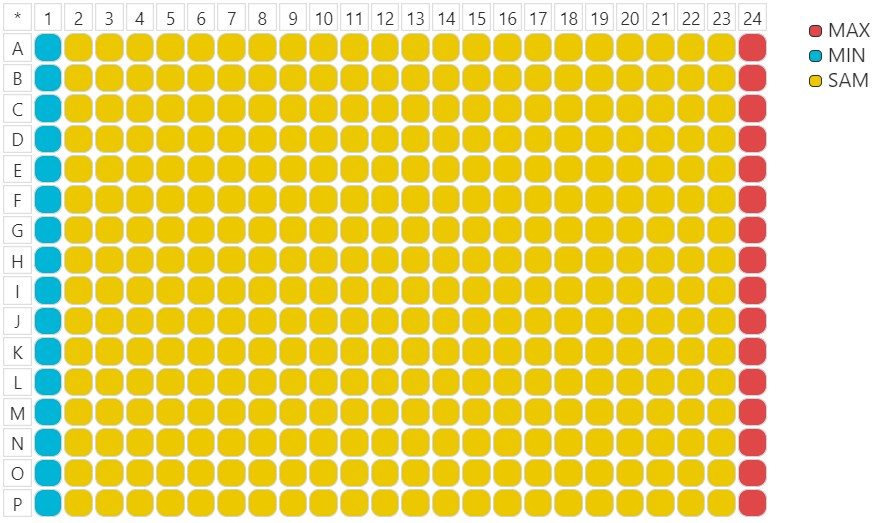
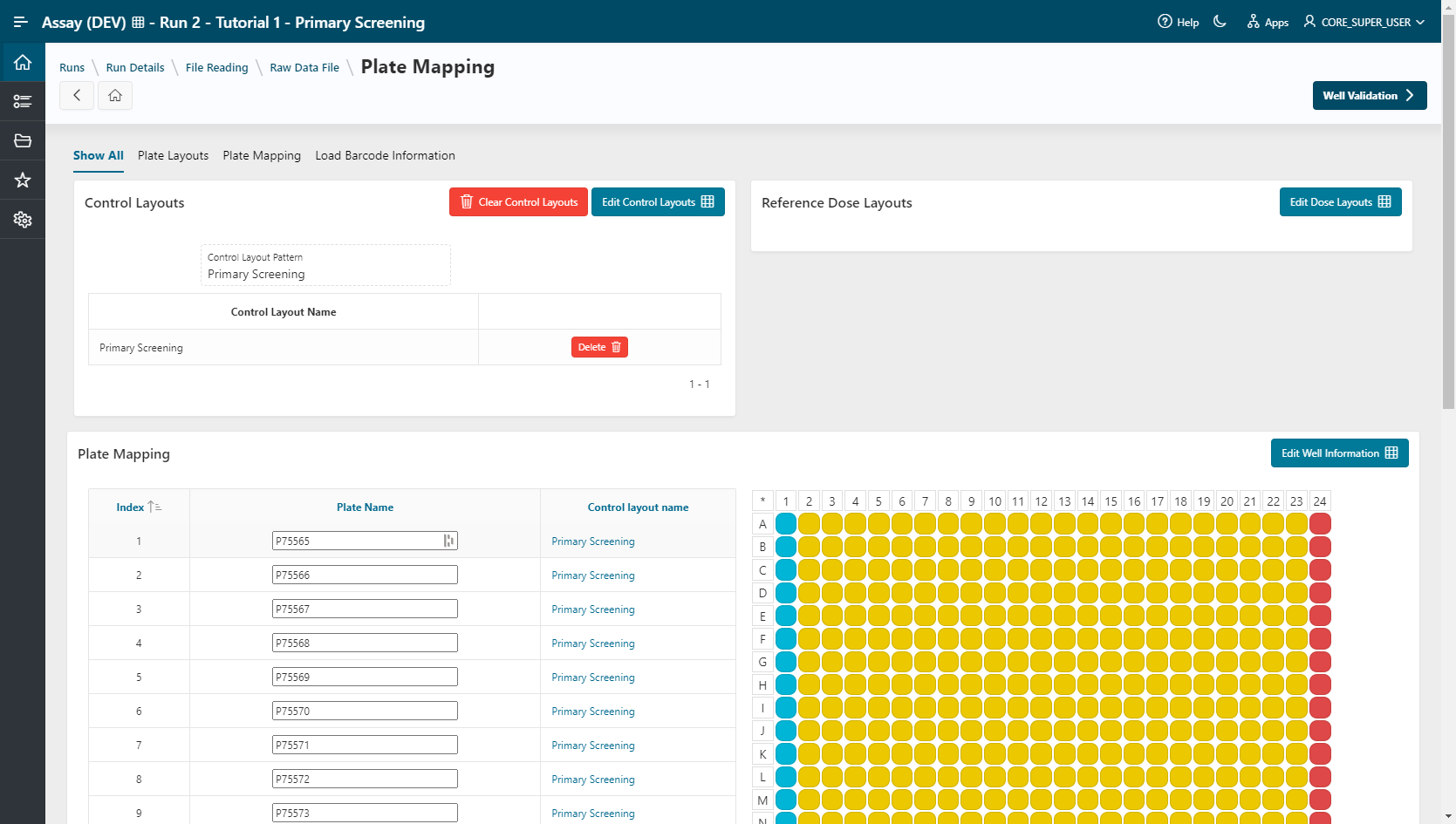
Ten plates were used, with minimum and maximum controls placed in columns 1 and 24, respectively.
Raw data was generated by an AnalystGT Reader from Molecular Devices. Files to use:
Run Creation
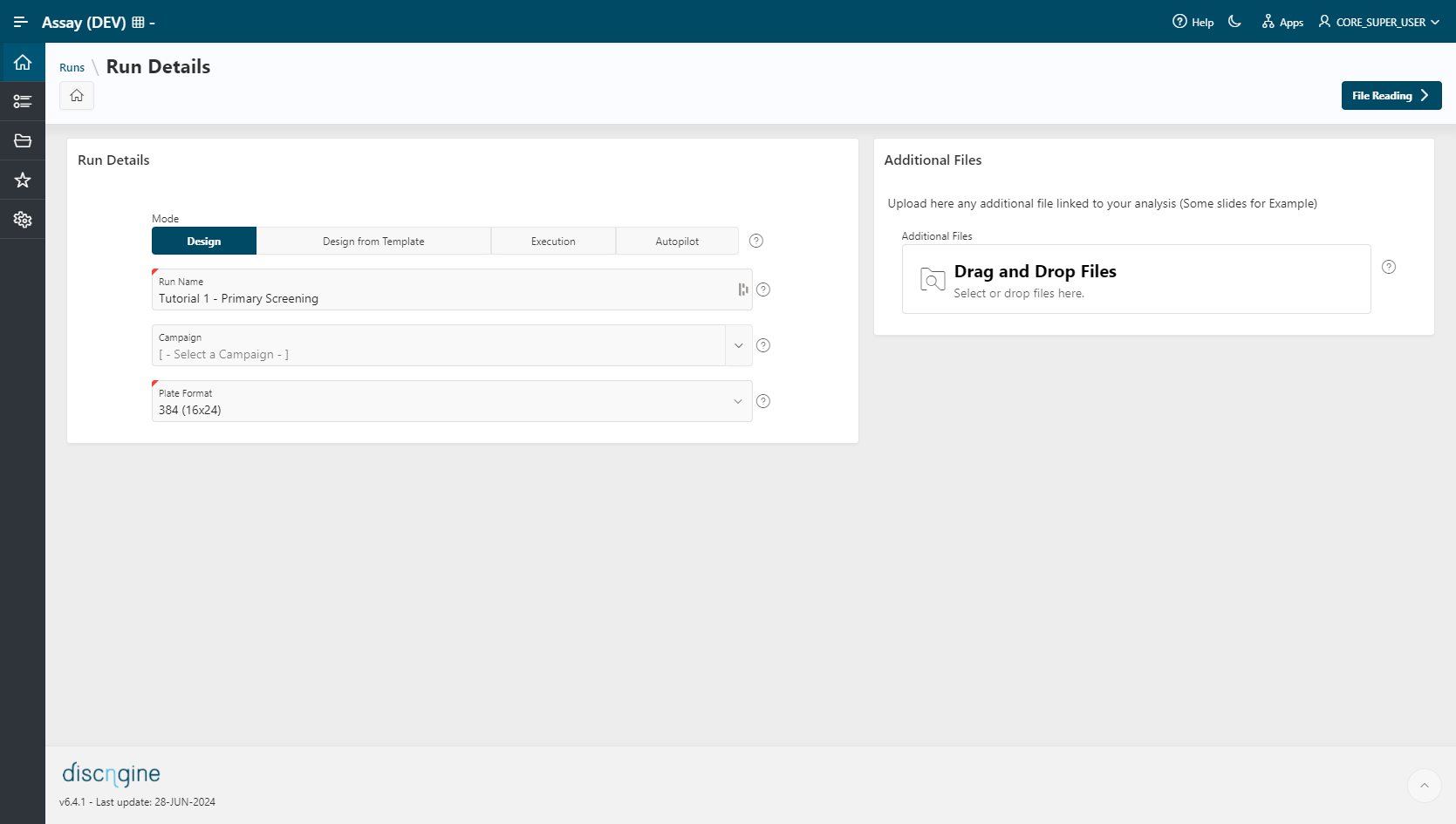
To create a new run, click the New Run button.
- Select Mode as
Design Mode. - Enter a
Run Name. - Specify the plate format to use:
384 (16x24). - Go to the File Reading step.
Info
Run Template is only mandatory in Execution Mode. This option in Design Mode can be used to create a new analysis based on an existing workflow template.
File Reading
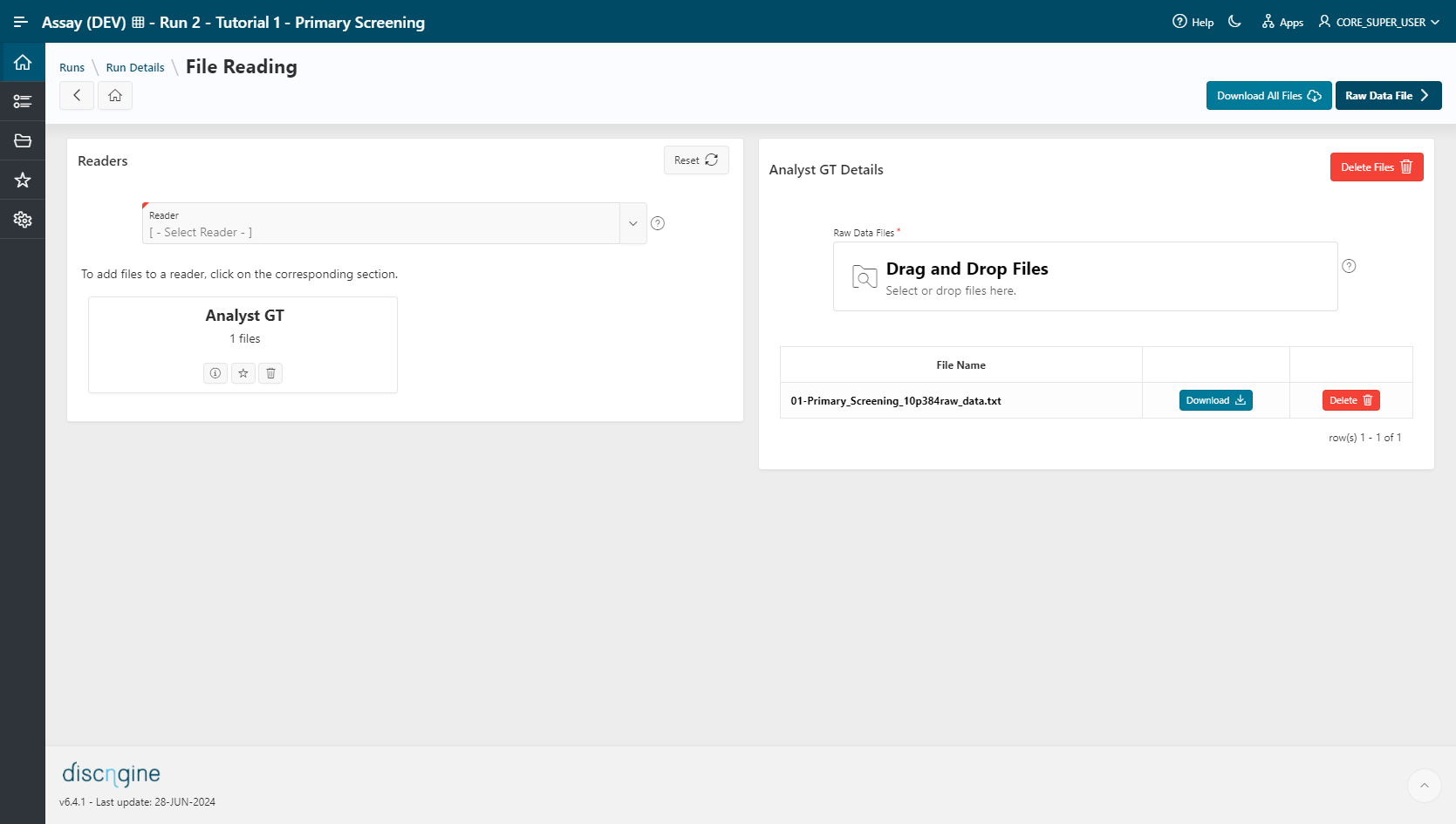
- Select
Analyst GT (TAB)as a reader. - Select the file
01-Primary_Screening_10p384raw_datain the upload section. The file is automatically uploaded upon selection and listed in the table below. - Go to the Raw Data File step.
Raw Data File
- The Number of Measurements per Plate (
1) and the READOUT Alias (READOUT1) are already set. - Go to the Plate Mapping step.
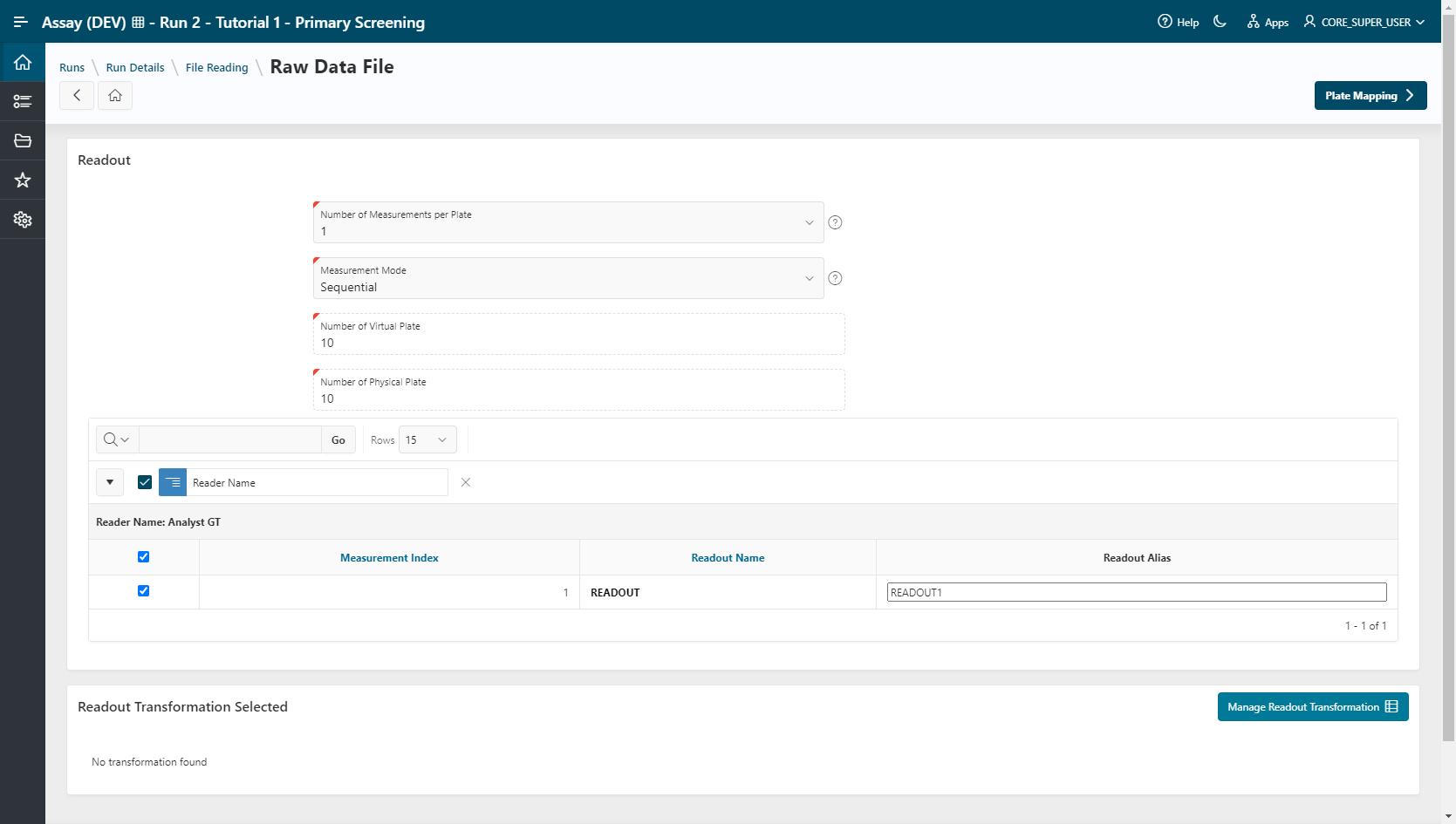
Plate Mapping
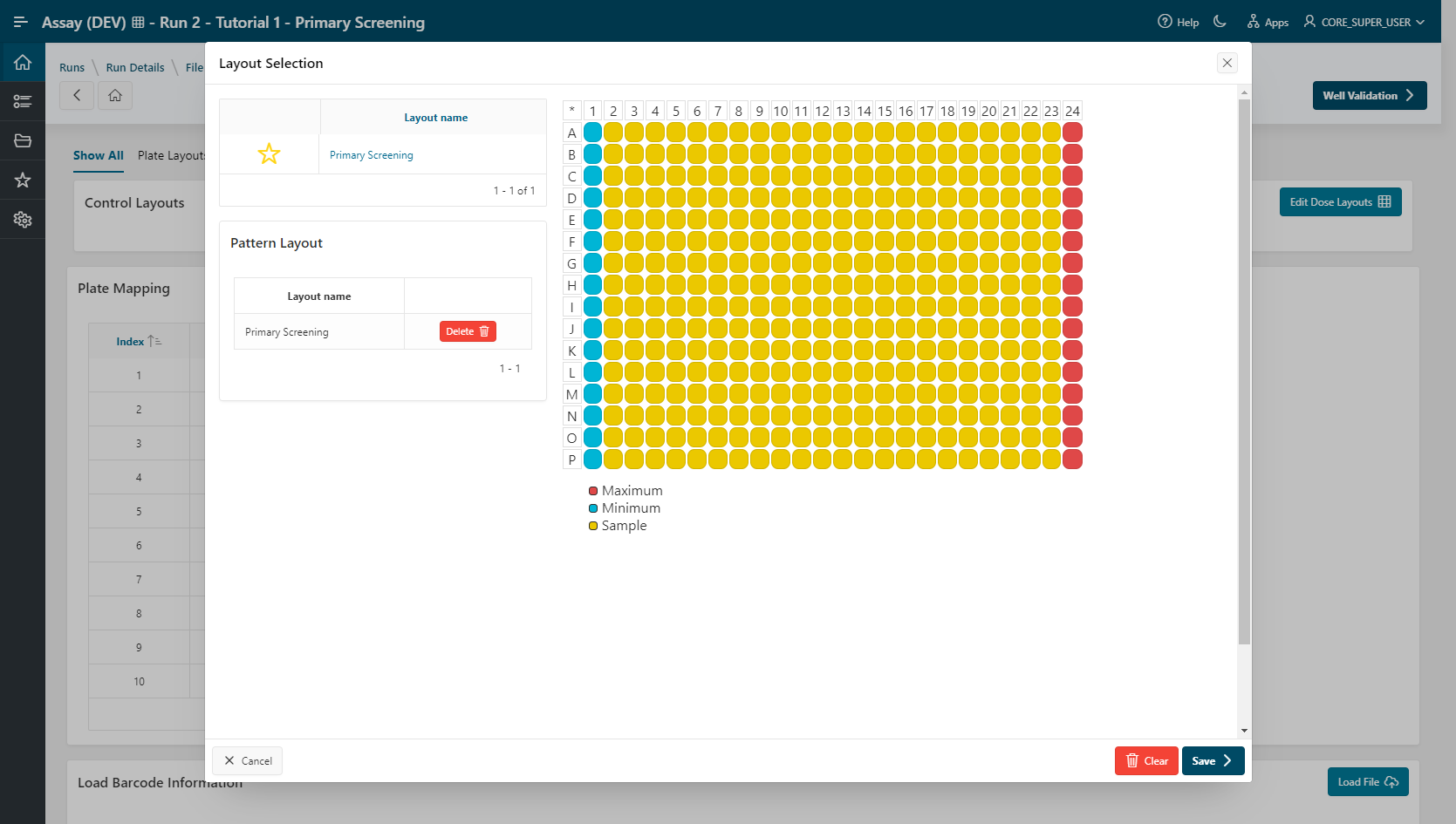
- Click
Edit Control Layoutsin the Control Layouts section. - Select the control layout named
Primary_Screening(Minimum control in column 1 and maximum control in column 24). - Click the
Savebutton.
Info
Barcode information is not needed in this tutorial. This section allows users to set plate barcodes using a file with two columns (Plate_Index / Barcode).
- Go to the Well Validation step.
Well Validation
Select your visualization tool:
Info
If you are using Spotfire Analyst Client, or if only one visualization tool is installed in your environment, this step will be skipped.
- TIBCO Spotfire Webplayer (Template: ValidationDefaultTemplate)
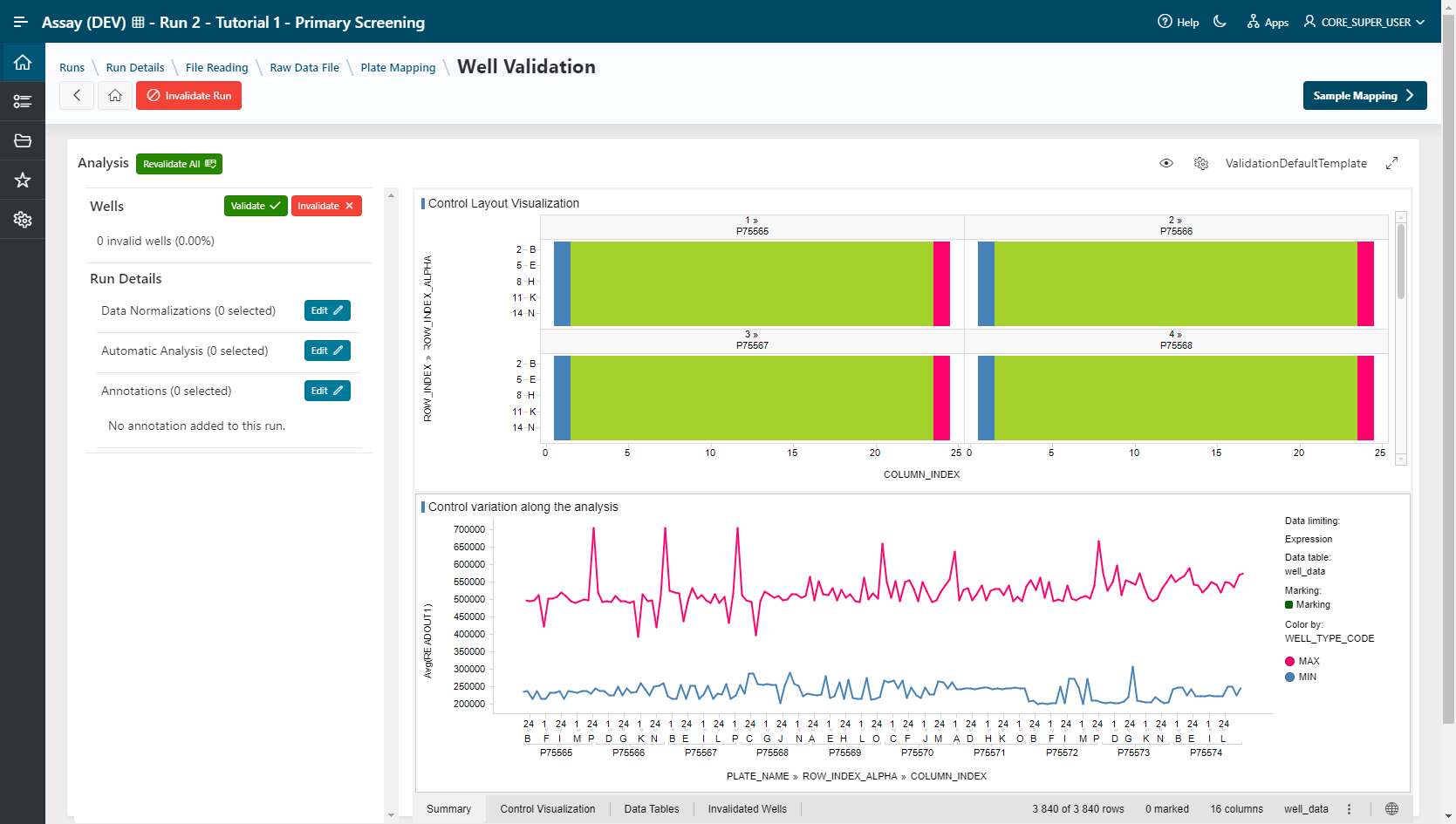
- Pipeline Pilot (Template: Plate Heat Maps)
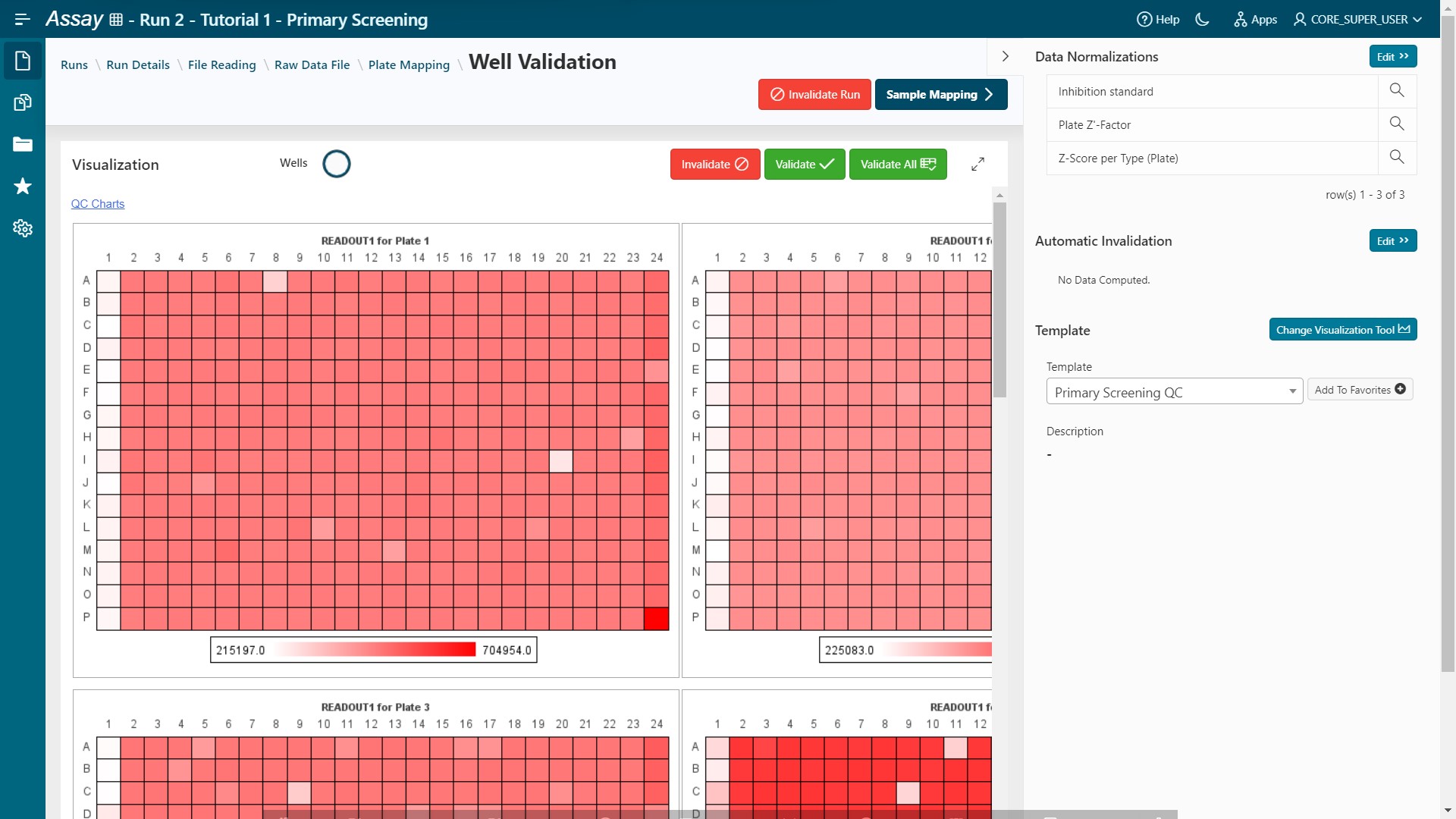
Results are loaded.
Add Data Normalizations:
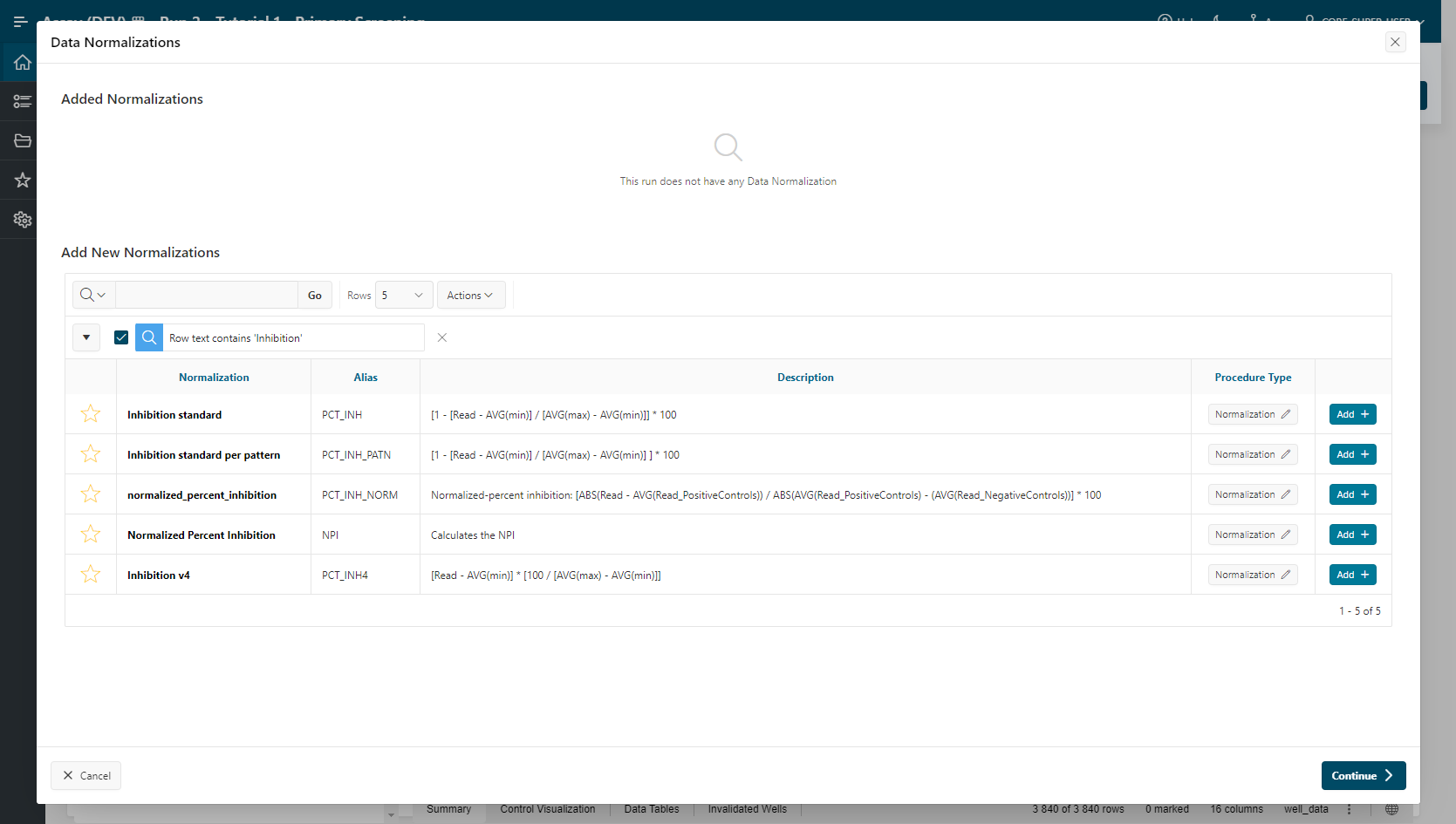
- In the left panel, next to the "Data Normalization" summary, click Edit to open the Data Normalizations modal.
- Look for the "Inhibition Standard" procedure and click on Add:
- Value READOUT1, MIN, MAX are selected.
- Click Add.
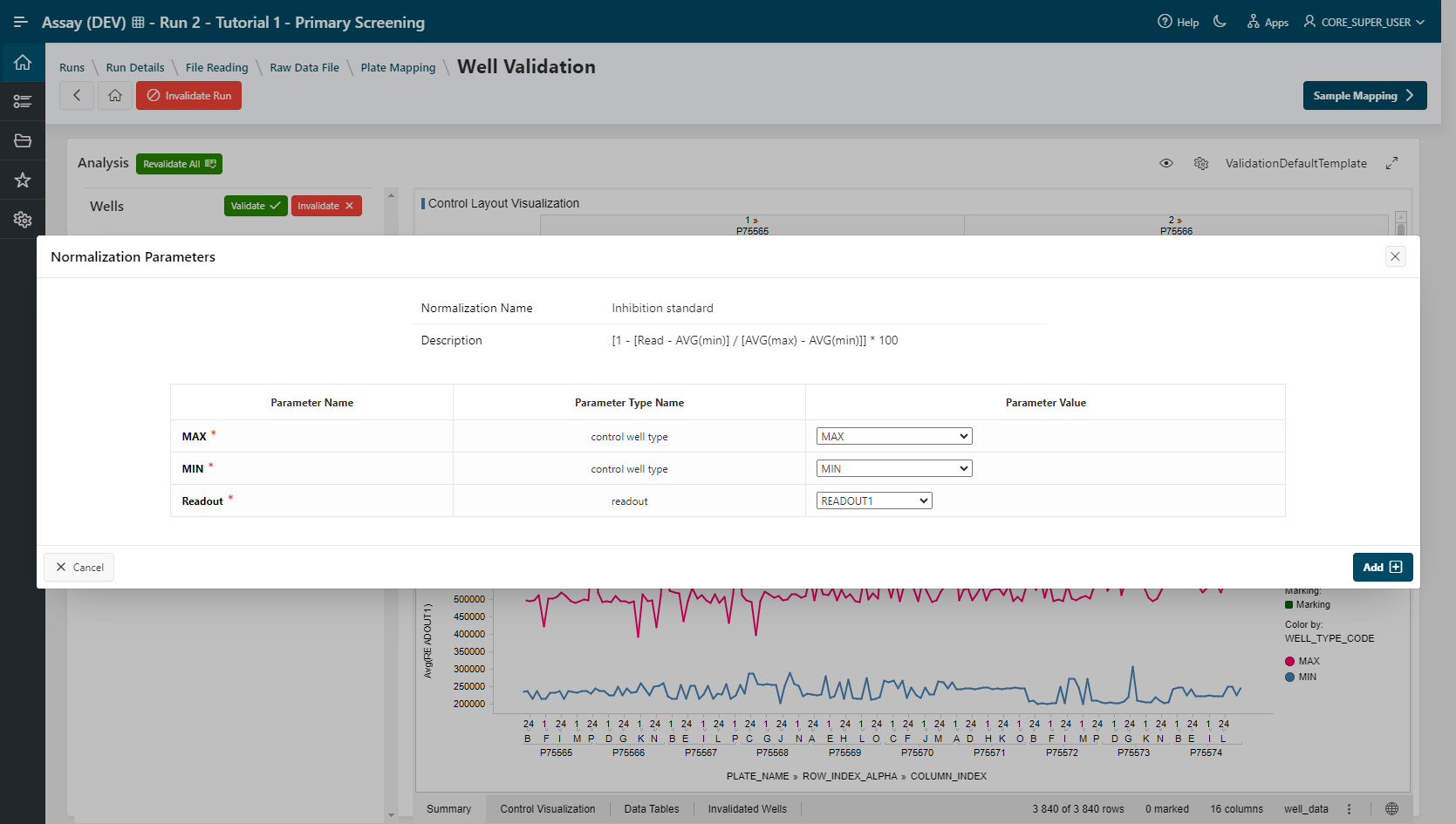
The Inhibition Standard normalization is listed in the Data Normalization Summary section.
- Repeat the same action for Plate Z'-factor normalization:
- Values READOUT1, MIN and MAX are selected.
- Click Add.
The Plate Z-factor normalization is listed in the Data Normalization Summary section.
- Do the same for Z-Score per Type (Plate) normalization:
- Value READOUT1 is selected.
- Click Add.
The Z-Score per Type (Plate) normalization is listed in the Data Normalization Summary section.
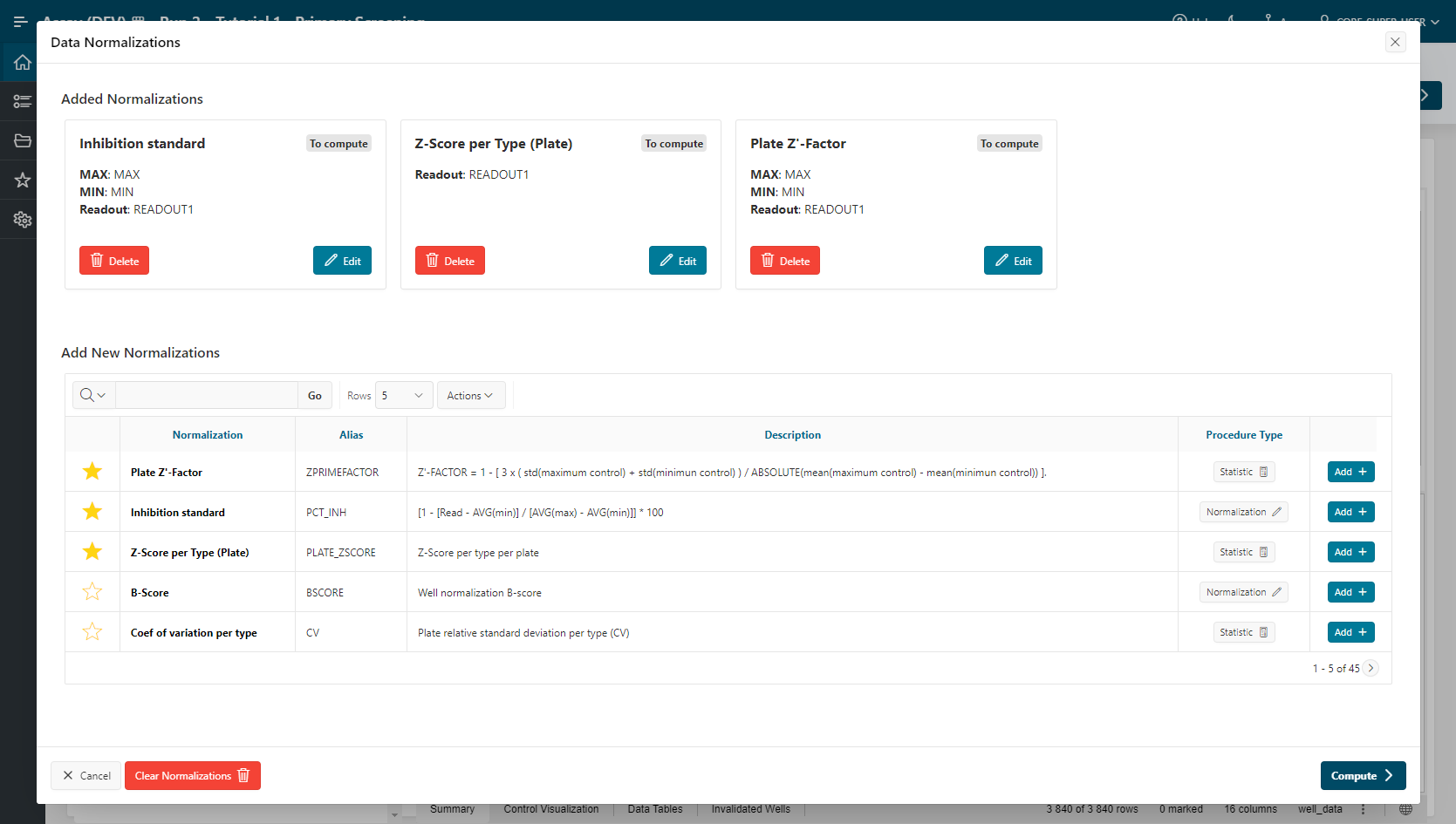
- Click Compute.
All normalizations are processed. Select another visualization template by clicking on the gears button above the current visualization.
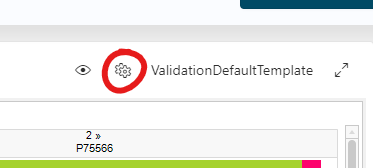
- Primary_Screening_Template for TIBCO Spotfire WebPlayer.
- Primary Screening QC for Pipeline Pilot.
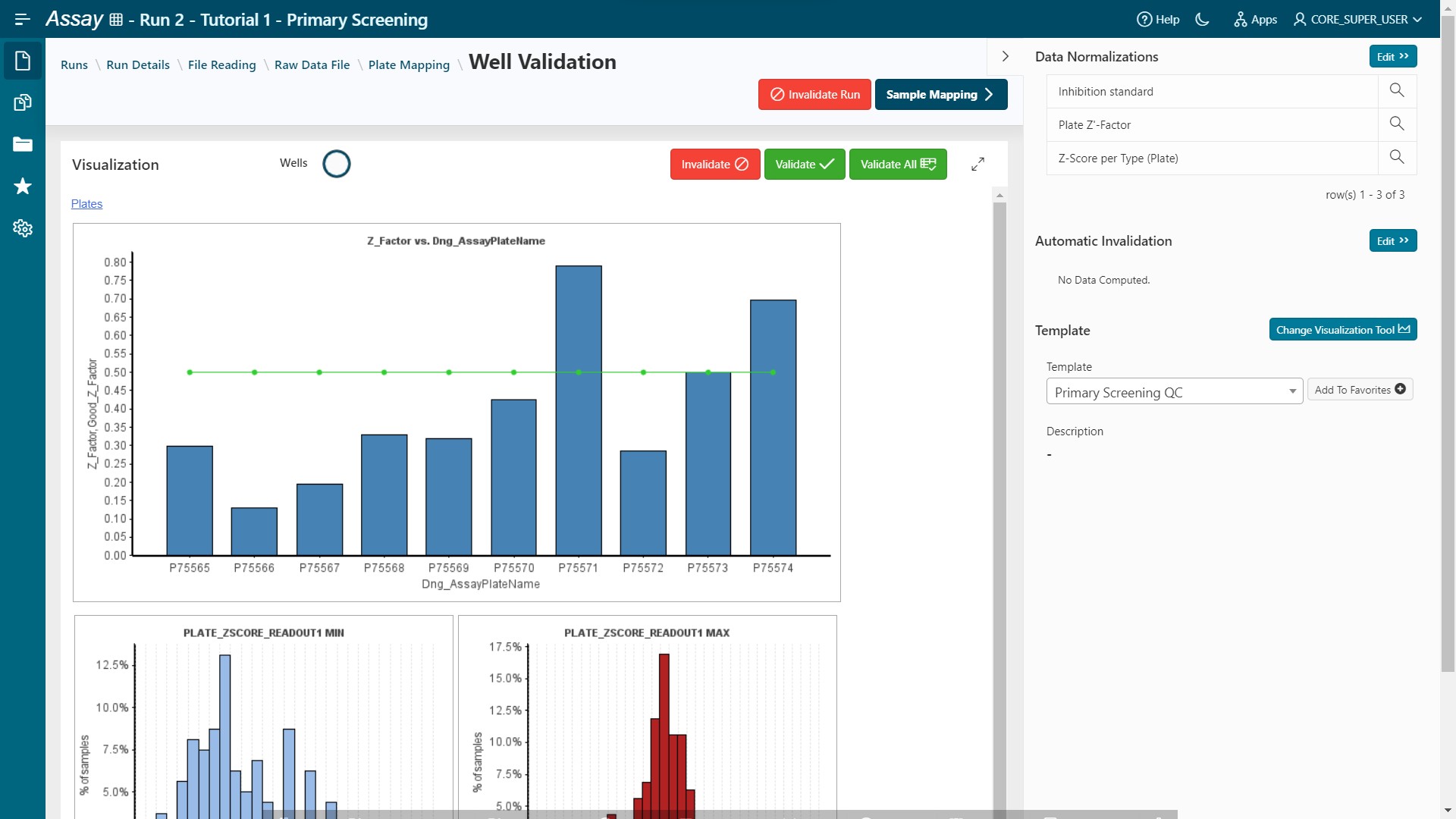
- You can also create a new one and save it (see developer guide to register a new Pipeline Pilot Protocol in Assay).
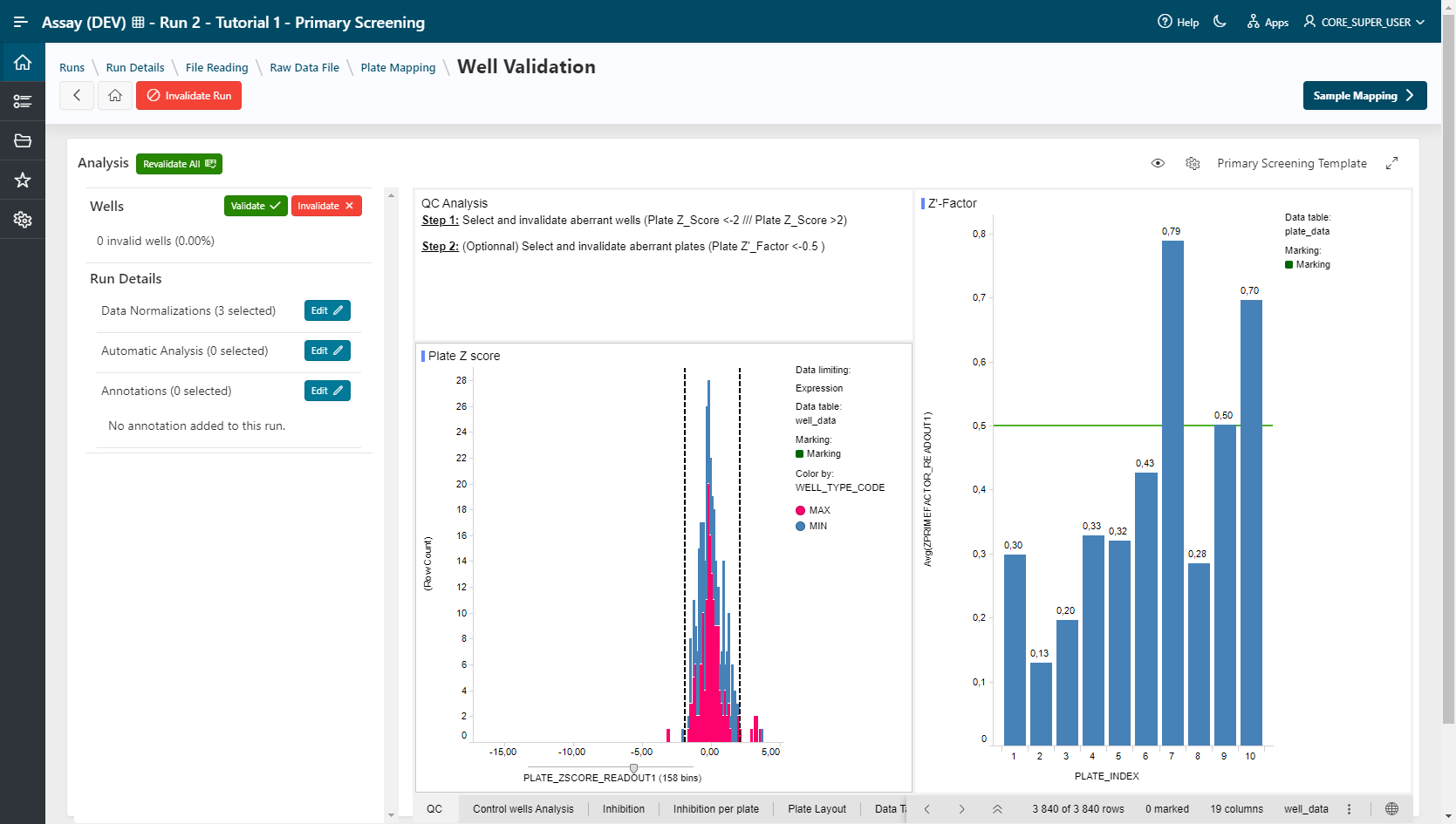
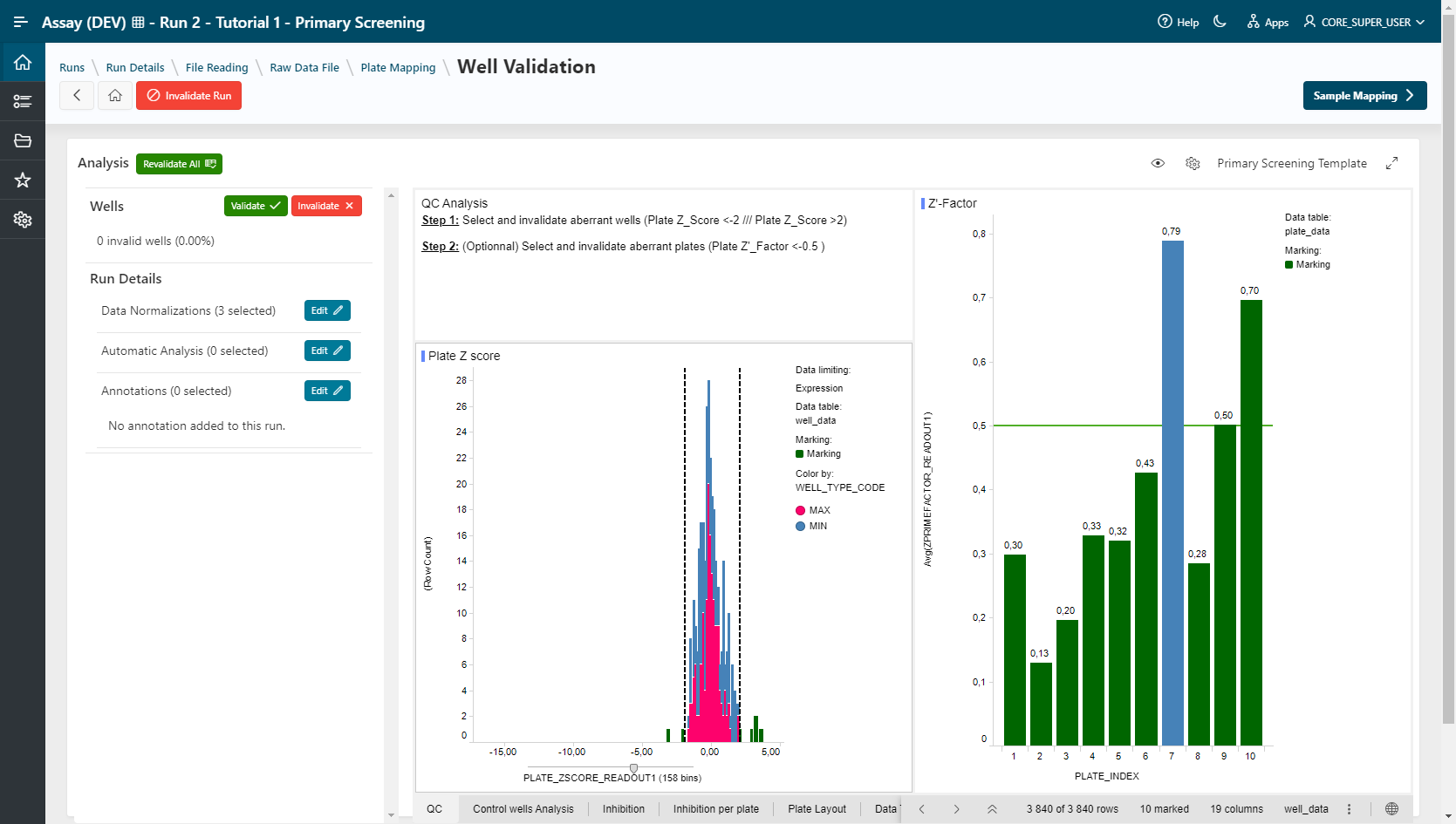
For QC Validation, select aberrant wells in the visualization and click on the  button. Multiple selection is allowed by holding the Ctrl key.
After each invalidation, the normalizations will be relaunched in order to recalculate based on your selection.
Example
Plate_ZSCORE_READOUT1 < -2 or Plate_ZSCORE_READOUT1 > 2. (10 wells are invalidated) and all normalizations are recomputed.
- Go to the Sample Mapping step.
Sample Mapping
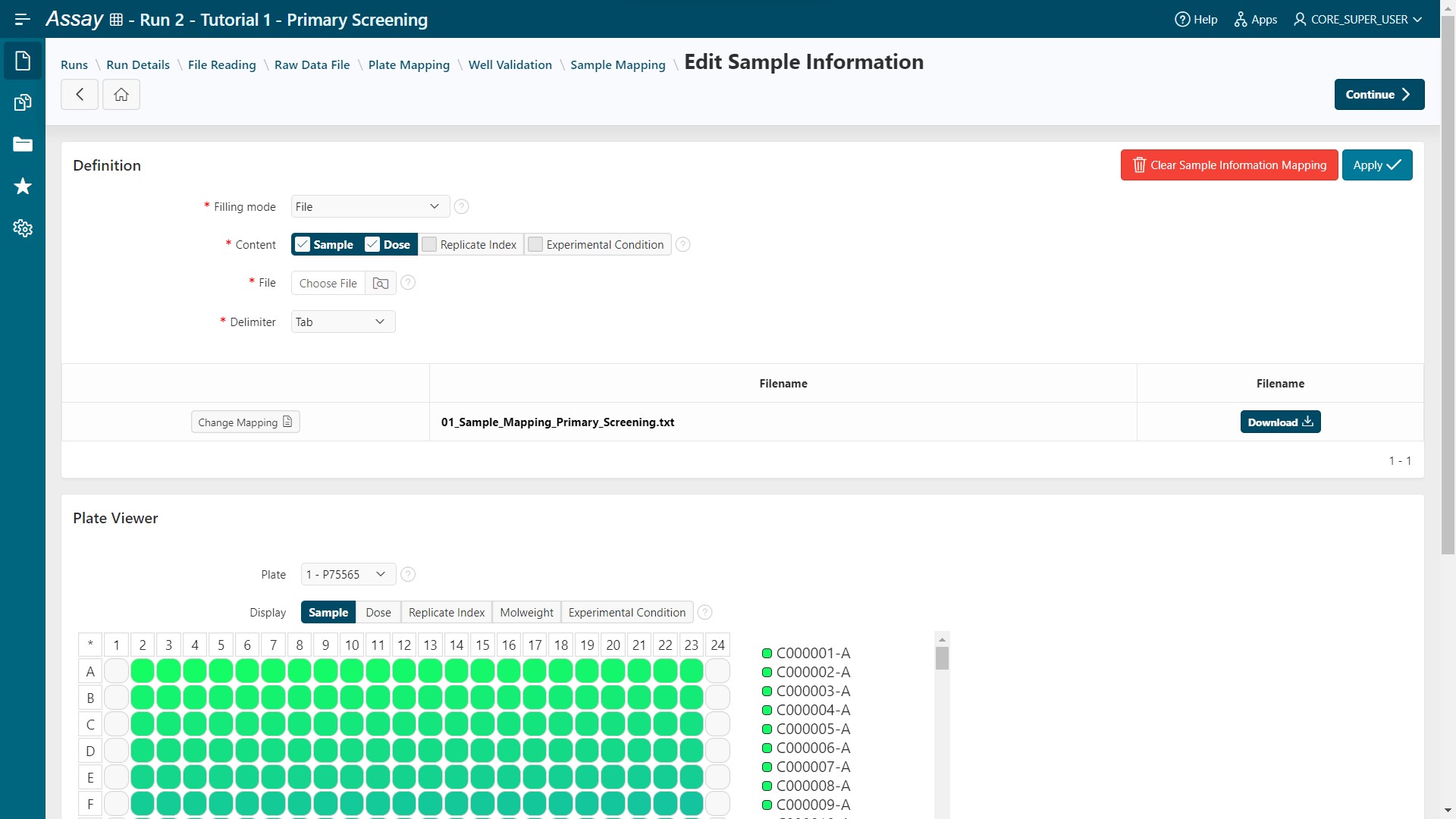
- Select filling mode File and tick Sample and Dose for content.
- Load the file 01_Sample_Mapping_Primary_Screening.
- Click on the
Applybutton.
Samples and doses are filled in.
- Click on the
Continuebutton. Samples and doses are mapped for all plates.
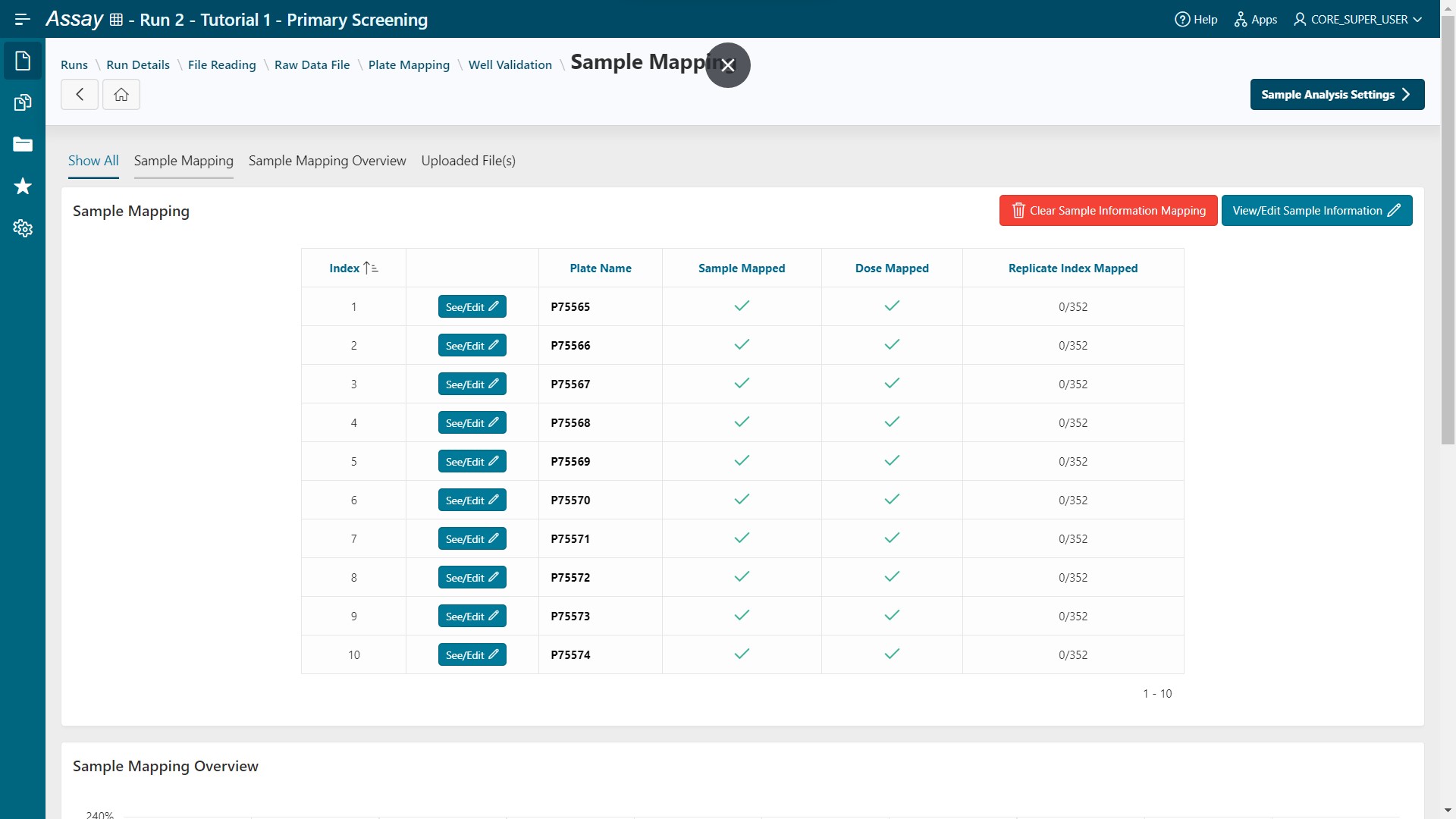
- Click on the
Sample Analysis Settingsbutton.
Sample Analysis Setting
- Select SampleName as Parameters to Aggregate.
- Select the Series: PCT_INH_READOUT1.
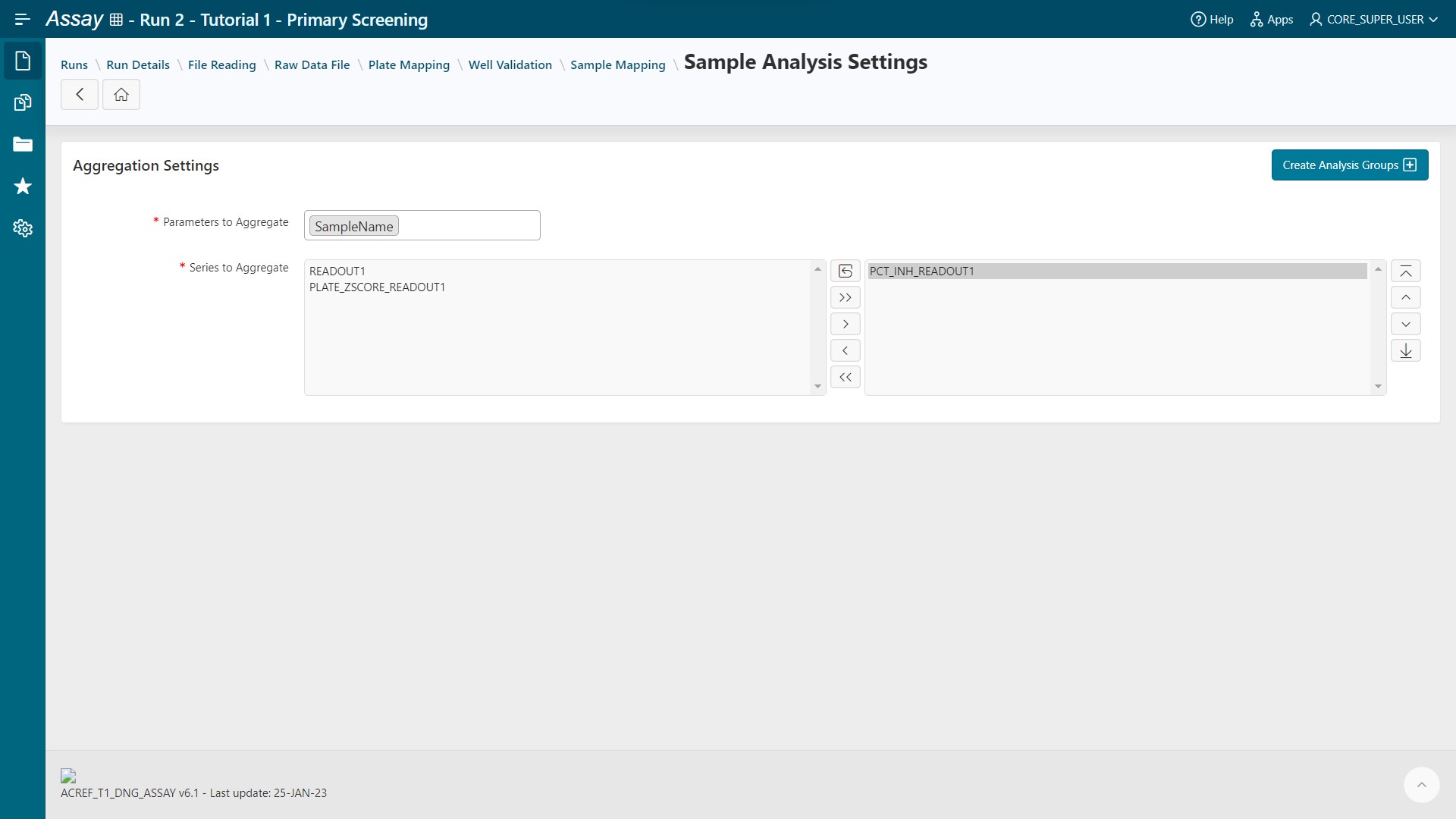
- Click on the
Create Analysis Groupsbutton: 3520 groups are created. - Select the Analysis Basic Statistics then click on the
Add Reference Analysisbutton.
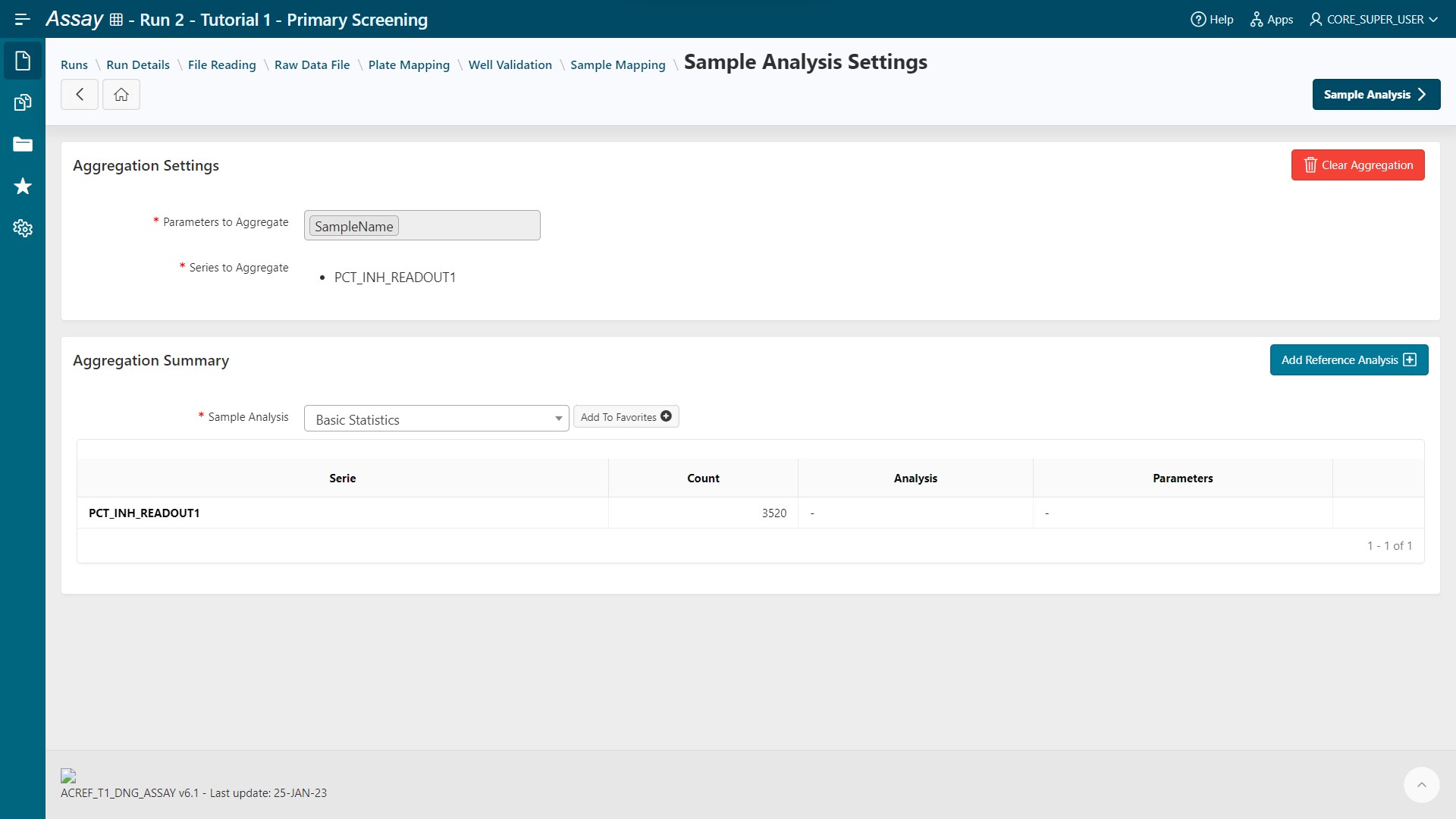
- Click on the
Savebutton to apply basic statistics to all series.
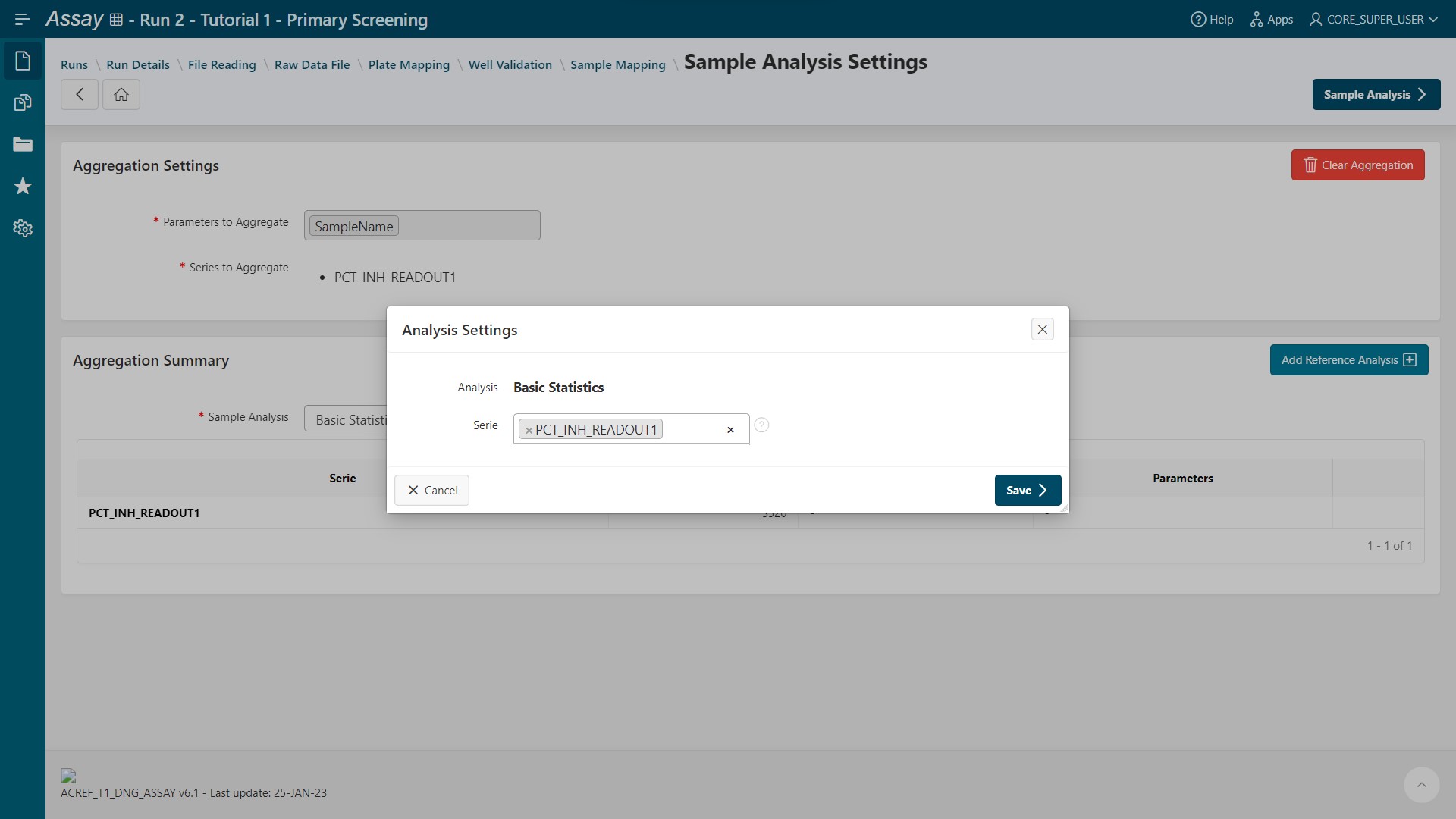
- Go to the Sample Analysis step.
Sample Analysis
Select your Visualization Tool:
- TIBCO Spotfire Webplayer
- Pipeline Pilot
Info
This step is only available if 2 visualization tools are installed. Otherwise, this step will be skipped.
Apply an existing template (Spotfire) or protocol (Pipeline Pilot):
- Primary_Screening_Analysis for TIBCO Spotfire Webplayer
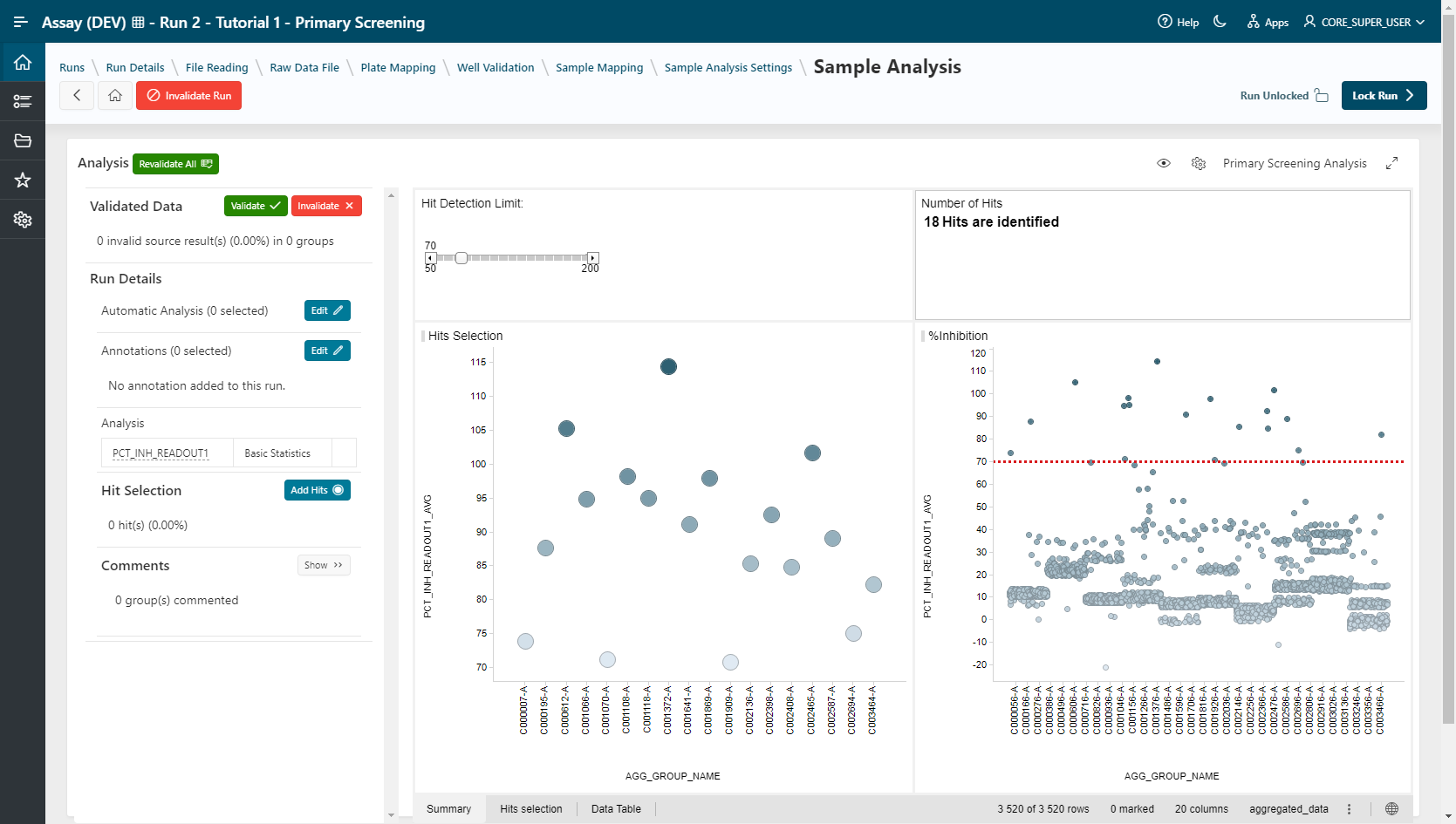
Tip
The space occupied by the visualization can be optimized to your liking by clicking on the  icon and the
  icon
icon
- Source and Final Results Table Sample for Pipeline Pilot
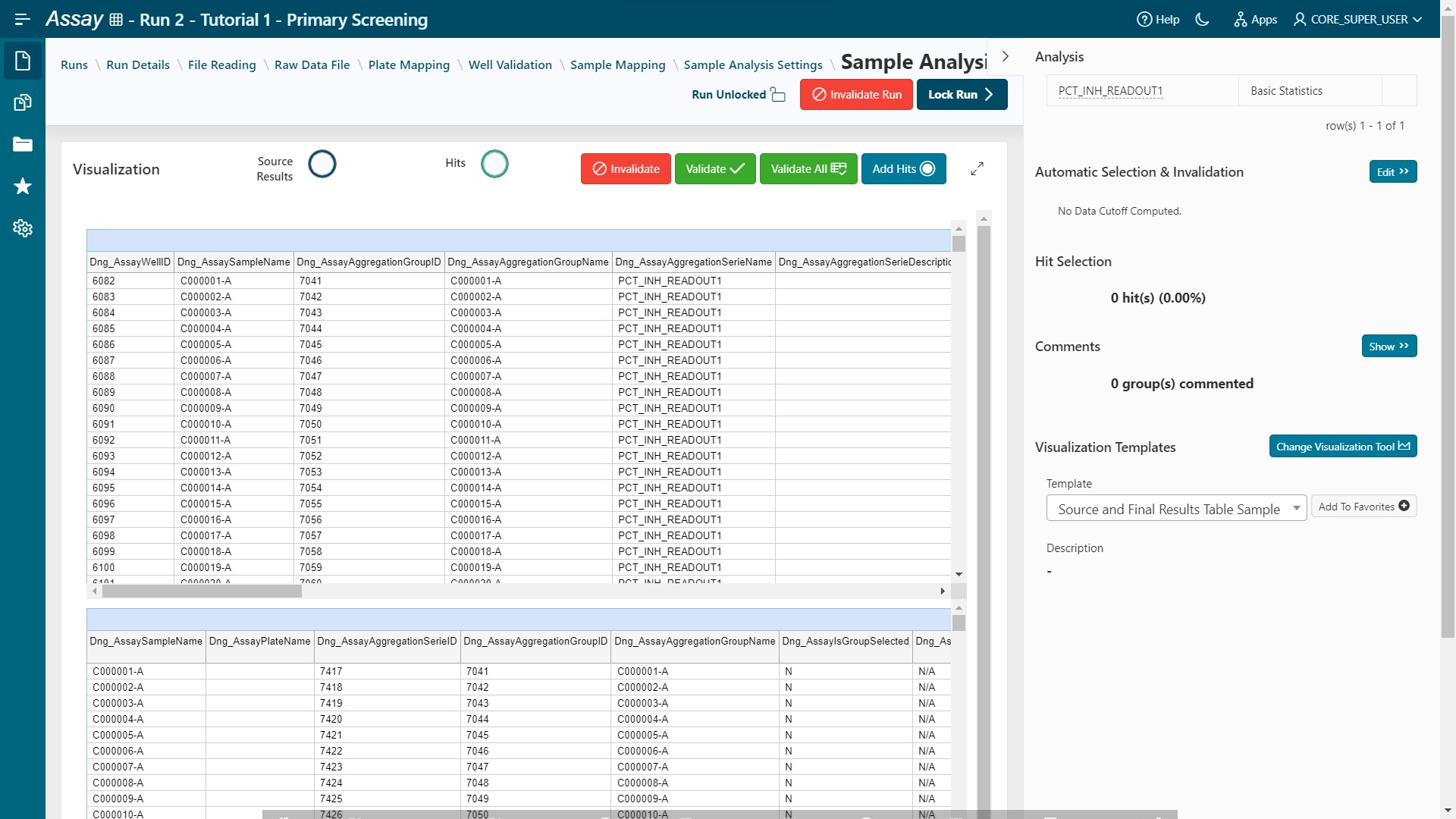
For Hit Selection, select points (hits) in the visualization and add them to a list by clicking on the Add Hits button. This selection can be exported in CSV format (export button) or used to create a list that can be used in the Sample application.
- Lock your Analysis using the Lock Run button.
- Go to Publisher step.
Publisher Selection & Workflow Template Creation
- Select a target publisher (depending on what is installed – None, Warehouse or BIOVIA Project Data). For more information on publishing data see the Publisher guide.
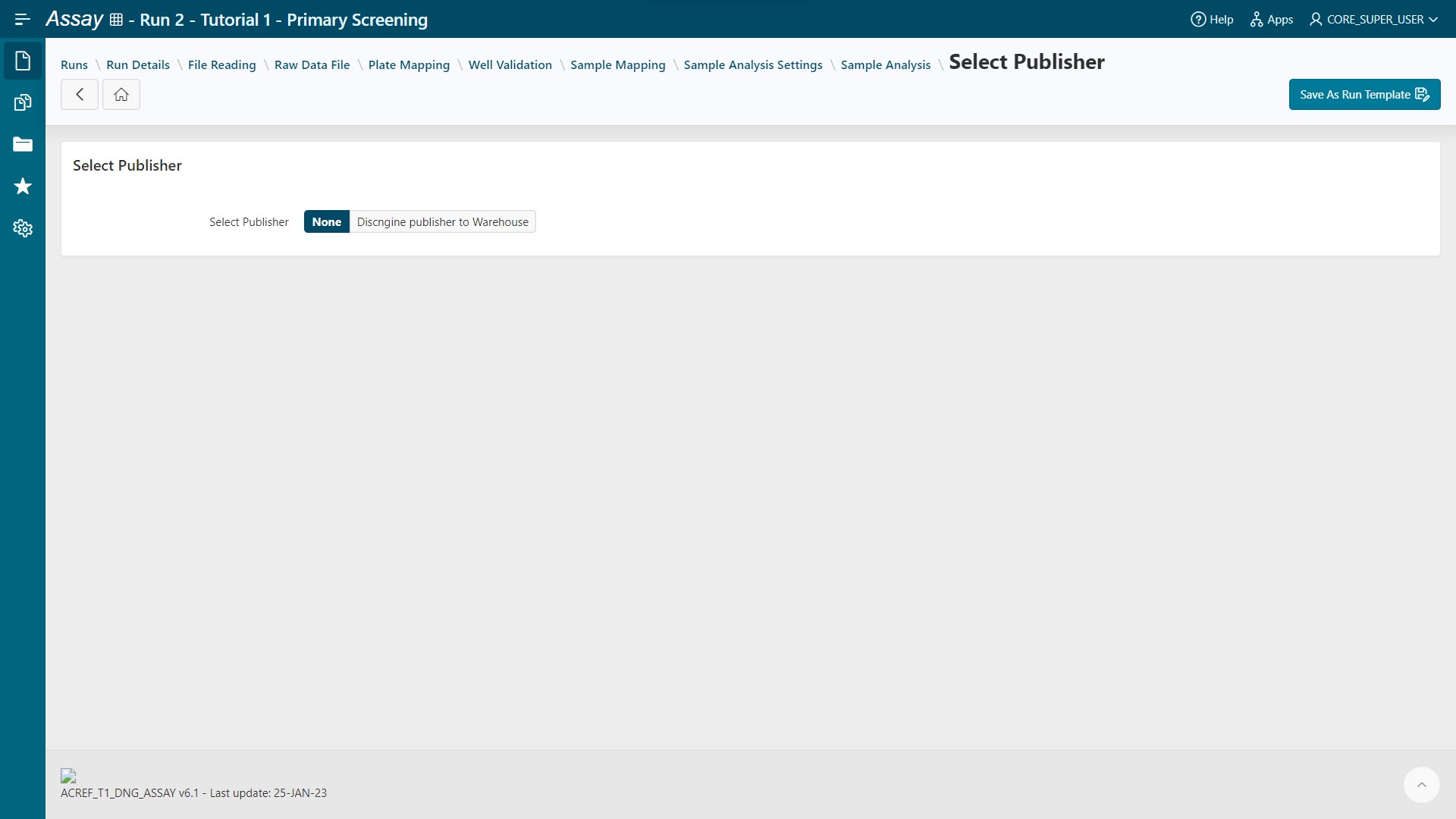
- Save your analysis by clicking on Save As Run Template. The template will be used later in the execution mode.
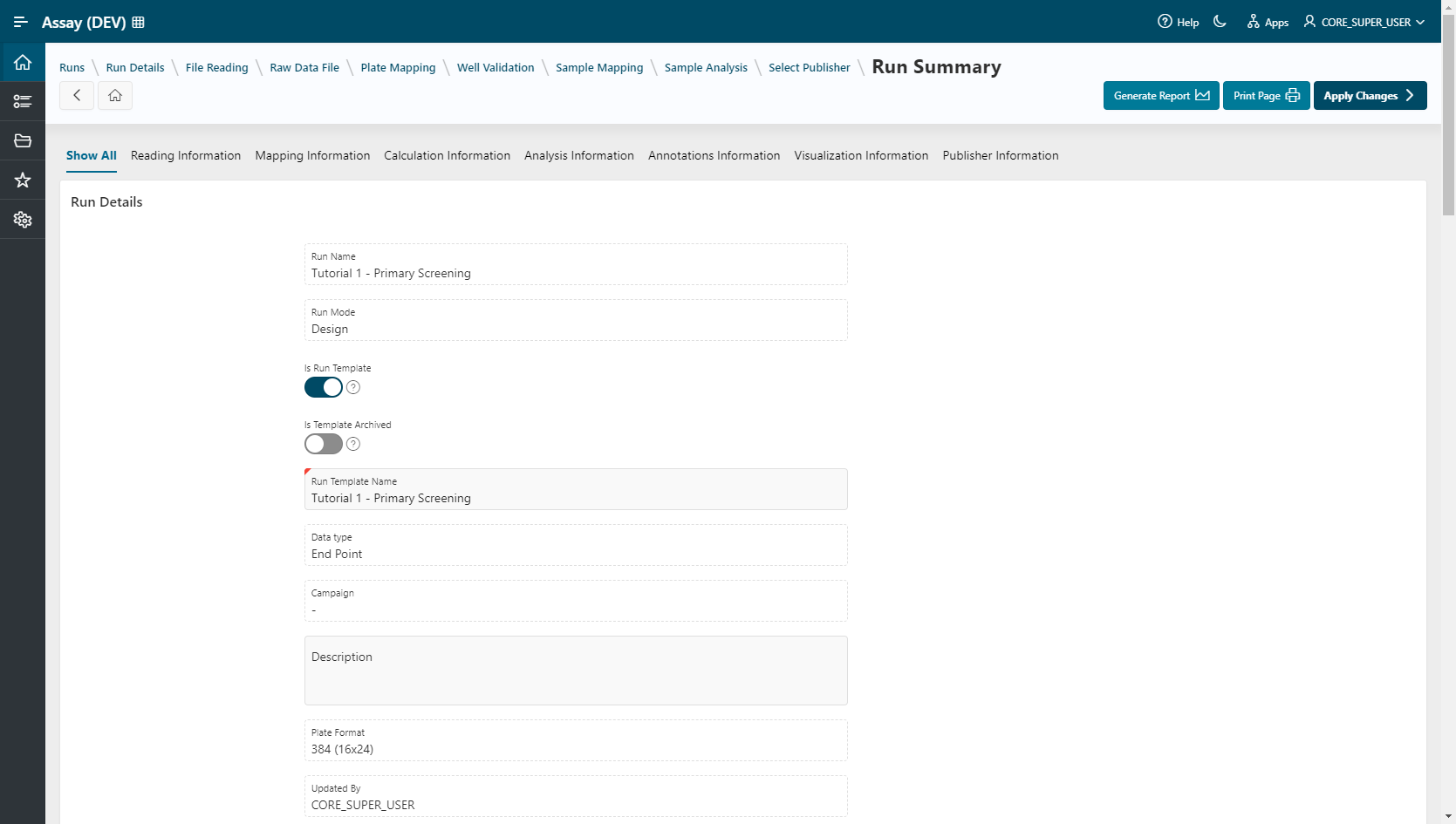
- Give a name and description to the run template.
- Click on Apply Changes to save your modifications.
Info
Once the run template is saved, the screeners can use it in Execution Mode, following this tutorial