File Results Import
Info
To upload or delete a results file, you need to have the Warehouse Publisher role.
Warehouse allows you to publish data from files, such as results files, into the Warehouse database. This is done through the File Results Import page.
File Results List
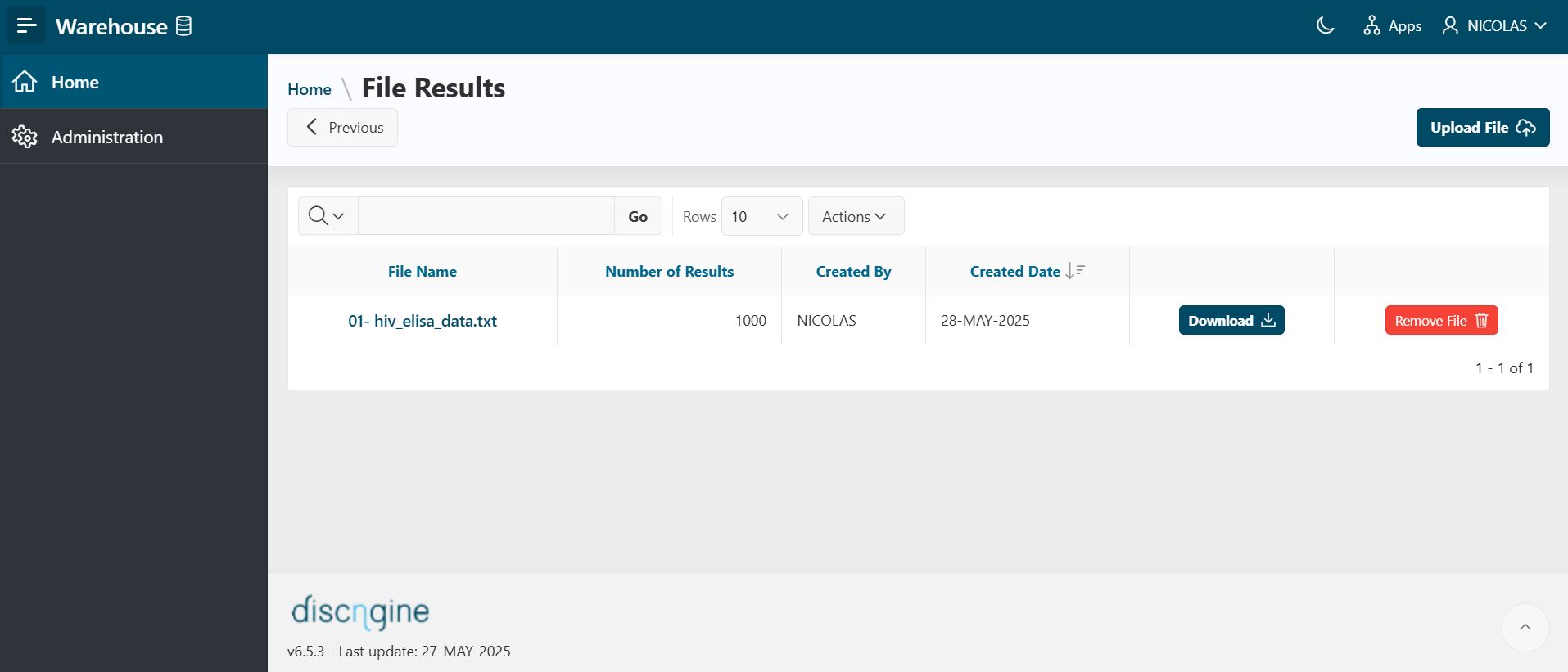
To see a report on the uploaded results files, open the File Results Import page, accessible from the main page of Warehouse.
- By clicking the
Downloadbutton, you can download the file. - By clicking the
Remove Filebutton, you can remove the file and the data inserted in Warehouse. If you delete it, the results will be recomputed. - By clicking the name of the file, you are redirected to the File Content page.
File Content Page
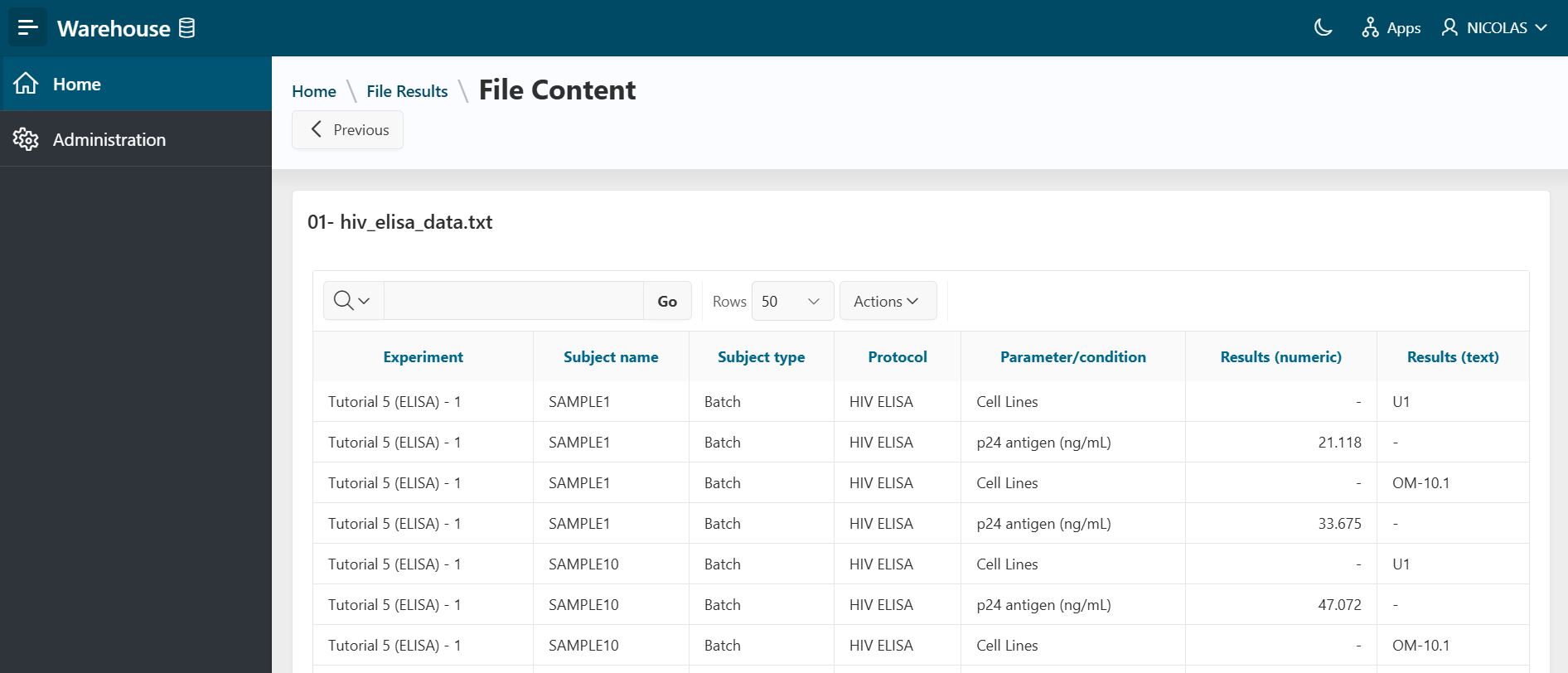
On the file content page, you can check that your data:
- Has been correctly loaded into Warehouse.
- Matches the correct protocol and the correct parameters/conditions.
Create Results from Files
Before uploading a results file, the protocols defined in it must be created in Warehouse. See the Create New Protocol guide for more information.
Upload File
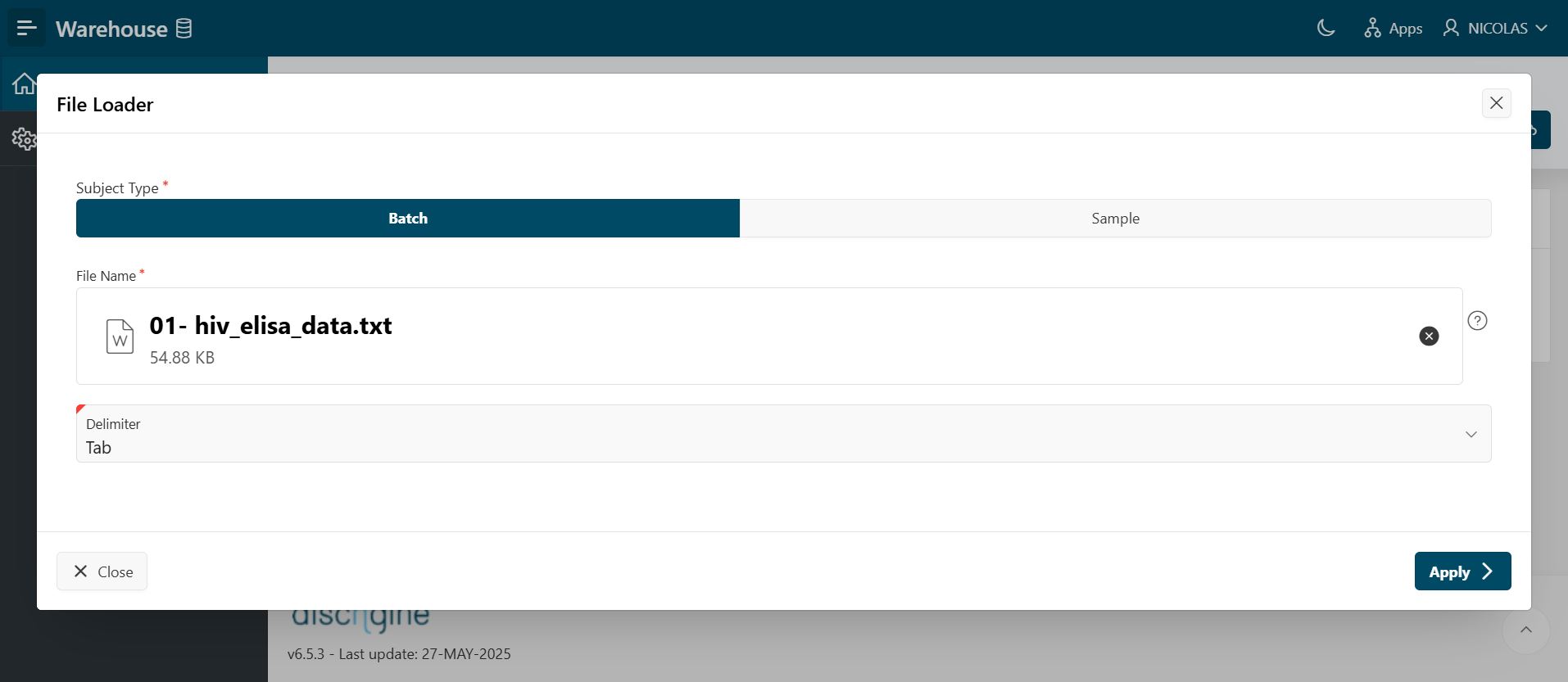
To upload a file, click the Upload File button at the top right.
- On the File Loader page, fill in the form.
- Subject Type: The type of subject for which you want to publish results. For example, when Warehouse is installed, two types are provided: Batch and Sample.
- File Name: Click to browse for and select the appropriate file.
- Delimiter: The delimiter used in the file. For example, tab or comma.
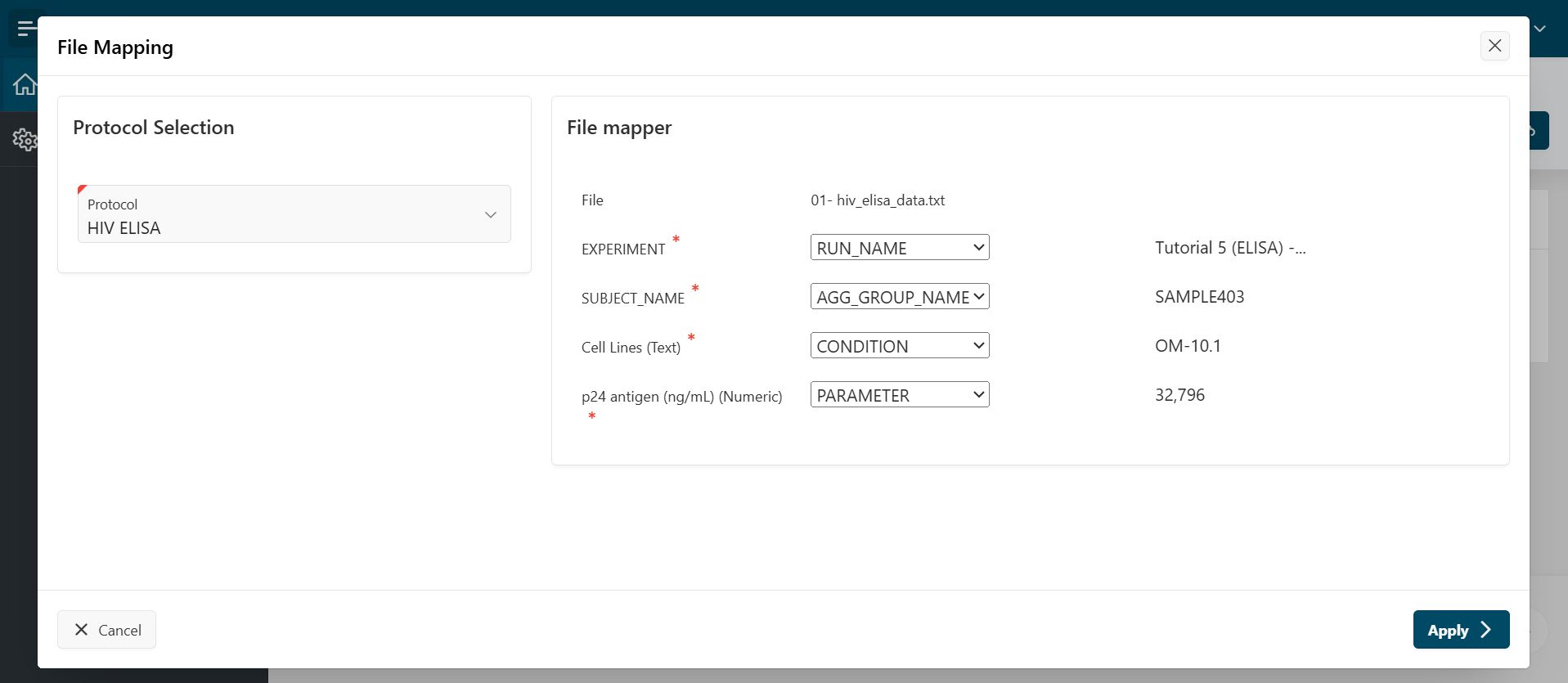
File Mapping
- Fill in the
File Mappingsection by providing the following information:- Protocol – Choose the protocol used to import data.
- EXPERIMENT – Map Experiment to the corresponding file column.
- SUBJECT_NAME – Map Subject to the corresponding file column.
- [Parameters ...] Map to results columns corresponding to the parameters defined in the protocol.
- Once the form is filled in, click the
Uploadbutton (top right).
The file is uploaded and you are automatically redirected to the File Results page to see it in the report.
Info
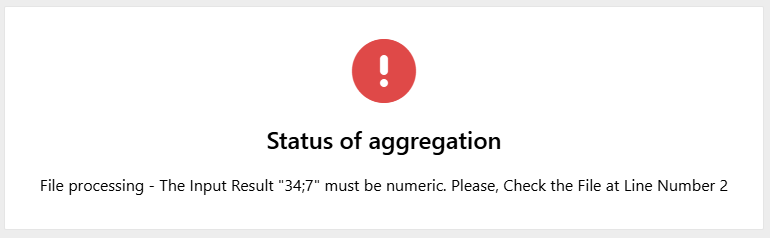
A success message is shown when the data is uploaded and inserted. An explicit error message is shown when the data is not uploaded or inserted correctly, helping you to find the problem.