Tutorial - Registration From File
Introduction
The Registration - From File workflows allow you to register containers (vials, plates, or racks) in Sample using files that contain all the necessary information. Once registered, the containers can be received in Sample and used in subsequent workflows.
This tutorial covers three types of registration:
- Vial Registration - Register individual vials (example: 10 vials including V100070)
- Plate Registration - Register 96-well plates (example: 10 plates including DNGPLATE00100)
- Rack Registration - Register racks containing multiple vials (example: 56 racks including RDNG0001)
Prerequisites
Required permissions
Sample Registration role is required to access this workflow.
Workflow
Job Initialization
Create a new job and select the appropriate workflow based on the type of container you want to register:
Vial Registration - From FilePlate Registration - From FileRack Registration - From File
Requesting
The process varies slightly based on container type:
For Vials (10 vials example)
- Upload the file containing 10 vials: Vials Registration File. The file will appear on the right side of the screen.
- Leave File Mapper as the parser.
- Select Tabulation as the file delimiter.
- Choose Liquid as Batch Storage and Compound as Batch Type.
For Plates (10 plates example)
- Upload the file containing 10 plates: Plates Registration File. The file will appear on the right side of the screen.
- Leave File Mapper as the parser.
- Select Semi-Colon as the file delimiter.
- Choose Liquid as Batch Storage and Compound as Batch Type.
- Set Target Plate Format to 96.
For Racks (56 racks example)
- Upload the file containing 56 racks: Racks Registration File. The file will appear on the right side of the screen.
- Leave File Mapper as the parser.
- Select Semi-Colon as the file delimiter.
- Choose Liquid as Batch Storage and Compound as Batch Type.
- Set Target Rack Format to 96.
Click Next to proceed.
File Mapping
All mandatory fields (marked with a red star) are usually filled automatically. Ensure they are, or select the corresponding column from the file in the list.
For vials, some items allow you to choose between a column in the file or a constant value. For example, for the solvent, select Buffer/Medium From Registration as the constant value for all vials.

Click Register.
Summary
The summary page provides information about the registration, such as the number of containers and batches registered in Sample. An interactive report lists all registered containers and their status (valid or not).
If some containers are valid, you can receive them directly by clicking the Reception button.
Container Detail Examples
If you are a Sample Administrator, you can view container details by clicking on their names:
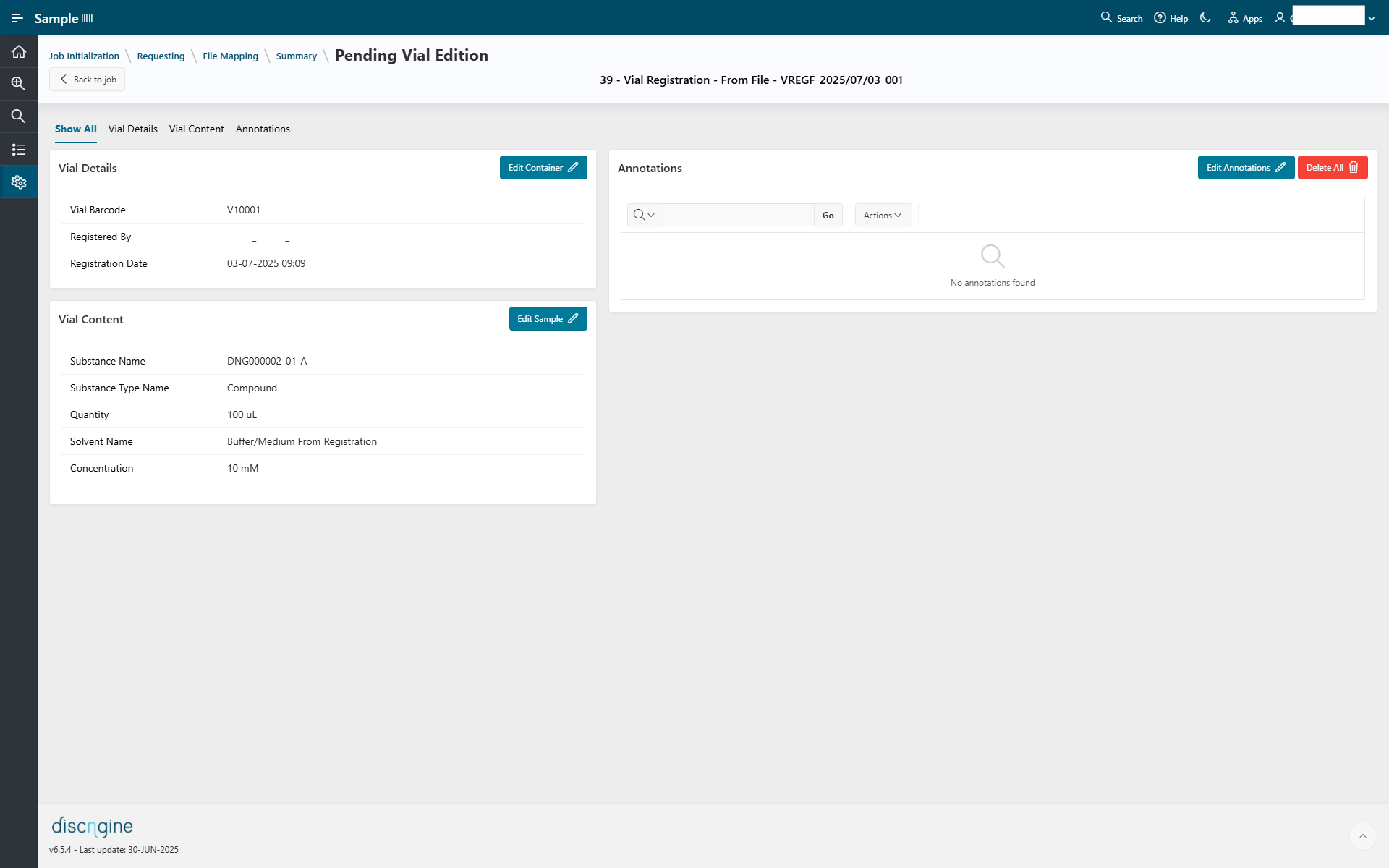
For Vials: Click on vial V100070 to view its details. The detail page shows the vial content and allows you to:
- Edit the container information by clicking the
Edit containerbutton - Edit the sample information by clicking the
Edit samplebutton - Add or edit vial annotations
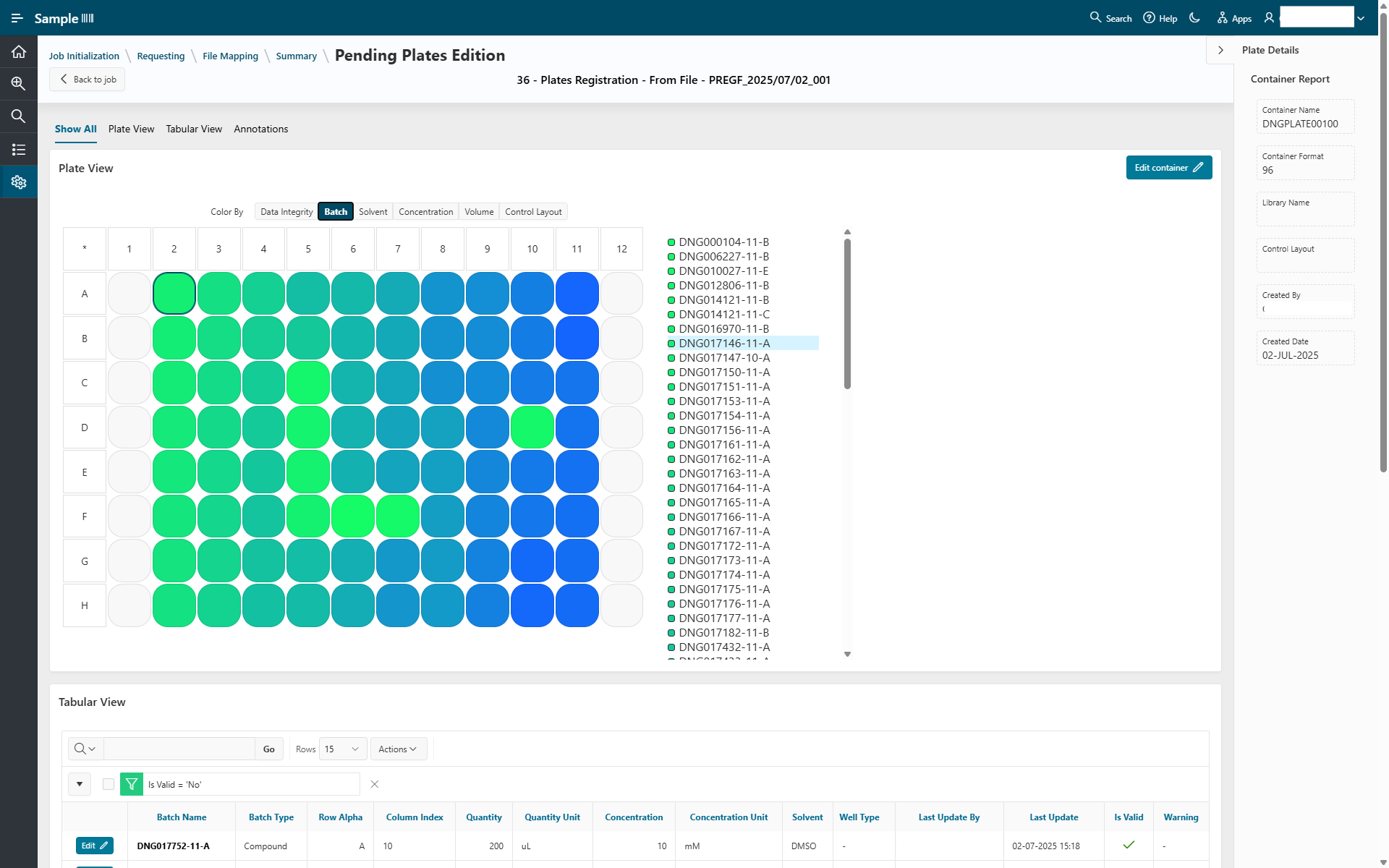
For Plates: Click on plate DNGPLATE00100 to view its details. The detail page shows the plate content and allows you to:
- Visualize the plate content from the plate viewer and the tabular view
- Edit the container information including the control layout by clicking on the
Edit containerbutton - Edit the sample information by clicking the
Editbutton on the tabular view - Add/edit the plate annotations
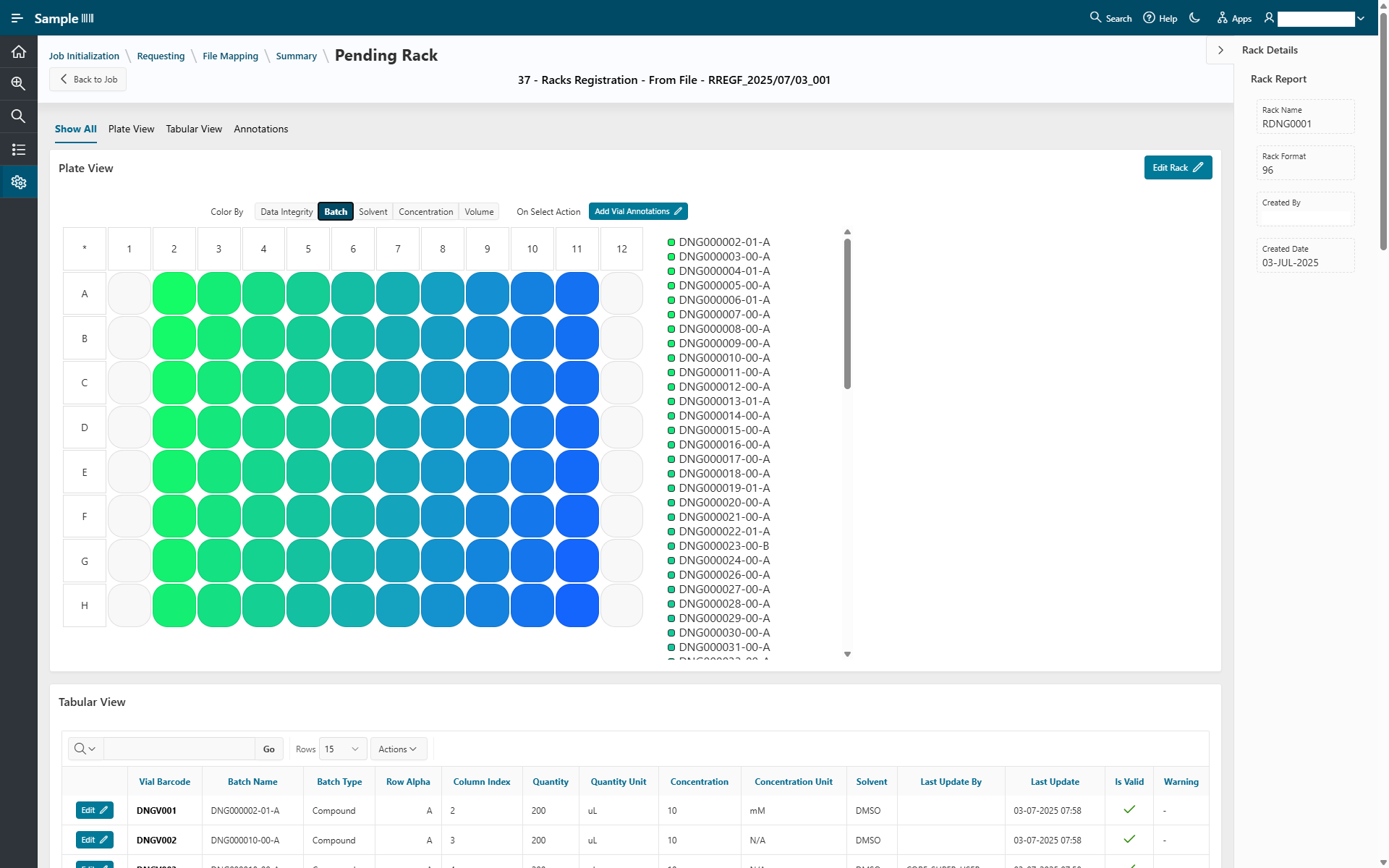
For Racks: Click on rack RDNG0001 to view its details. The detail page shows the rack content and allows you to:
- Visualize the rack content from the plate viewer and the tabular view
- Edit the rack information by clicking on the
Edit Rackbutton - Edit the sample information by clicking the
Editbutton on the tabular view - Add/edit the vial annotations from the plate viewer for a selection of vials or for all vials from the annotation report
To return to the job from any detail page, click the Back to job button.
Warning
The annotation values of the controlled vocabulary should contain the full path (e.g., assay 1 / assay 11).
All warnings on annotations are listed in this documentation.