Tutorial - Plate Creation From Plate Cherry-Picking
Introduction
In this tutorial, you will transfer four batches into a 96-well plate, with two copies per batch. The created plate will have a volume of 25 µL at 10 mM.
Prerequisites
Required permissions and setup
Sample Processing role is required to access this workflow.
Required system configuration:
- Plate Type:
Greiner PP96V - Filling Layout:
MIN(1) - MAX(12) (column filling)
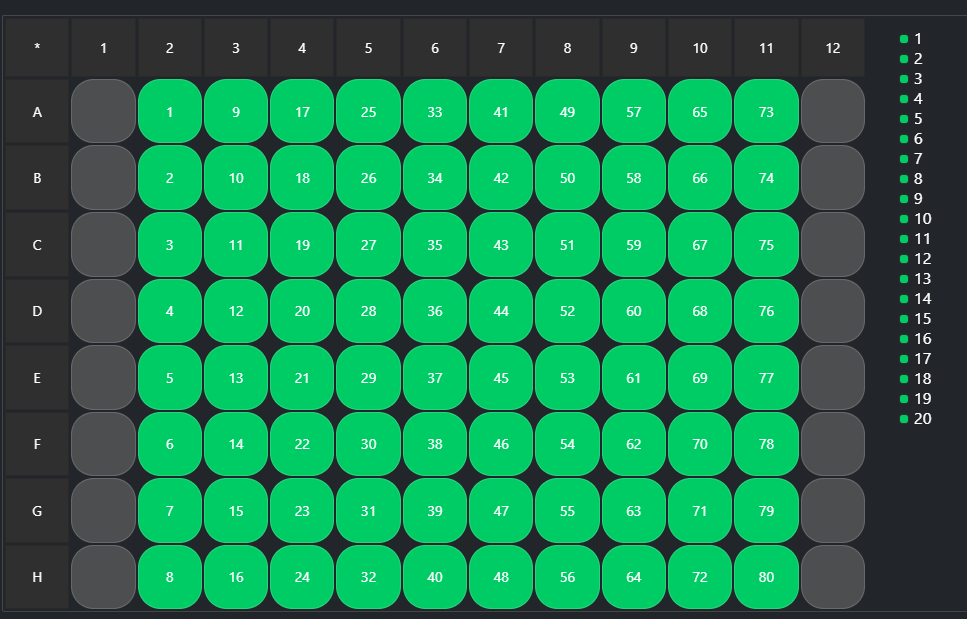
- Container Usage:
Inventory - Worklist Generator and Parser:
Standard (Well) (;)
These should exist by default in the Sample application.
Items
Containers and locations created from Discngine Sample’s automation will be used:
- Three example plates 96 (100 µL – 10 mM)
- One empty example plate
Parislocation (Automation is running during installation ifexample_datasetis set to true in the configuration file.)
Workflow
Job Initialization
Create a new job and select the Plate Creation from Plate Cherry-Picking workflow.
Source Requesting
-
Choose the source batches to use for this job:
- Request batches from Text
- Select Batch Type = Compound
- Copy/paste the batch names in the text area: AUTO_0001:AUTO_0200:AUTO_0133:AUTO_0159
Batches can be separated by colons or line breaks. - Click
Add IDsto confirm. Batches will be listed in the Added Requests and will be valid. -
Click
Next.
Task Requesting
Choose the tasks to apply:
- Select From Selection
- Select the first batch AUTO_0001
- Number of Copy = 2
- Target Volume = 25 uL
- Dilution = None
- Offset Volume = 0 %
- Offset Solvent = 0 %
- Click
Add Task. Repeat for each batch. Eight tasks are defined (two for each copy). - Click
Next.
Sourcing
The Sourcing page will confirm that the requested operations are compatible with the source batches (see the Sourced column).
- Click the
Nextbutton.
Target Requesting
The Target Requesting step is where you define the plates you will use as output for your job. Choose the type of plate to use, the way they will be filled, and their usage. The eight expected moves that appear correspond to the tasks added in the previous step.
- Select Greiner PP96V plates as Target Plate Type
- Keep the filling order to By Source.
- Click "Add Plate" and choose to Add Existing Plate from Search
- Choose to use the layout MIN(1) – MAX(12) (column filling) and Inventory as the Target Usage. Select the plate PEMPTY001 and click "Add" from search.
The plate has enough empty wells to map all eight moves.
- Click the
Nextbutton.
Processing
Requested tasks are translated into a worklist that you can feed to your robotic equipment.
- Select the Standard (Well) (;) equipment and click
Generate worklist.
A worklist file appears in the Worklist Generator area. It contains the requested tasks to execute. The Worklist Parser area expects a file containing the information about the tasks that were actually completed. By default, the generated file is set in the Worklist Parser. For this tutorial, we assume that every task was completed successfully, so we’ll keep this default file.
- Click the
Copy Worklistbutton. - Click the
Nextbutton to propagate those changes in the system. (The tasks are processed in the Sample application.)
Storing
The Storing step allows you to assign a location to the items involved in the job.
- Click the
Assign Location to Selectedbutton - Select Paris and click the
Selectbutton to confirm your choice - Click the
Nextbutton to continue to the input plates. (Here, we won’t change the input plates location.) - Click the
Nextbutton (You can increment the Thawing Cycle count of the input plates if necessary.)
Pipe & Close
The Pipe & Close step provides a summary page where you can review the job and optionally pipe it to another workflow. You can also pipe this job to another one, allowing you to immediately start a new job using the output or the input plates from this one.
For this tutorial, click the Close & Quit button to finish the job.