Select a hit
A hit is a sample that has been selected as a potential candidate for further investigation. In the Sample Analysis step, you can select hits manually or automatically (from the run design).
This page describes how to select a hit manually.
Select a Hit
- Select the sample you want to mark as a hit in the visualization panel.
- You can select on any visualization or table available.
- The rows will be highlighted (usually in green) and considered as selected.
- Click the
Add hitsbutton at the top left of the page.
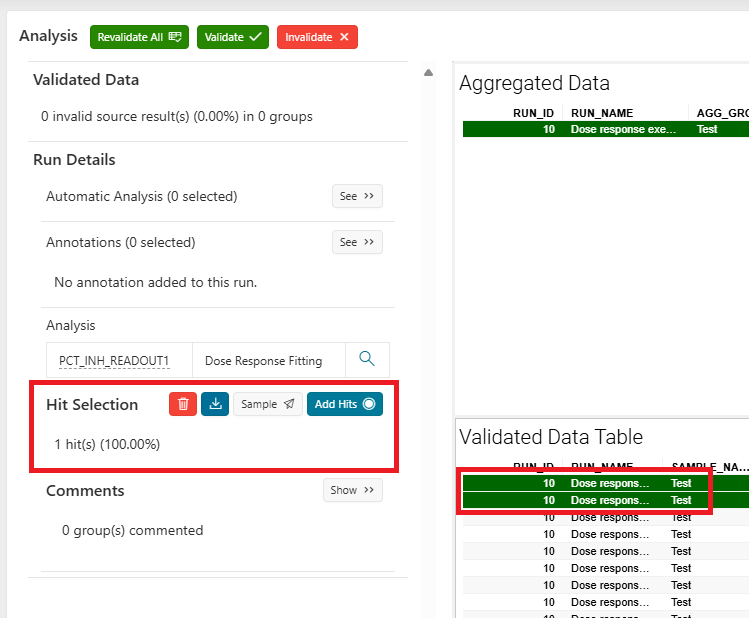
- Once added, the number of hits will be displayed.
Send Hits to Sample
Info
To send the hits to Sample, the samples must exist in this application.
To send a hit, click the Sample button in the left panel, in the Hit selection region.
- A modal page will be displayed, allowing you to add the hits to an existing list or to a new list, either public or private.
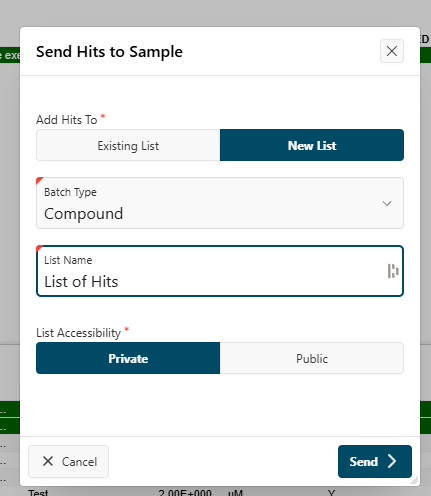
- A success message will be displayed if the hits have been sent successfully.
Export Hits
To export the hits, click the Download button in the left panel, in the Hit selection region. A text file containing the hits will be downloaded.
Delete Hits
You can delete all selected hits using the Trash icon in the Hit selection region in the left panel.