Tutorial - Plate Solubilization
Introduction
In this tutorial, you will add solvent to solid batches in a plate to convert them to liquid state.
Prerequisites
Required permissions and setup
Sample Processing role is required to access this workflow.
Required system configuration:
- Container Types:
Greiner PP384V - Container Usage:
Inventory - Solvent:
DMSO - Worklist Generator and Parser:
Standard (Well) (;) - The dilution layout named
Dilution Factor 2 - 96must exist in the system.
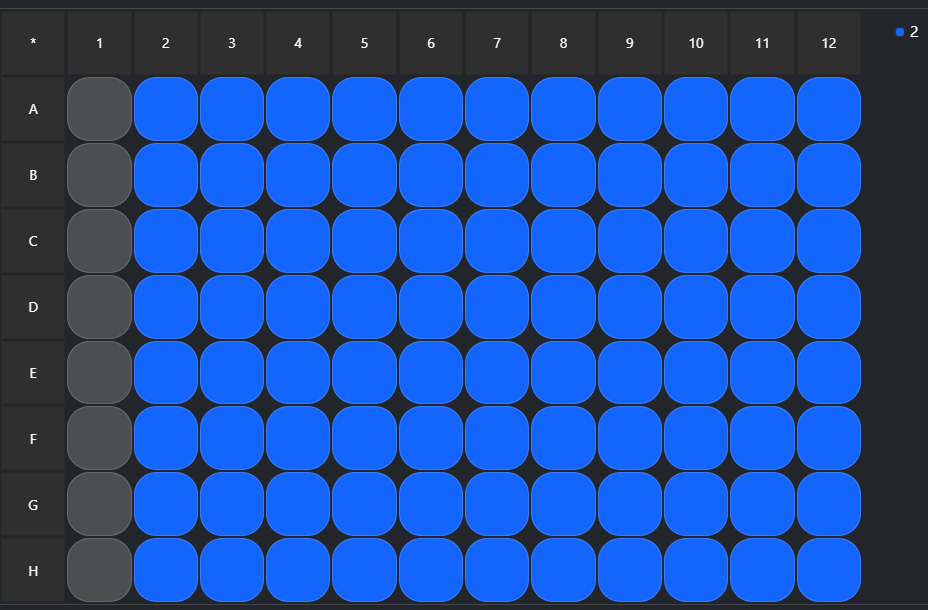
These should exist by default in the Sample application.
Items
This tutorial requires specific plates as input. To create the required items, use the attached file PS_Tutorial_Plates_Registration to process a Plates Registration from File workflow and a Container Reception workflow using external barcodes.
For more information about registration and reception, see the Plates Registration from File tutorial.
Workflow
Job Initialization
Create a new job and select the Plate Solubilization workflow.
Requesting
- Select Greiner PP384V as the Target Plate Type
- Specify Request from Text
- Copy/paste the plate barcodes in the text area: PS_DRY_PLATE_01:PS_DRY_PLATE_02
- Click
Add IDsto confirm. The plates are listed in the added requests.
Info
The two plates used as request items come from the registration of the file "PS_Tutorial_Plates_Registration.txt". The batches in those plates doesn’t have a Molecular Weight. The message displayed next to them is only a warning about limitations (unable to request a dilution based on a molar concentration) but does not prevent you from using those plates in the workflow. Liquid plates cannot be used in this workflow.
- Click
Next
Task Requesting
- Source Selection Mode = All Sources
- Dilution Mode = Concentration
- Target Concentration = 100 mg/mL
- Solvent = DMSO
- Click
Add Task - Click
Next
Sourcing
The Sourcing page is used to check that the requested operations are compatible with the source plates (information in the "Sourced" column) and available.
- Click
Next
Processing
For processing, requested tasks are translated into a worklist that you can feed to your robotic equipment.
- Select the Standard (Well) (;) equipment
- Set File Order to By Request and Process Order to By Column
- Click
Generate worklist
A worklist file appears in the Worklist Generator area. It contains the requested tasks to execute. The Worklist Parser area expects a file containing the information about the tasks that were actually completed. By default, the generated file is set in the Worklist Parser. For this tutorial, we assume that every task was completed successfully, so we’ll keep this default file.
- Click
Copy Worklist - Click
Nextto propagate those changes in the system. The tasks are processed in the Sample application.
Storing
For this workflow, there is no output container (transformations were directly applied to the source container).
- Do not change the location of the plates used; click
Next. - A message box asks if you want to increment the Thawing Cycle of the plates. Click
Noto continue.
Pipe & Close
The Pipe & Close step provides a summary page where you can review the job and optionally pipe it to another workflow.
You can also pipe this job to another one, allowing you to immediately start a new job using the output or the input plates from this one.
For this tutorial, click Close & Quit to finish the job.