Vocabularies Items Details
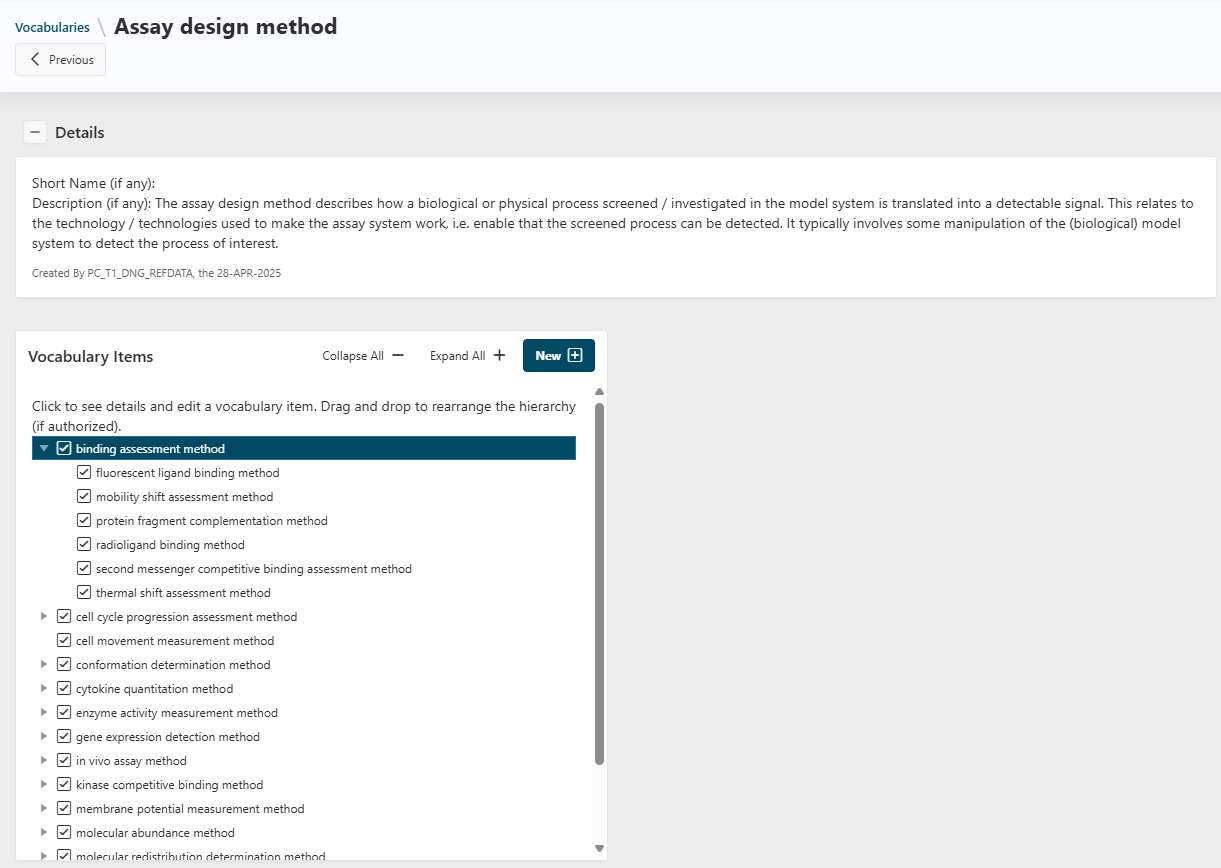
From the main page, when you click on the name of a vocabulary, you are redirected to a page where you can create new sub-vocabulary items, rearrange the hierarchy, or edit their attributes.
The details panel at the top displays the short name and description of the vocabulary. Click the + icon to expand it.
Vocabulary Items
The panel on the left shows the hierarchy of all sub-vocabulary items.
- Expand or collapse the hierarchy using the
Collapse AllandExpand Allbuttons at the top of the region. - Expand or collapse a specific node by clicking the small triangle to the left of it.
- Click the name of an item to view and update its details in the right panel.
Create a New Item
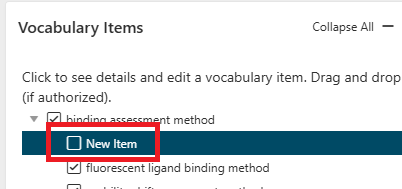
To create a new item, click the New button in the left panel. The right panel will display a form to fill in the details of the new item. You can enter the following information:
- Name
- Short name (optional, for display purposes)
- Parent item
- Description (optional, highly recommended)
- Public URI
- Whether the vocabulary item is selectable in the hierarchy (see below)
- Any other vocabulary item properties (see below)
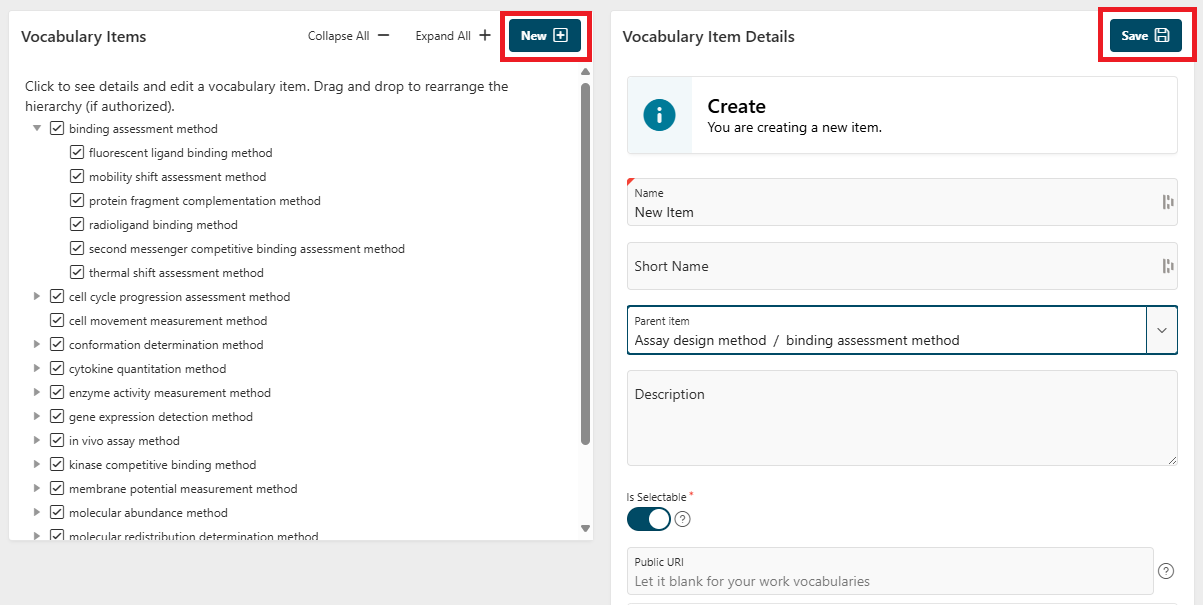
Click the Save button to create the item. The item will appear in the hierarchy on the left panel, under the parent item you selected.
Edit an existing item
Click an existing item to open the editing panel on the right. You can update the item and its properties. Click the Save button to apply your changes.
Is selectable?
When you create or edit an item, you can choose if it is selectable. If it is not selectable, it will not be displayed in downstream applications that use this vocabulary.
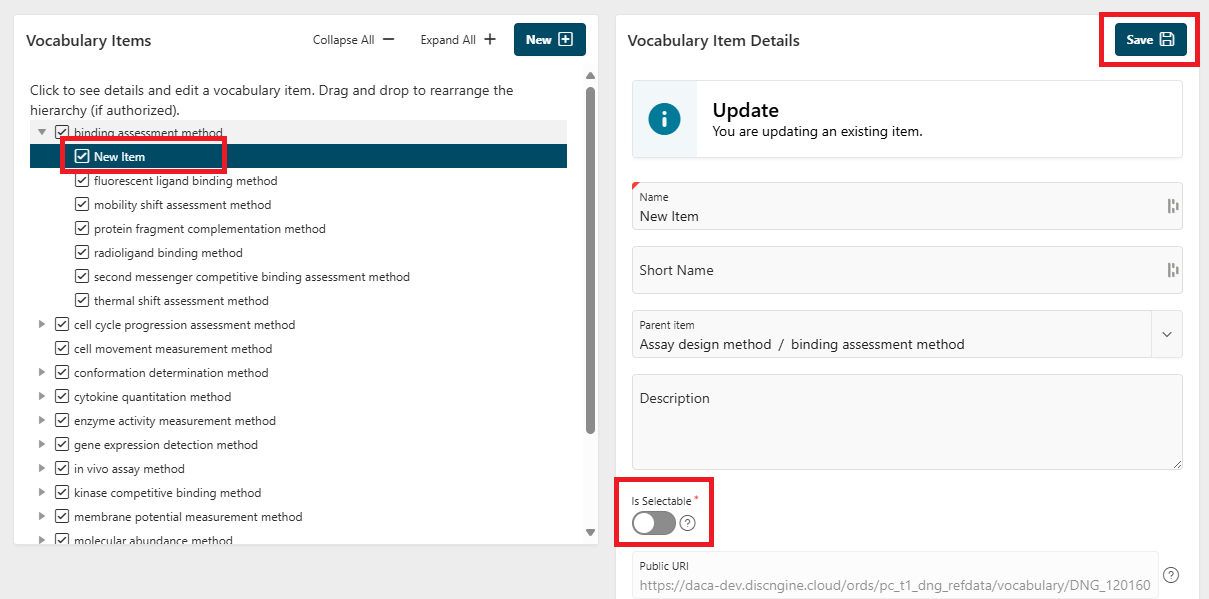
In that case, the checkbox next to the item name will be unchecked.
Property Types and vocabulary item properties
Vocabulary items can have properties, which are defined by property types. These properties can be used to store additional information about the vocabulary item.
Add a new property type
The types of properties a vocabulary item can have are defined on the Property Type page, accessible from the left navigation panel.
Use the Add Row and Edit buttons at the top of the page to create a new property type or edit an existing one. The following information must be provided:
- Name
- Code (must be unique and without spaces)
Info
The Synonym property type is pre-installed with the application, but you can add any other property type as needed.
You can also delete a property type by clicking the hamburger menu on the right side of the property type row and selecting Delete.
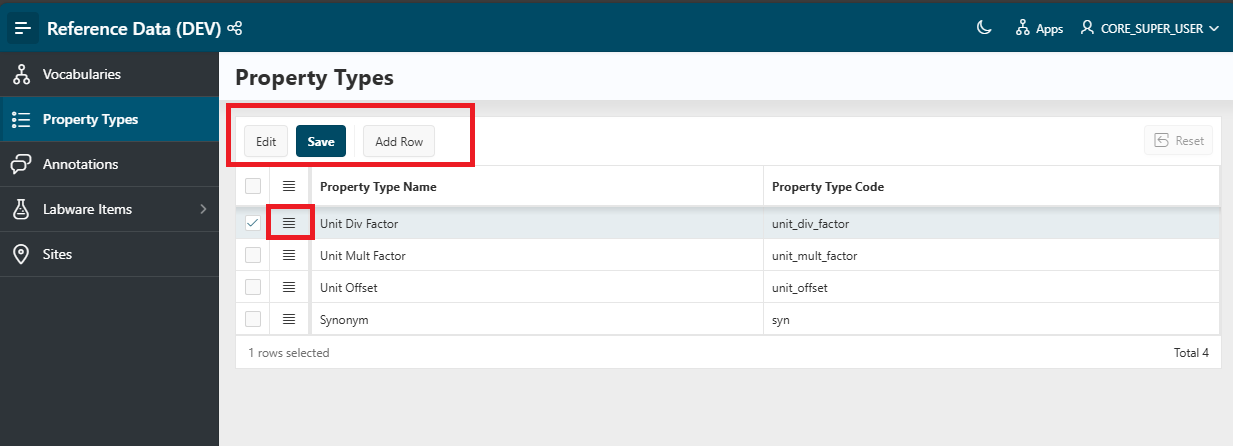
Click Save to save your changes.
Add or edit a vocabulary item property
Once you have defined the property types, you can add or edit properties of a vocabulary item.
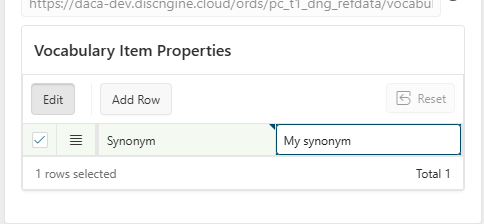
When adding or editing a vocabulary item, you can add, edit, and delete linked properties at the same time.
- Use the
Vocabulary Item Propertiesregion at the bottom of the right panel. - Use the
Add RowandEditbuttons to create a new property or edit an existing one. - Use the hamburger menu on the right side of the property row to delete it.
- Click
Saveto save your changes.
To add a new property, click the Add Property button.