Locations
This category allows you to create and manage locations, location types, and location masks within the application.
Locations
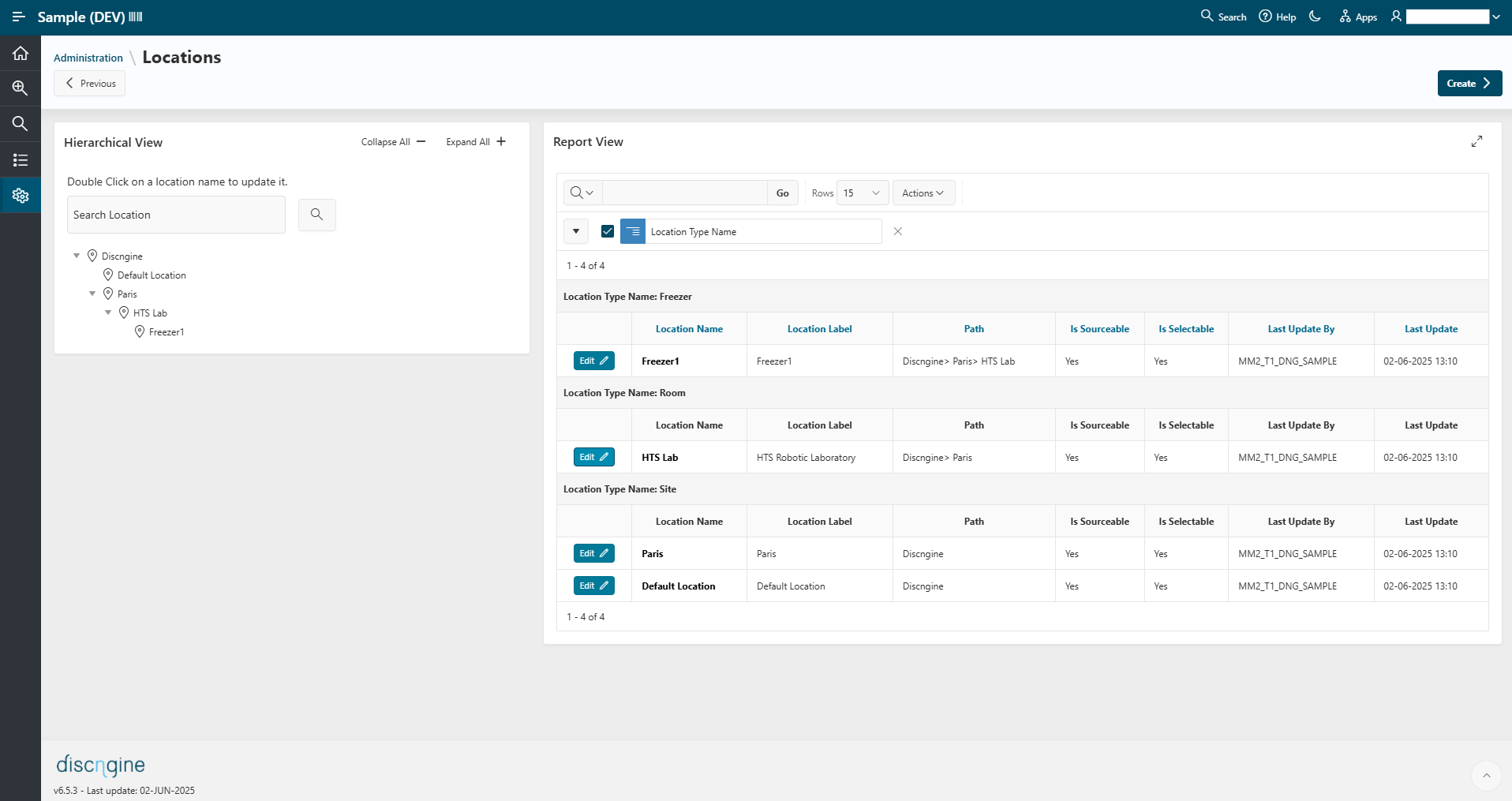
Manage all physical or logical places where containers and racks can be stored (e.g., Cold Room, HTS lab).
There are two views available to explore locations:
- Hierarchical view: Visualize the structure and nesting of locations (e.g., racks inside shelves, shelves inside freezers)
- Report view: Sorted by container type, providing detailed information for each location
To create a location, click the Create button and fill in the required fields:
- Location Name – Unique identifier for the location
- Location Type – Category of the location (e.g., freezer, shelf)
- Parent Location – Optional; defines hierarchical structure (e.g., shelf inside a freezer)
- Is Sourcable – If checked, the location is available in Sample workflows during the Sourcing step
- Is Selectable – If checked, the location can be selected when storing racks and containers
Edit an existing location by clicking the Edit button. Locations can only be deleted if they are not used anywhere in the application; otherwise, they must remain in the system.
Location Types
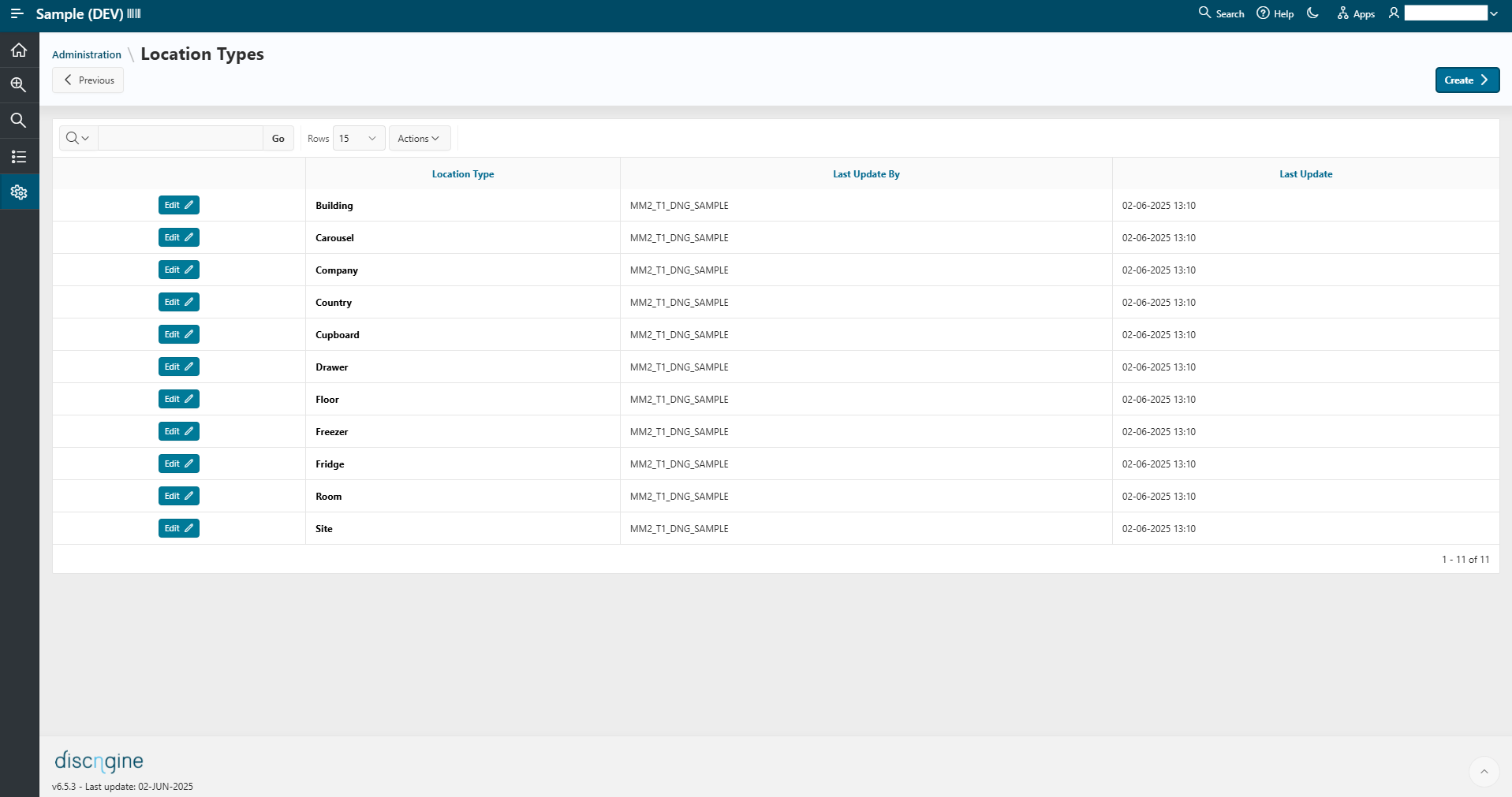
Dedicated page to manage the different categories of locations (e.g., Freezer, Shelf, Room).
You can create a new location type by clicking on Create, and filling in the required fields:
- Name – Name of the location type
- Parent Location Type – Select the types of locations in which this type can be included (e.g., shelf inside a freezer)
You can also edit existing location types using the Edit button.
Location Masks
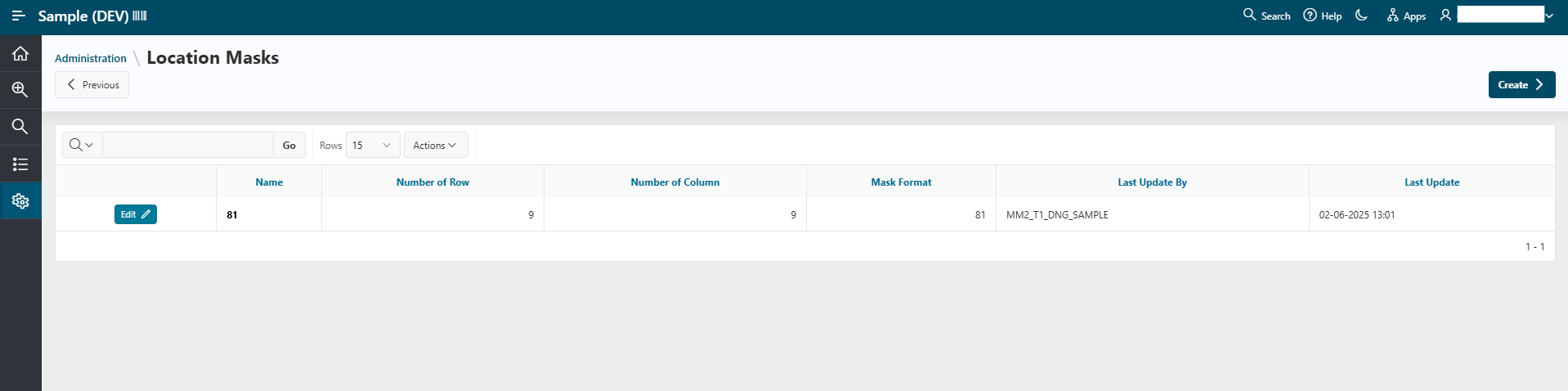
This page allows you to manage the layout (or format) of locations, such as how positions are arranged within a freezer or shelf.
To create a location mask, click the Create button and fill in the following required fields:
- Name – Identifier for the layout (e.g., Freezer 2x3 layout)
- Number of Rows / Number of Columns – Defines the physical grid of the location
- Associated Location Type – Select the location types to which this mask can be applied
Location masks can only be deleted if they are not used by any existing location.