Home page and navigation
This documentation explains how to connect, disconnect, and navigate within our application.
Accessing the platform
The link to the platform will be provided by an administrator. From this link, the platform is directly accessible using the credentials defined by your company (Single Sign-On). In most cases, the connection to the platform will be automatic, except if your company has enabled multi-factor authentication.
If you have trouble connecting, please refer to the troubleshooting section.
Home page
Once connected, you will have access to the home page. From this page, you can access all the applications by clicking on their names. It is also possible to see more applications if you have been provided with custom applications.
Navigation
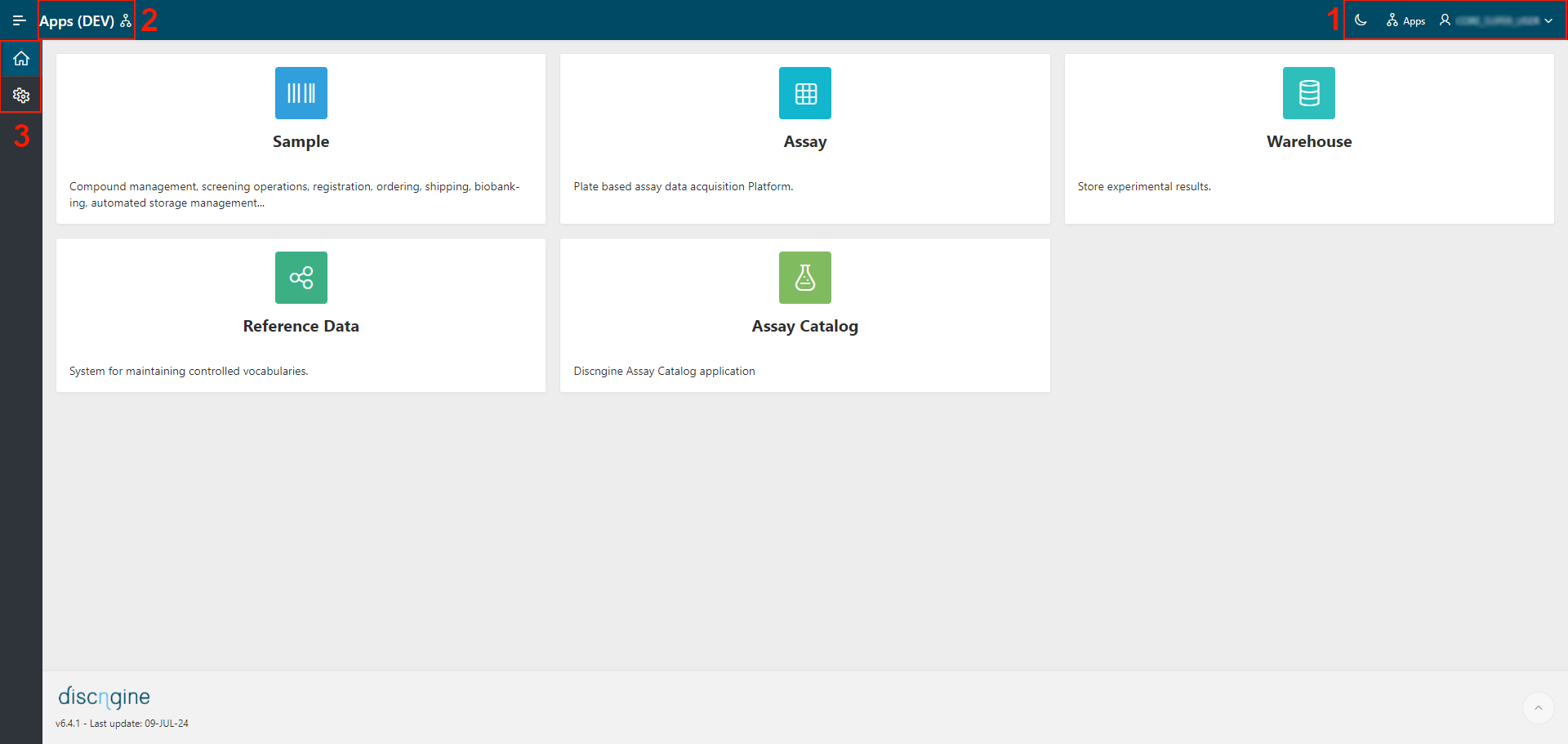
Navigation is similar for every page of every application. It can be divided into three parts (see image below):
- The application header
- The application name
- The navigation bar
Application header
In this header, at the top right of the page, you will be able to do the following actions:
- Change the theme of the application (light/dark) using the moon/sun icon.
- Go back to the home page of the platform by using the
Appsbutton. - Log out of the application by clicking on your username >
Logout.
Application name
The name of the application you are in is written at the top left of every page. By clicking on it, you will be redirected to the home page of this application.
Left navigation bar
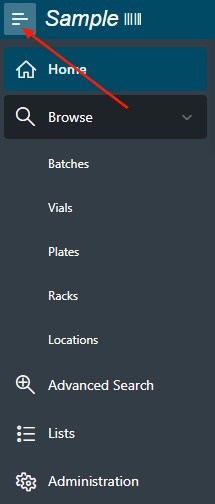
This bar contains useful links to navigate through the application you are currently in. Usually, the first link is the home page, and the last is the administration panel (depending on your permissions). You can click on the menu at the top left of the page to open the menu.