Reference Analysis
The reference analysis step is used to analyze the reference wells of your plates, check their quality, invalidate, and annotate them. This step is available only if at least one reference well is defined in the plate mapping step.
Reference Analysis Settings
On the settings page, you define one or more aggregations and link analyses (calculations) to analyze your references.
Aggregations determine how data points are grouped for analysis. For example:
- Grouping all data points for a sample across tested doses to calculate an IC50
- Combining all replicates of the same measurement to compute statistics
Create an Aggregation
To create an aggregation:
- Choose a name (default:
Aggregation#1) - Select parameters for the aggregation (e.g., plate index, plate name, experimental condition)
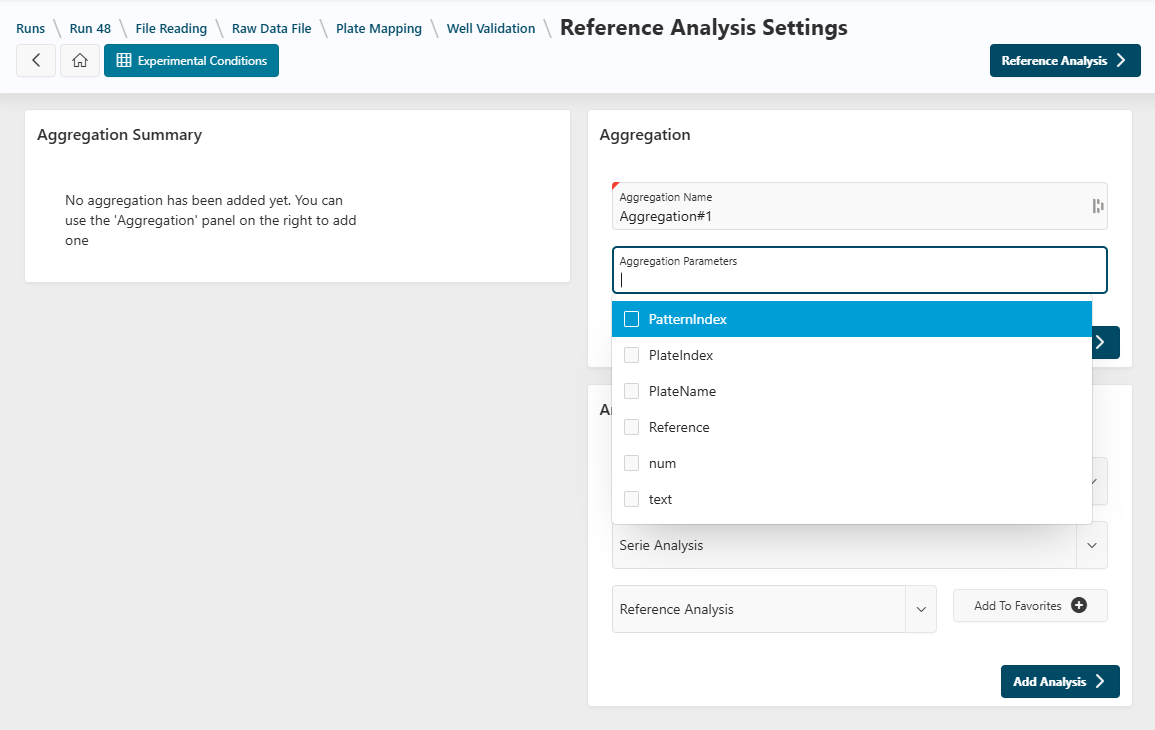
- Click
Add Aggregationto add it to the list
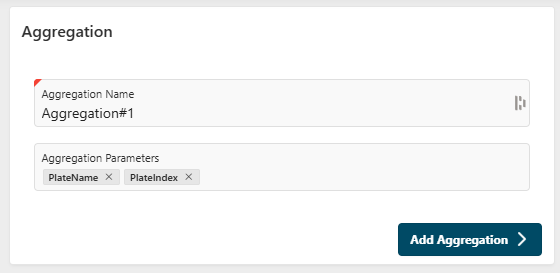
You can add more aggregations by clicking New Aggregation in the summary region. Aggregations are displayed in the summary region on the left.
Add an Analysis
In the analysis region, add a calculation to a specific aggregation:
- Select your aggregation from the list
- Choose one or more series to analyze
- Select the analysis to perform (e.g., Dose response, statistics)
- Enter the analysis parameters (e.g., dose response parameters)
- Click
Add Analysisto add it to the list
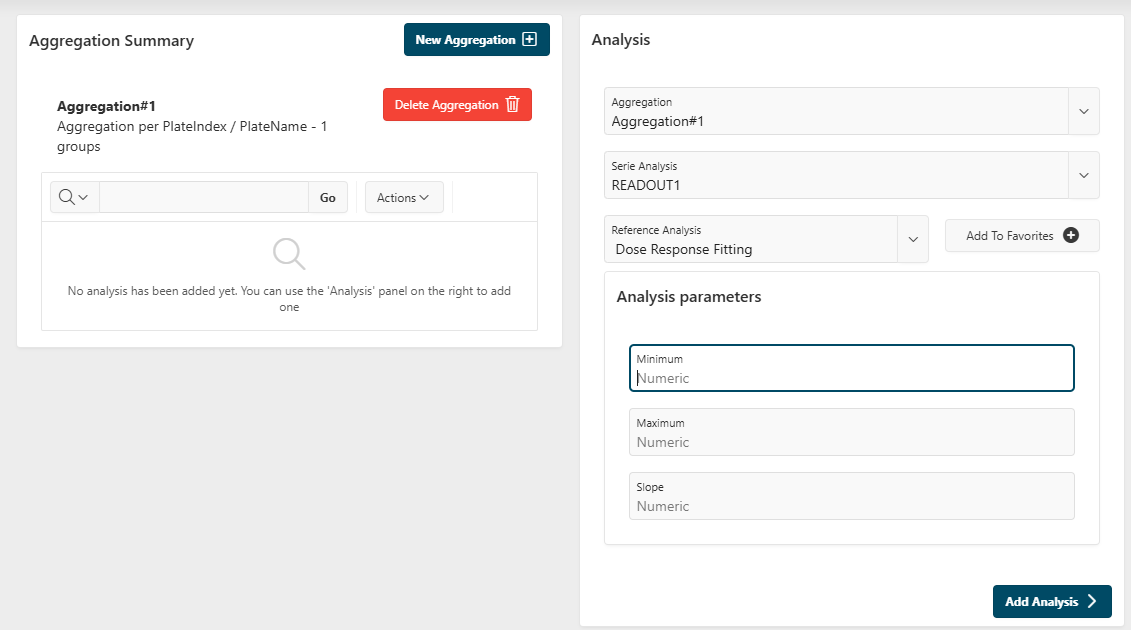
You can add more analyses using the same method. Analyses are displayed in the summary region on the left.
Summary
In the summary region, view the list of aggregations and analyses you have created.
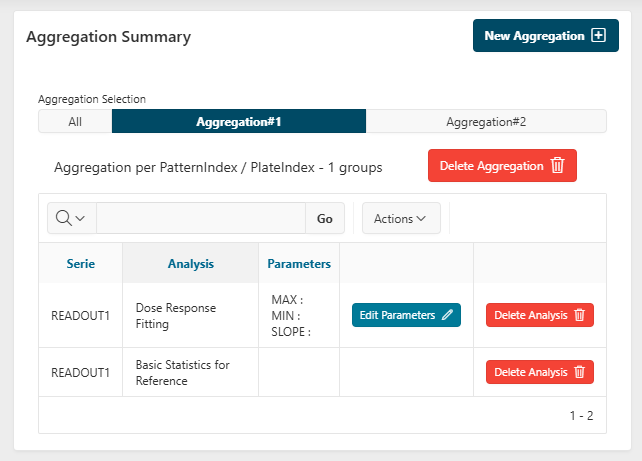
- Use the
Aggregation Selectiontab to display all aggregations or only the selected one - For a selected aggregation, you can:
- Delete the aggregation
- Delete an analysis from the aggregation
- Update analysis parameters
Validate the step by clicking the Reference Analysis button.
Reference Analysis
Add Calculation and Data
After calculations are complete, you are redirected to the reference analysis page.
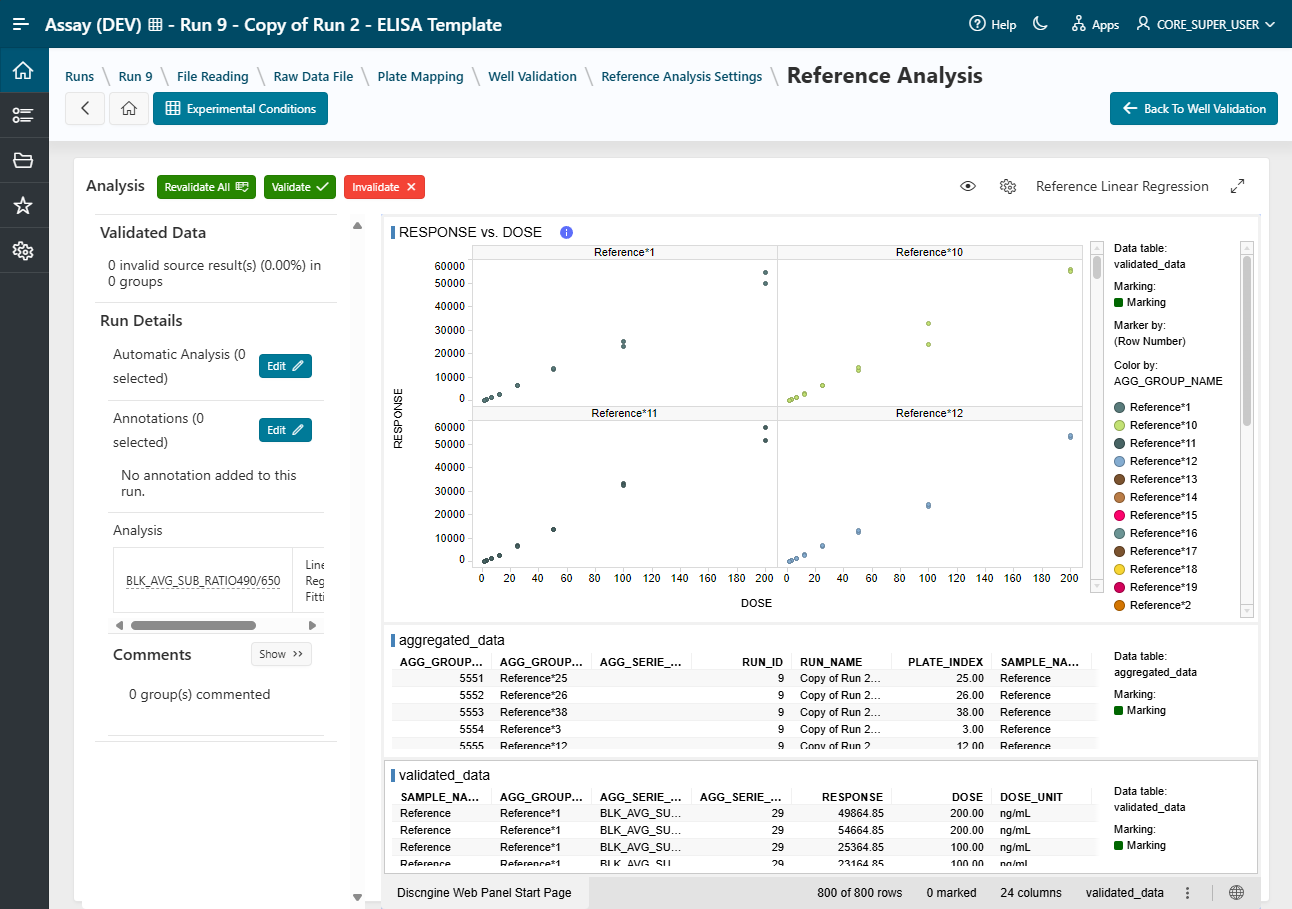
On this page, you can:
- Add automatic analysis to your run (e.g., automatic invalidations). See Automatic Analysis in Well Validation.
- Add an annotation to your run (to manually add information). See Annotations in Well Validation.
- Edit experimental conditions if needed (Experimental Conditions documentation).
Create Visualization Templates
As a designer, you can create and update Spotfire Templates for use in design and execution modes.
- See Administration documentation for creating/updating Spotfire templates.
You can also switch templates and use fullscreen mode (How To documentation).
Update Analysis for an Aggregated Group
You can manually update parameters used to calculate data for one or more aggregated groups. See How To Update Analysis Parameters.
Validate or Invalidate a Data Point
To manually invalidate data, select the data and click the Invalidate button in the top bar. The analysis will be recalculated (e.g., IC50). See How to Validate or Invalidate Data.
Add Annotation Values and Comments
You can add, edit, or delete annotation values or comments using the left panel. See How To Add Annotation Values or Comments.
Next Step
Next
 You can freely navigate between Well Validation and Reference Analysis pages using the
 Back to Well Validation button.
From the Well Validation page, continue the design of the run by going to the next step: Sample Mapping.